 NativTap
Before you begin
- Install Nativtap. Store setup starts by itself.
- Nativtap's submission check looks at the first 30 products in the Nativtap sales channel. At least 10 of them need an image before you can submit your app.
Check your sales channel
- From your Shopify admin, go to Nativtap > Settings > Sales channel.
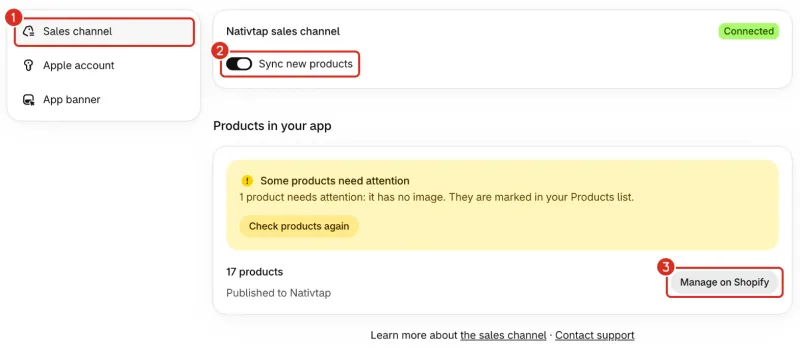
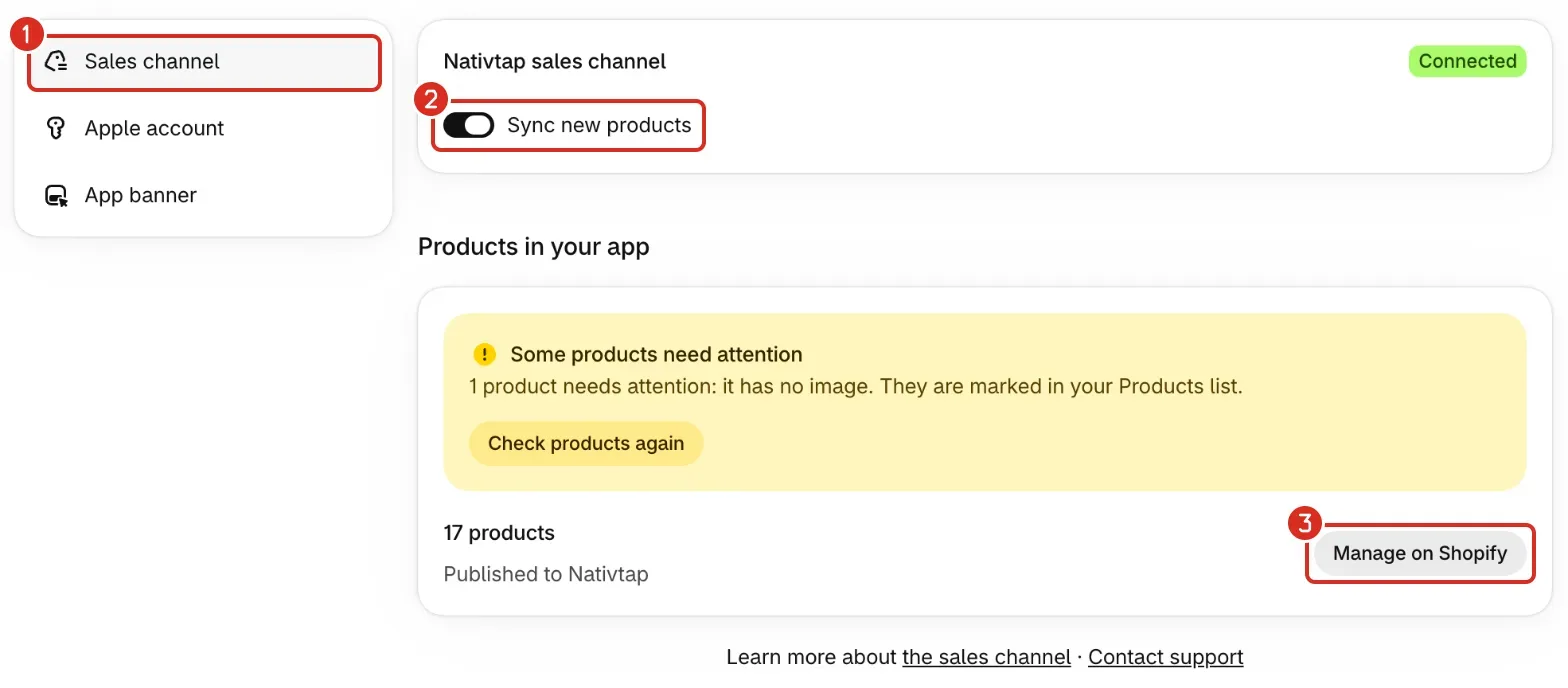
1: Sales channel. 2: Sync new products. 3: Manage on Shopify. - Check that Nativtap sales channel shows Connected. It shows Connecting while store setup runs. Until it is connected, the page can say "Product counts appear once your store is connected." instead of the count.
- Read the count under Products in your app. It tells you how many products are published to Nativtap.
Choose what syncs
Turn Sync new products on or off.
- On: products you create or activate in Shopify are added to your app shortly afterwards.
- Off: you add new products yourself.
Products you remove from the Nativtap sales channel stay removed, even when the switch is on. They come back only when you add them yourself or select Publish all products.
Add or remove products in bulk
- Select Manage on Shopify. Shopify opens your Products list, filtered to the Nativtap sales channel.
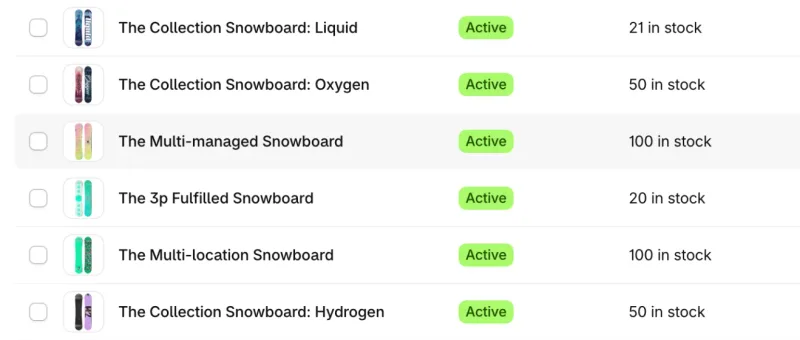
- Select the products, then use the bulk actions in Shopify to add them to or remove them from the Nativtap sales channel.
Publish every active product
Publishing all also adds back products you removed on purpose, so check the Nativtap sales channel in your Products list first.
- If a grey box says About N active products are not in the app, select Publish all products.
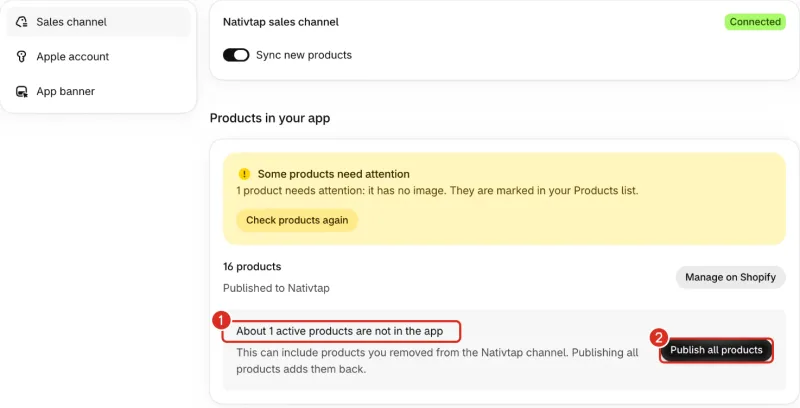
1: How many active products are not in the app. 2: Publish all products.
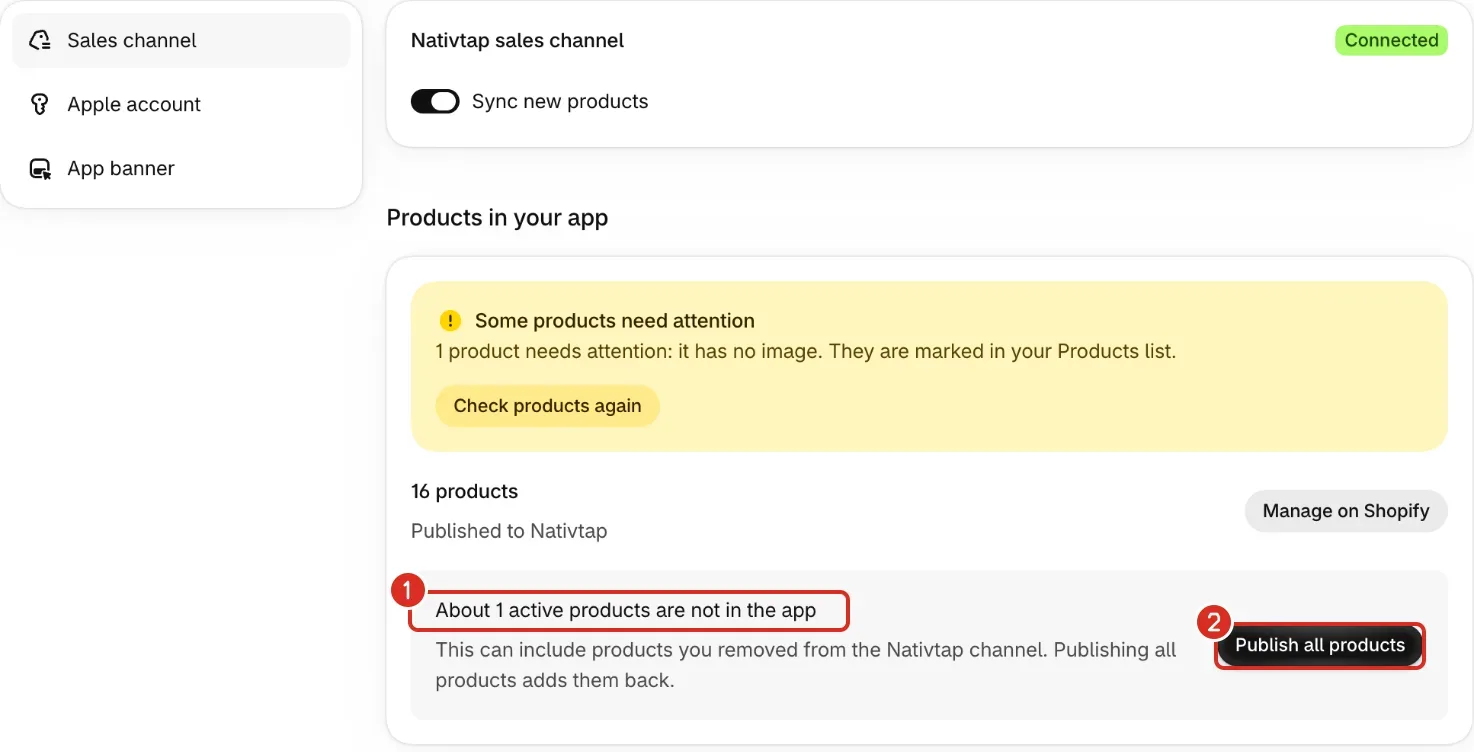
N is roughly the number of active products that are not in the channel. A banner says Adding your products to the app while it runs.
Fix products that need attention
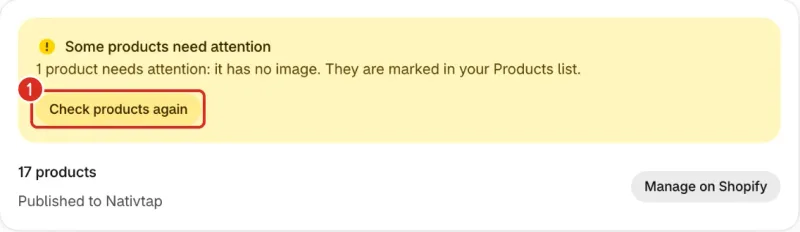
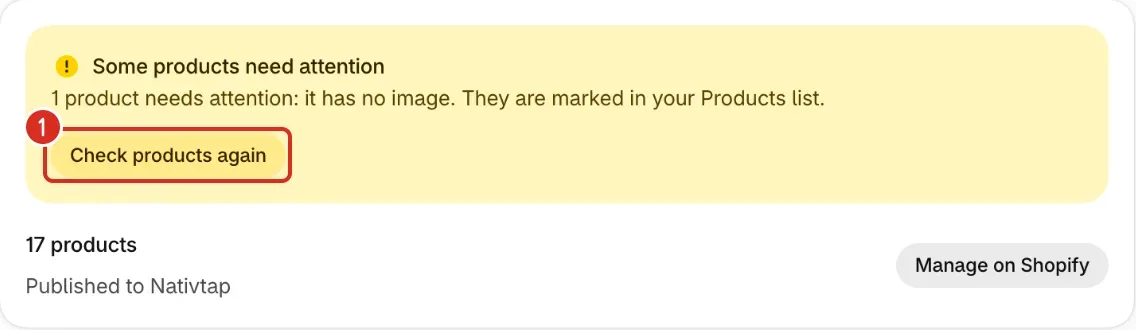
A product needs attention when it has no image. The banner says they are marked in your Products list. Nativtap sends Shopify this message for each one: "Add at least one product image so this product shows correctly in the app."
- In Shopify, add an image to each product that has none.
- Back on the Sales channel page, select Check products again.
Common problems
- The page says "We couldn't finish connecting your store."
- Select Retry setup. If it keeps failing, contact support and send the message exactly as the page shows it, a screenshot, and what you already tried.
- The page says "Adding your products to the app"
- This takes a few minutes for large catalogs. You can keep designing your app meanwhile.
- The Sync new products switch is greyed out
- The switch is locked until the store is connected. Wait until Nativtap sales channel shows Connected. If setup failed, select Retry setup instead.
- The page says "No products in your app yet"
- If your store has no active products, select Add product to create one in Shopify.
- Publish all products is greyed out
- The page tells you why: "Available once the current publish finishes." or "Available once store setup has finished." Try again when it's done.
- The Nativtap Home page says "Your app has no products"
- Add products to the Nativtap sales channel in Settings > Sales channel.
- The Nativtap Home page says "Your app can't load your products"
- Go to Settings > Sales channel and select Retry setup. Then publish your app design again.
- Before you submit, the check says "Add at least 10 products with images to the Nativtap sales channel."
- Add images to your products in Shopify. The check counts the first 30 products in the channel, so make sure at least 10 of those have an image.
Related
Something wrong or out of date on this page? Tell us by email.
Still stuck?
Send us the exact message you see, and what you already tried.