 NativTap
Before you begin
- Contact support is not in the editor. Close the editor first.
- We reply to your store's contact email in Shopify. If your store has none, your message still reaches us but has no reply address.
- Do not put customer names, emails or addresses in your message.
Send a message
- From your Shopify admin, go to Nativtap. The Home page opens.
- Select Contact support at the bottom of the page. The same link is at the bottom of most pages, and on banners that tell you to contact us.
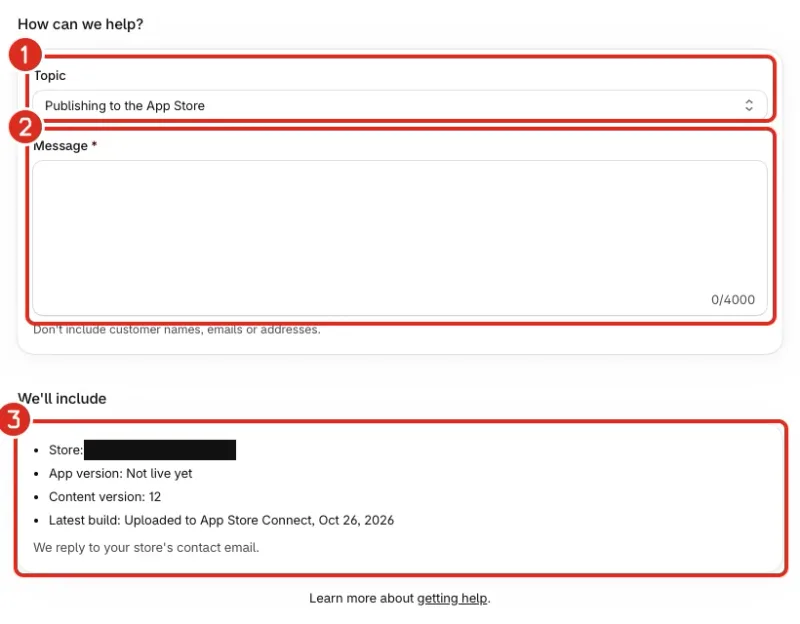
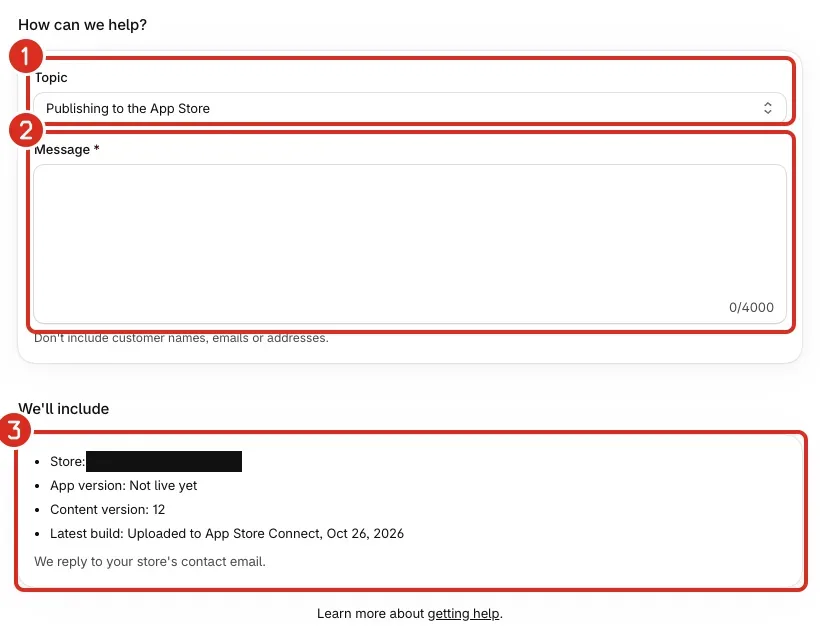
1: Topic. 2: Message. 3: What we include with your message. - Choose a Topic: Publishing to the App Store, Apple account and review, App design, Analytics and marketing, or Something else. The Contact support button on the Building and publishing are paused for your store banner opens the form on Something else.
- Write your Message, up to 4,000 characters. Use the list in the next section.
- Read We'll include. It shows your store domain, your app version, your content version and your latest build. Nothing about your shoppers is attached.
- Select Send message. A confirmation says Message sent.
Write a message we can act on
- The exact text of any alert or error, copied word for word.
- The page you were on and what you selected before it appeared.
- The date and time it happened, with your time zone.
- What you already tried, and what changed.
- A screenshot of the page. The form has no attachment field, so send screenshots by email to support@nativtap.com and name your store's .myshopify.com address.
Never send a private key file (.p8), a password or a sign-in code.
The message also carries the version of Nativtap and your store's contact email as the reply address.
Email us instead
- Write to support@nativtap.com.
- Put your store's .myshopify.com address and the details from the list above in the email.
Common problems
- We couldn't send your message
- Email us at support@nativtap.com and include the details listed under We'll include.
- You've sent 5 messages in the last hour.
- Each store can send 5 messages an hour, and a send that fails also counts. Try again later, or email support@nativtap.com.
- Tell us what you need help with
- The Message field is empty. Write your message, then select Send message.
- You sent a message and have no reply.
- Replies go to your store's contact email in Shopify. Check that inbox, including spam. If the address is wrong, update your store's contact email in your Shopify admin settings, then email support@nativtap.com with your store's .myshopify.com address.
Related
Something wrong or out of date on this page? Tell us by email.
Still stuck?
Send us the exact message you see, and what you already tried.