 NativTap
Before you begin
- Add a push notification key from your Apple account. Until you add one, the reminder can't be turned on (see the Connect your Apple account article in this Help center).
- A reminder goes only to a shopper who allowed notifications and built the cart in your app.
- A reminder goes only to phones that run your own app. A phone with only the Nativtap Preview app gets none.
- A shopper gets one reminder per cart, and at most one a day on the same device.
Turn on the reminder
- From your Shopify admin, go to Nativtap > Notifications, then select the Automations tab.
- On the Abandoned cart reminder card, select Set up.
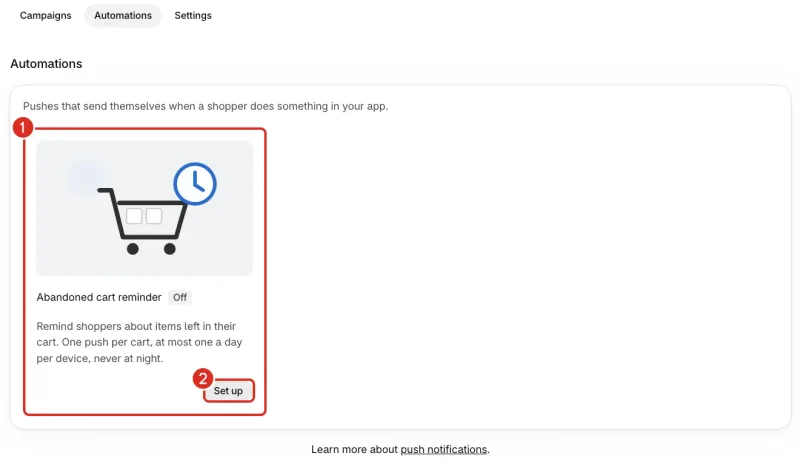
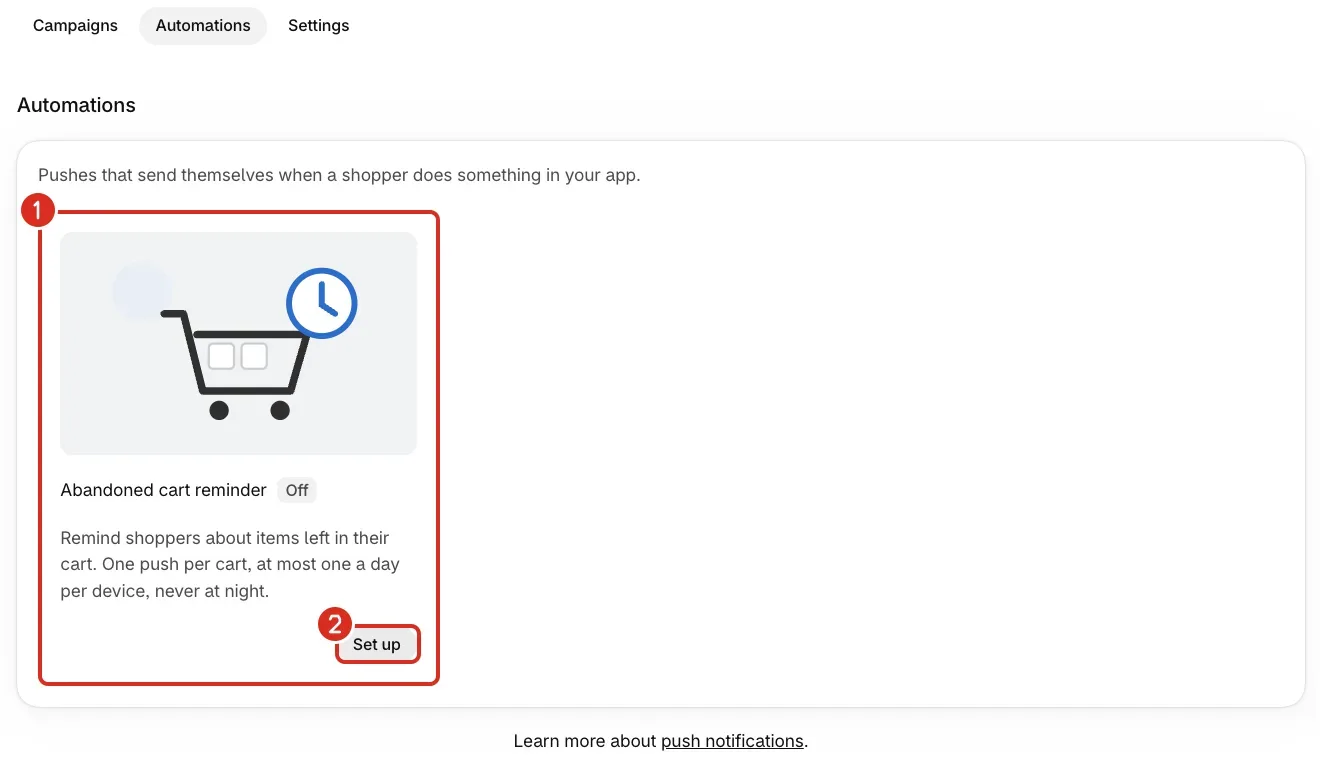
1: The Abandoned cart reminder card, currently Off. 2: Set up. - Turn on Send cart reminders.
Set the timing
- In Send after, choose 30 minutes, 1 hour, 4 hours or 24 hours. The wait is counted from the last change to the cart, so each change starts it again. New reminders start at 1 hour.
- Set Quiet hours start and Quiet hours end. They use the shopper's own time zone and start at 10:00 PM and 8:00 AM. Start and end must differ.
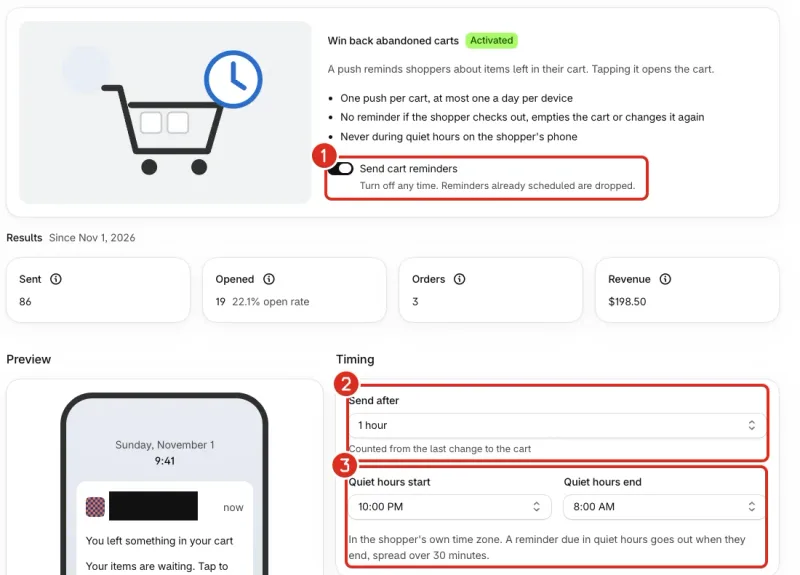
1: Send cart reminders. 2: Send after. 3: Quiet hours.
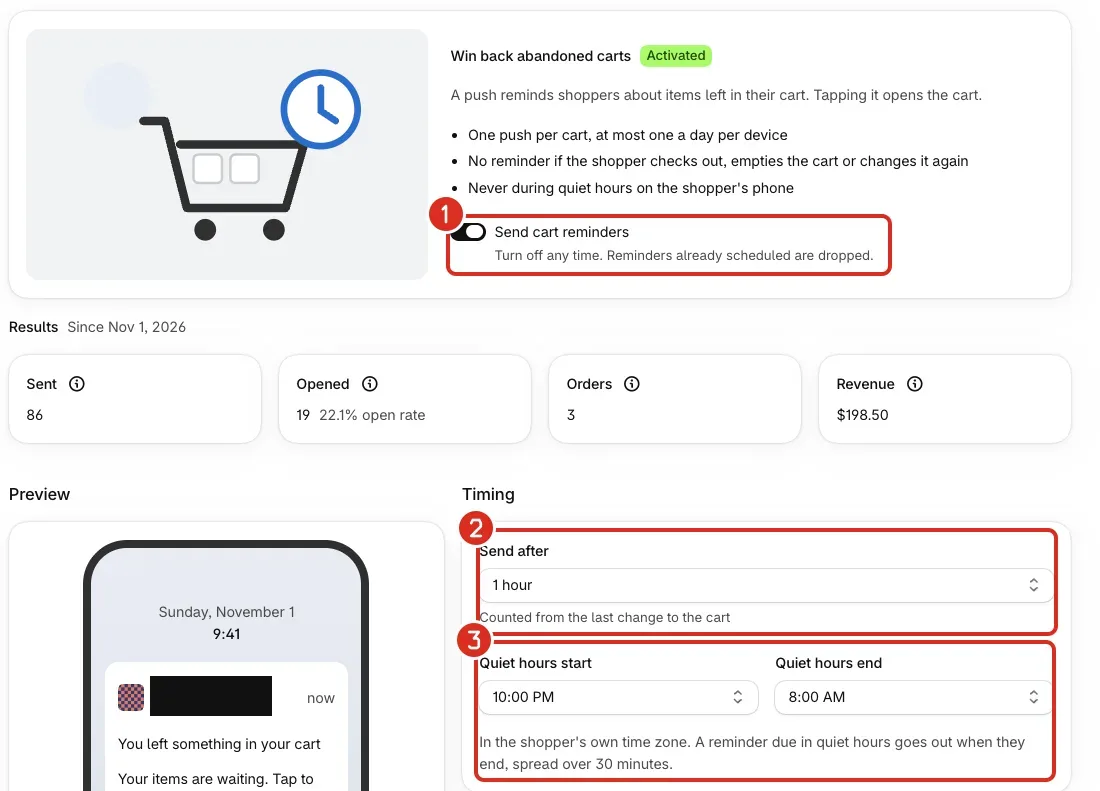
A reminder that falls due during quiet hours goes out when they end, spread over 30 minutes.
Write the reminder
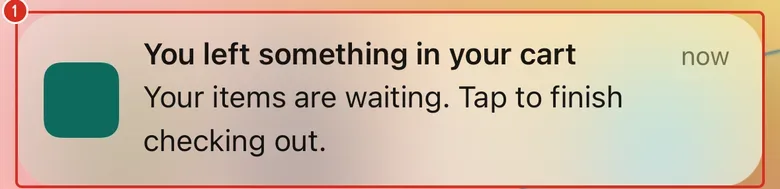
- Under Message, edit the Title. The starting text is "You left something in your cart". Nativtap recommends 50 characters and allows 100.
- Edit the Message. The starting text is "Your items are waiting. Tap to finish checking out." Nativtap recommends 120 characters and allows 500.
- Optional: add an Image. Use a JPEG, PNG or GIF under 1 MB. Nativtap crops it to 2:1 (1200 × 600 px).
- Save your changes.
- Check the reminder card on the Automations tab. It now shows Activated.
A shopper sees the reminder as a banner like this on their iPhone.
Read the results
- Go to Nativtap > Notifications, select the Automations tab, then select Edit reminder.
- Read Results under the reminder card. The numbers count from the date shown after Since. The Automations tab shows the same numbers under Cart reminder results.

1: How many reminders were opened. 2: Revenue from orders placed after a reminder.

| Card | What it shows |
|---|---|
| Sent | Reminders Apple accepted since you turned them on. |
| Opened | Reminders tapped, at any time after they arrived, with the open rate. |
| Orders | App orders within 24 hours of opening a reminder. |
| Revenue | Revenue of those orders, before refunds. |
Change or turn off the reminder
- On the Automations tab, select Edit reminder.
Change the reminder
- Change the timing or the words.
- Save your changes.
Turn off the reminder
- Turn off Send cart reminders.
- Save your changes. Reminders already scheduled are dropped.
Common problems
- Set up is greyed out, and the card says Available after you add a push key.
- Your app has no Apple push notification key yet. Go to Nativtap > Notifications and select Add push key in the banner Add a push notification key to send pushes. If the card says Available after you replace your push key, select Replace push key instead.
- Add a push notification key to turn on cart reminders
- Your app needs an Apple push notification key before it can send reminders. The Set up button and the Send cart reminders switch stay off until you add one. Select Add push key.
- Apple rejected your push key
- Pushes and cart reminders are paused. The key may have been revoked in your Apple Developer account. Create a new key and add it in Nativtap with Replace push key.
- Push notifications are paused for your store
- Nativtap paused pushes and cart reminders for your store. Contact support to find out why and turn them back on (see Contact support).
- Choose different start and end times
- Quiet hours start and end at the same time, so there is no quiet window. Choose two different times.
- Shorten the title or message
- Apple limits how much one push can carry. Shorten the title or the message.
- Couldn't save the cart reminder
- The banner under the heading gives the reason. If it says to try again in a moment, wait a moment and save again. If it keeps happening, contact support (see Contact support).
- A shopper didn't get a reminder
- No reminder is sent when the shopper checks out, empties the cart or has notifications off, or when you turn the reminder off. Each change to the cart restarts the wait. A device that got a reminder in the last day gets none, and a cart gets one reminder only. A phone with only the Nativtap Preview app gets none, because reminders go only to phones that run your own app. Apple drops a reminder the phone can't receive within 24 hours.
Related
Something wrong or out of date on this page? Tell us by email.
Still stuck?
Send us the exact message you see, and what you already tried.