 NativTap
Before you begin
- Only the Account Holder of your Apple Developer account can accept an Apple agreement.
- A new App Store Connect API key must be a Team key with the App Manager role. You create it in App Store Connect.
Find the alert
- From your Shopify admin, go to Nativtap. The Home page opens.
- Find the banner titled Your app needs attention at the top of the page.
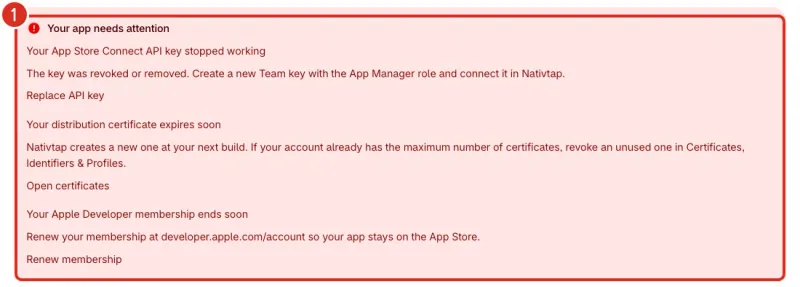
- Read the first line of each problem and find it in the tables below.
- Select the link under the line. It opens the page that fixes the problem.
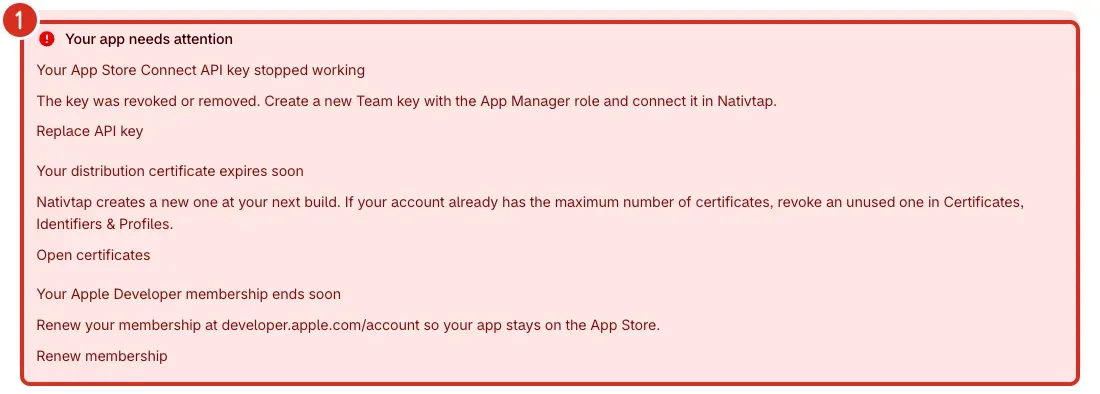
The banner is red when at least one line is red, and yellow when every line is a warning. The same banner appears on the App Store page. Apple account lines also appear on Settings > Apple account.
Home shows one banner at a time. A banner titled Building and publishing are paused for your store, or Store setup did not finish, can appear instead of this one. A banner that a new Nativtap version is available, or an invitation to review Nativtap, also comes before a yellow alert. If every alert is yellow and you see another banner on Home, or none, open the App Store page or the page named in the table: the yellow alert is shown there.
Fix an Apple account alert
| Alert (color) | What to do |
|---|---|
| Accept Apple's latest agreement (red) | Ask the Account Holder to accept the latest agreement in App Store Connect > Business. The link Open agreements goes there. |
| Your App Store Connect API key stopped working (red) | The key was revoked or removed. Create a new Team key with the App Manager role, then select Replace API key and connect it in Nativtap. |
| Your API key can't manage certificates (red) | Create a Team key with the App Manager role, then select Replace API key and connect it in Nativtap. |
| Your Apple Developer membership ends soon (yellow) | Renew your membership at developer.apple.com/account so your app stays on the App Store. The link Renew membership goes there. |
| Your Apple Developer membership has ended (red) | Renew your membership at developer.apple.com/account. Apple removes apps of expired memberships from the App Store. |
| Your distribution certificate expires soon (yellow) | Nativtap creates a new certificate at your next build. If your Apple account already has the maximum number of certificates, revoke an unused one in Certificates, Identifiers & Profiles. The link Open certificates goes there. |
| Your distribution certificate has expired (red) | Start a new build, and Nativtap creates a new certificate. If that fails, revoke an unused certificate in Certificates, Identifiers & Profiles. |
| Your push notification key stopped working (red) | Create a new APNs key in Certificates, Identifiers & Profiles. Then go to Settings > Apple account, find the Push notification key card and select Replace push key. Nativtap checks the new key with Apple and shows the result on that page. |
Four alerts stop Nativtap from starting a new build until you fix them: Accept Apple's latest agreement, Your App Store Connect API key stopped working, Your API key can't manage certificates, and Your Apple Developer membership has ended. The other alerts do not.
The two alerts that end in "soon" appear when 30 days or fewer remain. The membership alerts need the date in Membership renews on, and without it they never appear. On Settings > Apple account, turn on Remind me when expired to show that field, enter the date, then select Save.
Fix a store alert
| Alert (color) | What to do |
|---|---|
| Your app can't load your products (red) | Go to Settings > Sales channel and select Retry setup, then publish your app design again. The link View sales channel goes to that page. |
| Your app has no products (yellow) | Add products to the Nativtap sales channel in Settings > Sales channel. Select Manage on Shopify there to manage which products are published to Nativtap. |
| Your privacy policy link doesn't open (yellow) | Apple checks this link. Open it in a browser, then fix the page or change the Privacy policy URL in your App Store listing. The link Edit listing goes there. |
Read alerts in Updates and in email
Nativtap also writes each alert as a message in Updates, a button in the page header of Home and of the App Store page, and emails it to your store's contact email. Select Dismiss to clear a message from Updates.
The wording differs from the banner in three places:
- Messages for the first seven Apple account alerts add the line Until this is fixed, new builds of your app can't be published, and their button reads Open Apple account.
- The push key message is titled Apple rejected your push notification key. It says push notifications and cart reminders are paused, does not add that line, and its button reads Replace push key.
- The two sales channel messages say Settings > Publishing and their button reads View publishing. Both mean the Sales channel page.
These are the emails Nativtap sends. The subject is the title.
| Subject | What it tells you |
|---|---|
| Your Apple enrollment: [step] | Your Apple enrollment has stayed at one step for several days. The email has a tip and the button Update your progress. |
| Any of the first seven Apple account alert titles above | The alert, how to fix it, and the button Open Apple account. |
| Apple rejected your push notification key | Push notifications and cart reminders are paused. The button is Replace push key. |
| Any store alert title above | The alert and how to fix it. The button is View publishing or Edit listing. |
| [App name] [version]: [status] | Your release changed status in App Store review. The button is View release. |
| We couldn't update [App name] | Nativtap skipped the latest update to your app and gives the reason. The button is Fix it. |
| [App name] [version] is ready to submit | An update to your app is ready. The button is Submit for review. |
| A customer asked for their data | Lists order numbers and counts only. Nativtap keeps no names, emails or addresses. |
| Building and publishing are paused for your store | The email gives the reason and says your live app keeps working for your customers. The button is Contact support. |
| Building and publishing are back on | You can build, publish and send push notifications again. |
| Your app-only discounts are back | Shopify removed your discounts when Nativtap was uninstalled, and Nativtap created them again. Their usage counts start from 0. |
| Nativtap [version] is available | A new Nativtap version is ready. Home and the App Store page show it as a banner, not in Updates. The button is Create release. |
Turn off emails
- From your Shopify admin, go to Nativtap > App submission.
- Select Manage App Store, then select the Releases tab.
- Open Email notifications. If the card is folded, select its arrow.
- Turn off Email me about App Store updates.
- Select Save in the save bar.
The switch stops every email in the table above, not only App Store ones. Updates always appear in Nativtap. Each email also ends with a Turn off these emails link to the same card.
Ask for help
If the alert stays after the next daily check, contact support. Send the alert text word for word, a screenshot of the banner, the time you saw it, and what you already tried.
Common problems
- The alert is still there after you fixed the problem.
- Nativtap checks your Apple account and your store once a day. It also checks your Apple account before it starts a build. The alert goes away after a check finds the problem fixed.
- Until this is fixed, new builds of your app can't be published.
- Emails and updates about the first seven Apple account alerts end with this line. The push notification key message does not. Only four alerts stop a build: see the list under Fix an Apple account alert. For the others you can still start a build.
- Your products aren't in the app yet. Retry setup in Settings > Sales channel.
- Home shows this Store setup did not finish banner before the alert Your app can't load your products, because both come from the same problem. Go to Settings > Sales channel and select Retry setup.
- The update or email says "Settings > Publishing" or "View publishing".
- That is the Sales channel page. Go to Settings > Sales channel from the Nativtap menu.
- Apple rejected your push notification key.
- Settings > Apple account shows the same problem as Apple rejected this key, and Home shows it as Your push notification key stopped working. Replace the key as described in the Apple account table.
- You don't get the emails.
- Emails go to your store's contact email in Shopify. Check that address, including spam, and check that Email me about App Store updates is on. The same messages are always in Updates.
Related
Something wrong or out of date on this page? Tell us by email.
Still stuck?
Send us the exact message you see, and what you already tried.