 NativTap
Before you begin
- Your app name, icon and launch screen sit at the top of the same card. The article Set your app's name, icon and launch screen explains them.
- Screenshots have their own card on the same tab. The article Create your App Store screenshots explains them.
- The first time you open the tab, Nativtap starts the draft from your Shopify store. It fills in the links, the copyright line and the contact email when your store has them. Check each one.
- An asterisk marks a required field. You can't submit for review until every required field is filled in.
Fill in your listing text
- From your Shopify admin, go to Nativtap > App submission > Manage App Store.
- Select the App listing tab. A badge such as 1 to fix counts what is still missing on a tab.
- In the App Store listing card, check App name at the top. To change it, or the icon and launch screen, read Set your app's name, icon and launch screen.
- Enter a Subtitle of up to 30 characters. It is optional.
- Enter your Description, up to 4,000 characters. The count under each field shows how many characters you have used.
- Enter your Keywords, up to 100 characters in all. Separate them with commas and no spaces, for example
snowboard,boards,gear. - Enter Promotional text of up to 170 characters. It is optional.
- Select a Category: Shopping or Lifestyle.
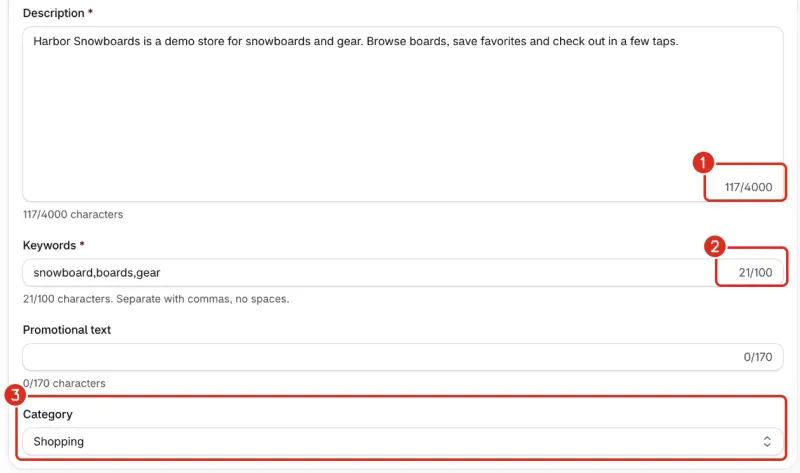
1: Description count. 2: Keywords count. 3: Category.
Your screenshots have their own Screenshots card on the same tab. Create your App Store screenshots explains them.
Add your links and copyright
- On the App listing tab, scroll to the Links card.
- Enter your Support URL. It is required.
- Enter your Privacy policy URL. It is required.
- Enter your Marketing URL if you have a page for your app. It is optional.
- Enter your Copyright line, for example
2026 Acme Inc.
Each address must be a full public https:// address, like https://example.com. After the listing saves, Nativtap checks that each address opens. A page that fails shows its reason under the field.
Answer the Content rights question
Apple asks every app about third-party content. That is anything you didn't make yourself, such as another brand's product photos.
- Below the Links card, find Content rights and read Does your app contain, show or access third-party content?
- Select No, or Yes, and I have the rights to use it.
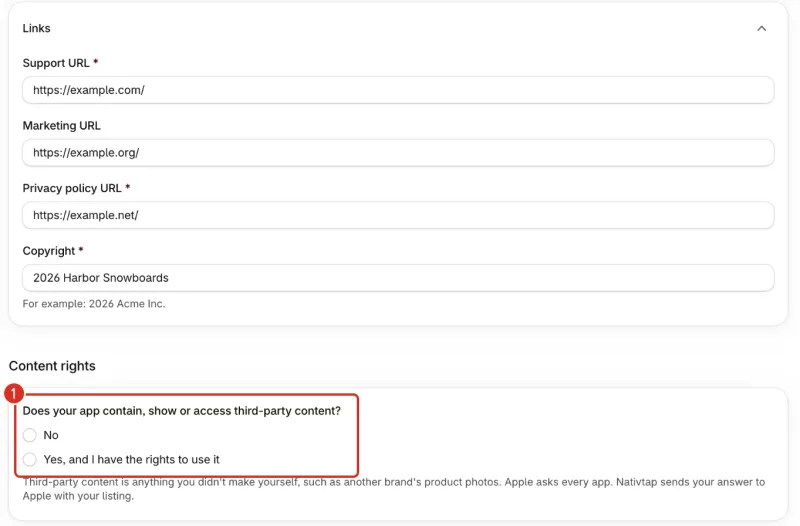
Nativtap doesn't pick an answer for you, and you can't submit for review until you answer. It sends your answer to Apple with your listing.
Add your App Review Information
- Select the App Review Information tab.
- Under Contact for Apple's review team, enter the First name and Last name of the person Apple should reach if they have questions while reviewing your app.
- Select the Country of the phone number. Each option shows the country name and its calling code, for example United States (+1).
- Enter the Phone number without the country code. If you paste a number that starts with
+, its country code wins over the country you chose.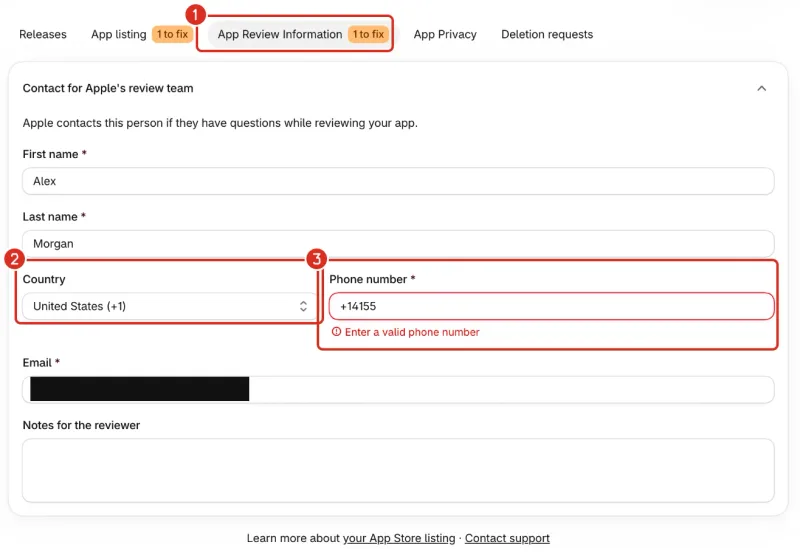
1: Badge on the tab. 2: Country. 3: Phone number and its error. - Enter an Email Apple can write to.
- Add Notes for the reviewer, up to 4,000 characters. They are optional.
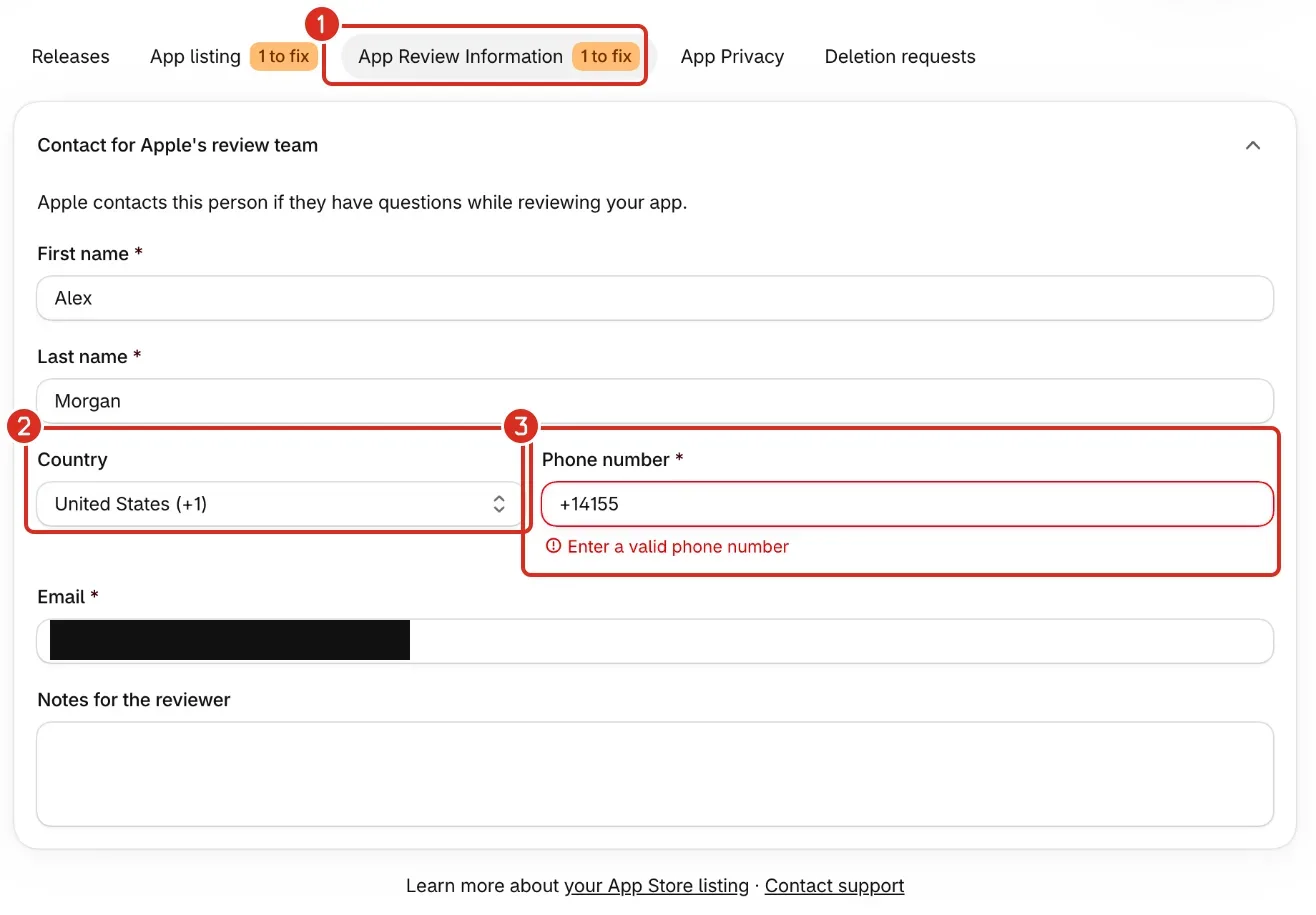
Nativtap stores your number in international format, with its country code. A number that isn't valid yet is not saved, and its error shows when you leave the field or select Save.
Save your changes
The listing text, links, content rights answer and review contact save by themselves a moment after you stop typing, as long as every field is valid. Fix a field that shows an error and the listing saves again.
When the Shopify save bar shows, select Save to save now, or Discard to go back to the last saved version. App name, app icon and launch screen don't save by themselves: select Save in the save bar for those.
Remove the words Apple rejects
Nativtap checks your text before you submit. The result shows on the Releases tab, in the Before you submit card, under In Nativtap.
- The names of other platforms and their app stores, such as Samsung Galaxy Store or Huawei AppGallery, are refused anywhere in your text and in your app name.
- Price and ranking words are refused in your app name, subtitle and keywords: free, best, cheap, cheapest, #1, number one and top rated. In the description and promotional text they only raise a warning.
- A price or ranking word counts only when it stands alone. Carefree doesn't match free.
- A keyword that is already a word in your app name raises a warning, because Apple already searches the name.
- Select the Releases tab and find Before you submit.
- Under In Nativtap, select the line that names the words. It takes you to the listing.
- Remove or reword the words. Nativtap checks again after the change saves.
Release listing changes after launch
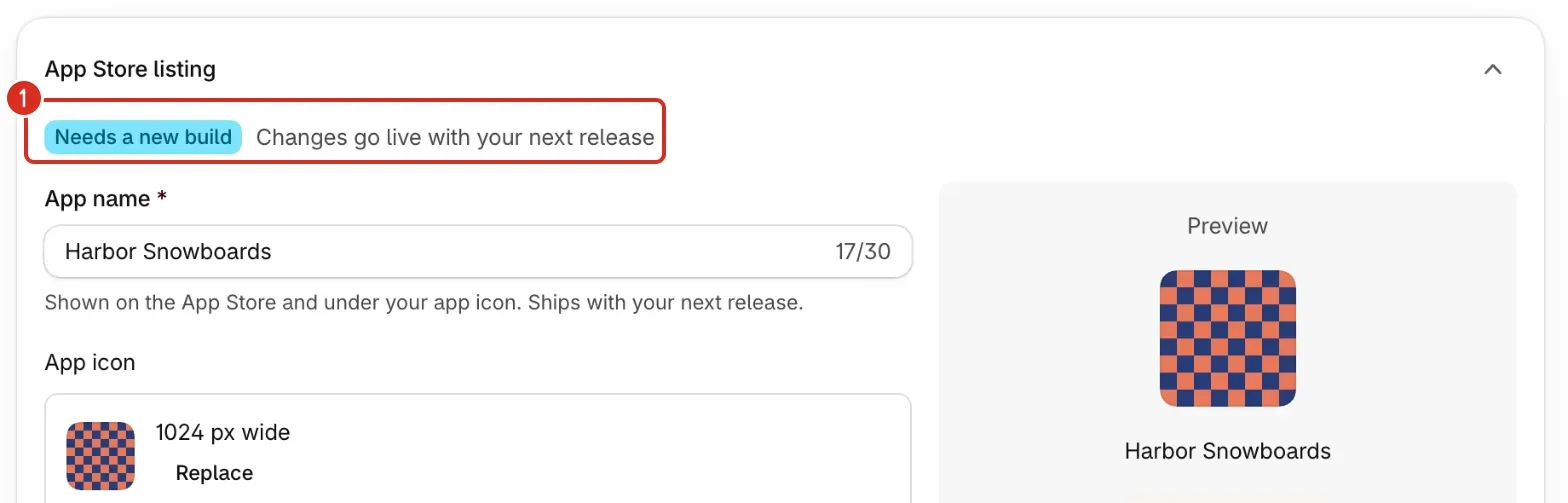
While your app is live, the App Store listing card shows a Needs a new build badge and the text Changes go live with your next release. Your changes are saved, and they reach the App Store with your next release. To send them, read Release your app on the App Store.
Common problems
- Listing not saved
- The banner gives one of two reasons. This listing was changed in another tab. Reload the page to see the latest version. The other tab saved first, and Nativtap never overwrites it. Reloading shows the saved version, so copy any text you still need, then select Reload page. We could not save your changes. Check your connection; your edits stay on this page. Check your connection, then select Save in the save bar to send your edits again.
- Must be 200 characters or fewer
- The text is over the field's limit, and the number in the message is that limit. Copyright allows 200 characters, First name and Last name 100, and Notes for the reviewer 4,000. Shorten the text until the message goes away. The fields with a counter under them have the same message at their own limits: 30 for Subtitle, 100 for Keywords, 170 for Promotional text and 4,000 for Description.
- Remove the space after each comma
- Write your keywords with commas and no spaces, like
shoes,sneakers,boots. - Enter a full address like https://example.com
- Type the whole address in the link field, starting with
https://. - Use an https:// address
- Change
http://tohttps://, or use a page that has a secure address. - We could not reach this page. Check the address and try again.
- Open the address in a private browser window. If it doesn't load, fix the address, then wait for the listing to save.
- This address is not public. Use a page anyone can open.
- Use a page that opens without a login and isn't on a private network.
- This page returned an error. Check that it is published and public.
- Open the page in a private browser window. Publish it, or use another page.
- This page redirects too many times.
- Use the address the page finally lands on, not an address that keeps forwarding.
- Choose a country for this number
- Select a Country, or start the number with
+and its country code. - Enter a valid phone number
- The number isn't valid for the country you chose, and the message may name that country. Check the digits and the Country. Enter the number without the country code, or paste it with
+and its code. If the message says Enter the number without an extension, leave the extension out. - Enter a valid email address
- Check the Email for typos. It needs a name, an
@and a domain. - Finish your App Store listing. Fill in every required field.
- Select the line in Before you submit. It takes you to the first field that is empty. A badge such as 1 to fix on the App listing and App Review Information tabs shows where the others are.
- Answer one question about third-party content. Nativtap sends your answer to Apple.
- This is the Content rights line in Before you submit. Select Answer now, then answer under Content rights.
- Finish your App Store listing first
- The Create release dialog says this while a required field is empty. It lists the missing fields. Fill them in on the App listing and App Review Information tabs.
- Apple rejects these words in your app name
- The message lists the words. Change App name at the top of the App Store listing card, then select Save in the save bar. Set your app's name, icon and launch screen shows where.
- Apple rejects these words
- The message names each word and the field it is in. Remove them from your listing.
- Apple may question these words
- This is a warning, and it doesn't block you. The words are in your description or promotional text. Reword them if you can.
- Your app name already makes "snowboard" searchable.
- Your message names your own repeated word, or several words separated by commas. Take each one out of Keywords and use that space for other words.
- Your privacy policy page can't be opened.
- The rest of the message gives the reason. Fix the Privacy policy URL using the matching entry above.
- Your support page can't be opened.
- The rest of the message gives the reason. Fix the Support URL using the matching entry above.
Related
Something wrong or out of date on this page? Tell us by email.
Still stuck?
Send us the exact message you see, and what you already tried.