 NativTap
Before you begin
- Each code must be new in your store. Nativtap refuses a code that another discount already uses.
- Amounts use your store's currency, and dates use your store's time zone.
Create a discount
- From your Shopify admin, go to Nativtap > Marketing.
- On the App-only discounts card, select Create discount.
- Under Discount code, enter a Code such as
APP15. Use letters, numbers, - or _, up to 32 characters. Shoppers don't type it. - Under Value, set Discount type to Percentage or Fixed amount.
- Enter the Discount value. A percentage is from 1 to 100. A fixed amount is greater than 0, with at most 2 decimal places.
- Under Minimum purchase requirements, choose No minimum requirements or Minimum purchase amount.
- If you chose a minimum, enter the amount.
- Under Maximum discount uses, optionally select Limit number of times this discount can be used in total.
- If you set a limit, enter the Total uses, a whole number of 1 or more.
- Optionally select Limit to one use per customer. Shoppers sign in to their account in your app to use it.
- Under Active dates, choose a Start date. A new discount can't start in the past.
- Optionally choose an End date on or after the start date. Leave it empty to keep the discount running.
- Under In your app, turn on Apply automatically to every cart in the app if shoppers should get the discount without tapping anything.
Only one discount can apply automatically: turning this on turns it off for the other one.
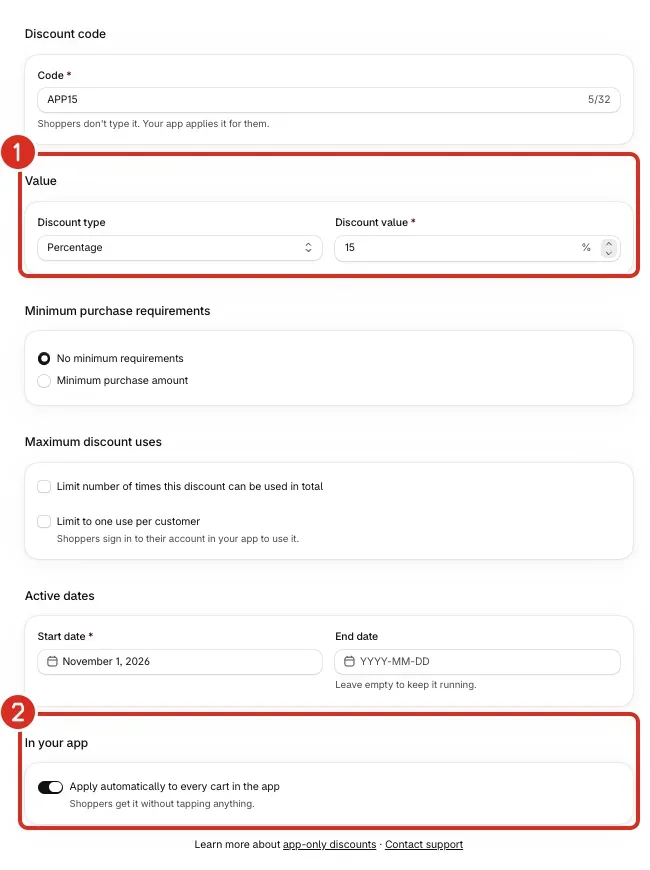
- Check the Summary on the right.
- Select Save in the bar at the top. The page shows "Discount saved".
If you leave the automatic switch off, the discount is not applied by itself. The list marks it With a banner or link. In the app editor, a link can use the Discount code option and the code you created, wherever the editor offers a link.
Check your discounts
- From your Shopify admin, go to Nativtap > Marketing and select View discounts.

- Read each row: the code, a summary, the status (Active, Scheduled or Expired), whether it is Applied in app automatically, and how many times it was Used.

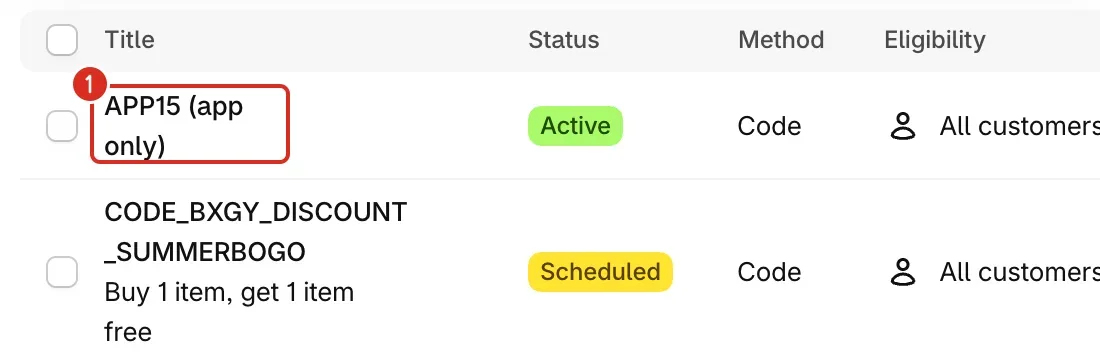
In your Shopify admin, the discount also appears in the Discounts list with a title such as "APP15 (app only)".
With Apply automatically to every cart in the app on and the discount Active, add a product in your app and open the cart. The discount line appears there. Your app must be live. If you limited the discount to one use per customer, sign in first.
Change or delete a discount
- Open View discounts and select the discount's code.
- Change the fields you need and select Save.
- To remove it, select Delete discount, then confirm with Delete discount in the window. The discount is removed from Shopify and stops working in your app. You can't undo this.
Common problems
- A banner says "App-only discounts aren't available in this store"
- Shopify did not allow app-only discounts in this store, so nothing was saved. Contact support (see Contact support for what to send) and include the banner text. The banner appears after you select Save, not when the page opens.
- A banner says "Couldn't save the discount"
- The message under it gives the reason, for example "Shopify didn't save the discount" with Shopify's reason. Fix what it names and save again.
- "Enter a code", "Use 32 characters or fewer" or "Use letters, numbers, - or _ only"
- Fix the code and save again.
- "Another discount in your store already uses this code"
- Choose a different code. The code can't match any other discount in your store, whether you made it in Nativtap or in Shopify.
- "Enter a percentage from 1 to 100", "Enter an amount greater than 0", "Use at most 2 decimal places" or "Enter an amount below 1,000,000,000"
- Fix the discount value or the minimum purchase amount.
- "Enter a whole number of 1 or more"
- This is the Total uses field. Enter a whole number of 1 or more, or clear Limit number of times this discount can be used in total.
- "Start date can't be in the past" or "End date must be after the start date"
- Choose a start date from today onwards, in your store's time zone. The end date can be the same day as the start date or later, although the message says "after". The past-date rule applies to a new discount; a saved discount can keep its start date.
- "This discount no longer exists"
- The discount you opened is gone. Go back to the App-only discounts list to see the current list.
- A banner says "Usage count restarted"
- You reinstalled Nativtap, so Shopify created the discount again and its usage count started from 0.
- The list shows "Couldn't restore after reinstall"
- After you reinstalled Nativtap, the discount could not be created again. The rest of the line gives the reason: another discount already uses the code, Shopify does not allow app-only discounts in your store, or something went wrong in Shopify. Open the discount, fix that reason and select Save.
Related
Something wrong or out of date on this page? Tell us by email.
Still stuck?
Send us the exact message you see, and what you already tried.