 NativTap
Before you begin
- The banner shows on your store only after your app is live on the App Store. You can set it up before that.
- You turn it on once in your theme, with the Nativtap app embed (Shopify calls it Get the app banner).
- Safari on iPhone shows Apple's own app banner. Other iPhone browsers, such as Chrome or the browser inside Instagram, show the Nativtap banner.
- The QR code is off until you turn it on. It shows on a computer, in a browser window at least 1024 pixels wide, and not on phones.
Turn on the app embed
- From your Shopify admin, go to Nativtap > Settings > App banner.
- Check the badge on the App embed card.
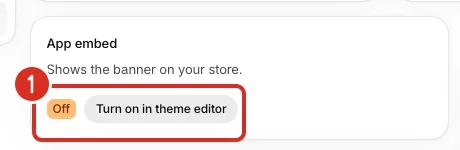
- If the badge says Off, select Turn on in theme editor. Shopify opens your theme editor.
- In the theme editor, find Get the app banner under App embeds.
- Turn its switch on.
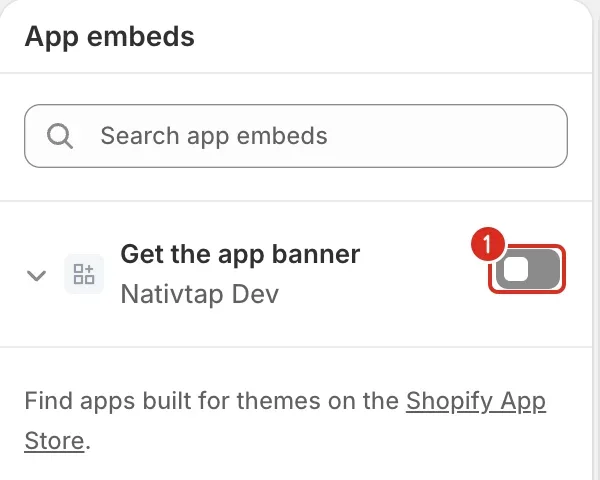
- Select Save in the theme editor.
- Go back to Nativtap > Settings > App banner. The badge now says On.
The badge can also say Checking, while Nativtap reads your theme, or Not available, when this version of Nativtap has no banner embed to turn on.
Set up the banner for iPhone
- Under Banner on iPhone, enter a Message of up to 90 characters.
- Enter a Button label of up to 20 characters.
- Choose the Background color. Each color is a six-digit hex color such as
#1A2B3C. - Choose the Text color.
- Choose the Button color.
- Choose the Button text color.
- Under Position, select Top of the page or Bottom of the page.
- Set Show after to how many seconds the banner waits before it appears, from 0 to 60.
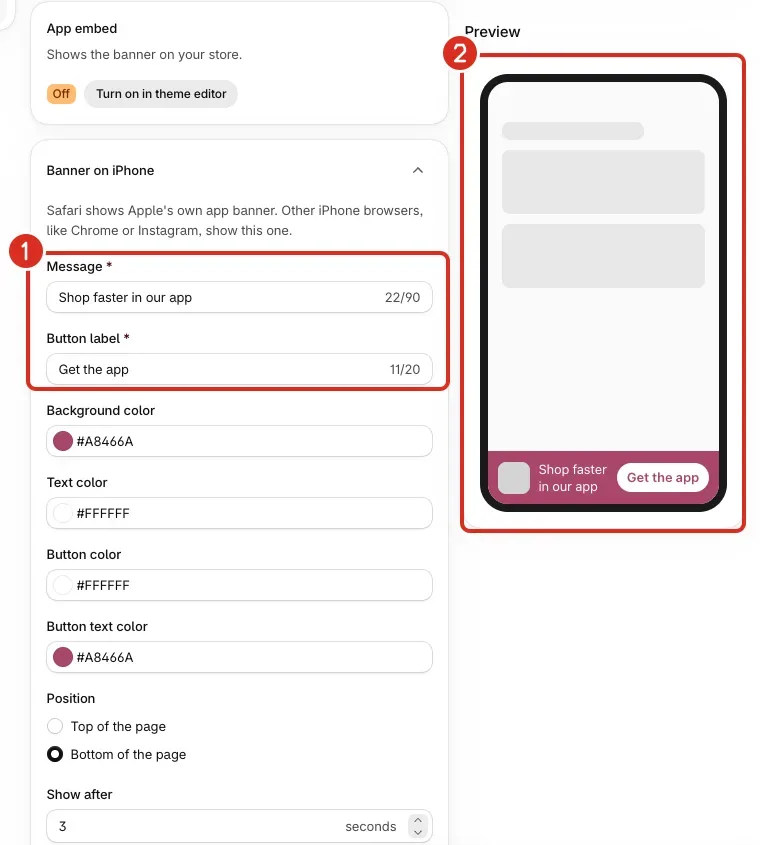
1: Message and button label. 2: A preview of the banner. - Set After a shopper closes it, hide it for to a number of days from 1 to 90. The banner stays hidden in that shopper's browser for that long.
Set up the QR code for computers
- Under QR code on computers, turn on Show a QR code to shoppers on a computer. Shoppers scan it with their phone to get your app.
- Enter a Title of up to 40 characters. It is required even while the QR code is off.
- Choose a Corner: Bottom right, Bottom left, Top right or Top left.
Track installs from the banner
This step is optional. It lets you see installs that came from the banner in App Store Connect.
- Under Install tracking, enter your App Store provider ID: digits only, up to 20. It is the pt value in App Analytics > Campaigns in App Store Connect.
Save and check the banner
- Watch the Preview on the right. It changes as you edit the form.
- Select Save in the bar at the top. The page shows "Banner saved".
When your app is live, two cards appear above the form. Taps counts how often shoppers selected the banner's button in the last 30 days. Views is an estimate for the same period, shown as "About" a number, because Nativtap counts a sample of views on your store and scales it up. A dash means Nativtap can't read the numbers right now.

Common problems
- "Your banner is hidden until your app is live"
- Shoppers start seeing the banner once your app is on the App Store. You can set it up now.
- The App embed card says Off
- The banner is not turned on in your theme, so shoppers can't see it. Select Turn on in theme editor, turn on the Get the app banner switch under App embeds, then select Save in the theme editor.
- The App embed card says Not available
- The version of Nativtap installed on your store has no banner embed to turn on, so there is nothing you can switch. Contact support and include your store address (see Contact support for what to send).
- "Your latest changes aren't on your store yet"
- Nativtap couldn't send them to Shopify. It keeps trying. If this keeps happening, contact support (see Contact support for what to send).
- "Enter a message", "Enter a button label", "Enter a title" or "Use N characters or fewer"
- Fill in or shorten the field. The Title is required even while the QR code is off.
- "Enter a color like #1A2B3C"
- Use a six-digit hex color, a # followed by six letters or numbers.
- "Enter a whole number from 0 to 60" or "Enter a whole number from 1 to 90"
- The first is the Show after field (seconds, 0 to 60). The second is After a shopper closes it, hide it for (days, 1 to 90). Enter digits only, with no decimals.
- "Use digits only" or "Use 20 digits or fewer" on the App Store provider ID
- Enter only the number from App Analytics, with no letters or spaces.
- The banner doesn't show in Safari
- That is expected. Safari on iPhone shows Apple's own app banner instead of the Nativtap banner. Open your store in another iPhone browser, such as Chrome, to see the Nativtap banner.
- The Taps and Views cards show a dash
- Nativtap can't read the numbers right now. Reload the page later. If the dash stays, contact support (see Contact support for what to send).
Related
Something wrong or out of date on this page? Tell us by email.
Still stuck?
Send us the exact message you see, and what you already tried.