 NativTap
Before you begin
- Home opens once you have started your app design. Until then, Nativtap opens the Set up your app design page instead. After you choose how to start, it takes you to App design. The help page Start your app design explains the choices.
Follow the setup guide
If Home does not open yet, see Start your app design.
- From your Shopify admin, go to Nativtap.
- Under Setup guide, read how many of the four steps are done.
- Select the arrow at the end of a step to open its details. Select it again to close them.
- Select the button in the details to open the page for that step, such as Go to App design. You can do the steps in any order.
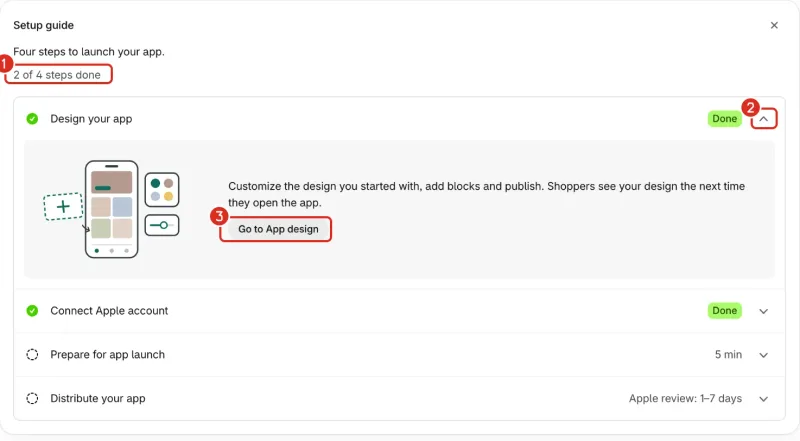
1: How many steps are done. 2: The arrow that opens or closes a step. 3: Go to App design. - Start Connect Apple account first. Apple decides how long enrollment takes, so start early. Until you have enrolled, the step carries a Takes the longest badge. Select Set up Apple account to open the step. In the screenshot, the step is already Done, so it has no badge.
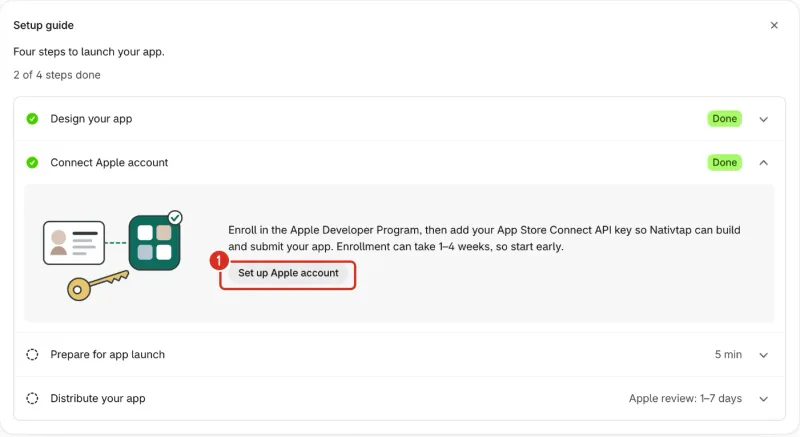
1: Set up Apple account. - To hide the guide, select the close button (X) at the top of the guide.
- To bring it back, select Show setup guide at the top of Home.
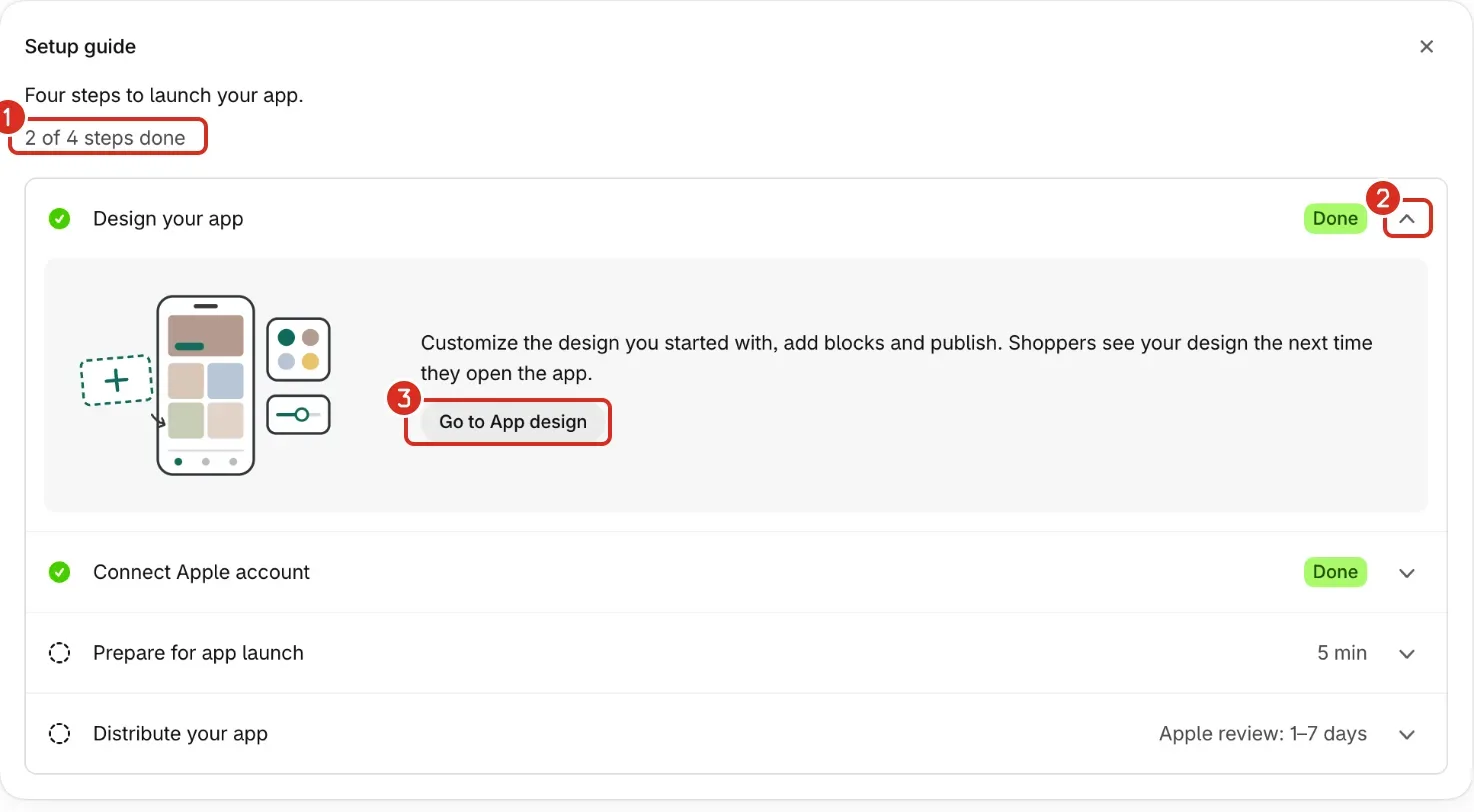
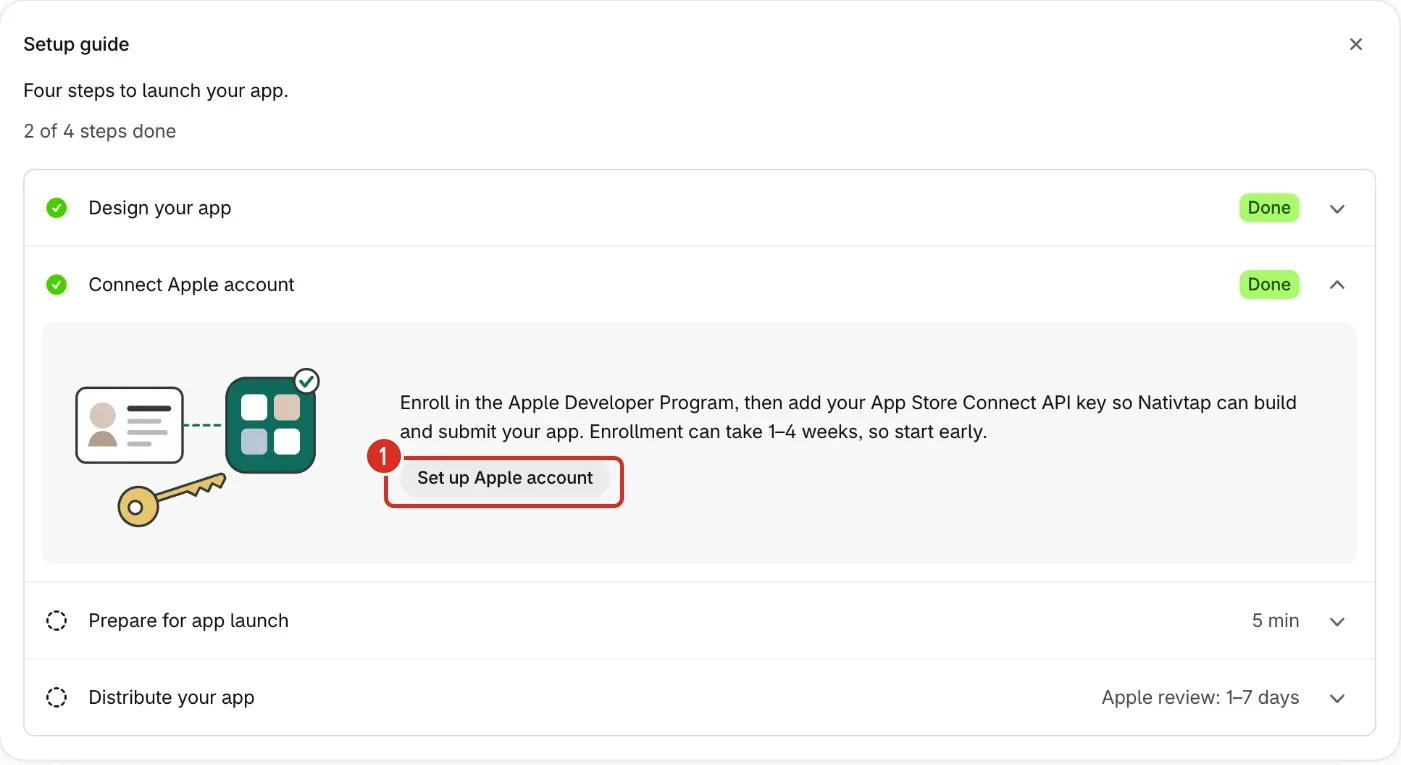
A finished step shows Done. You can still open it and use its button. The guide stops showing once your app is live on the App Store.
| Step | Done when |
|---|---|
| Design your app | You have published your design once. |
| Connect Apple account | You have added an App Store Connect API key and it works. Enrolling alone does not finish the step. |
| Prepare for app launch | The abandoned cart reminder is on. A paused reminder does not count. |
| Distribute your app | You have sent a release to Apple, even if Apple rejected it. |
Publish your design from Home
- On Home, find the Current app card. It shows a preview of your app, its name and its version. The version reads Not published yet until you publish.
- Read the line under the version. It says when you have unpublished changes and which version shoppers still see.
- Select Publish to send your draft to your app.
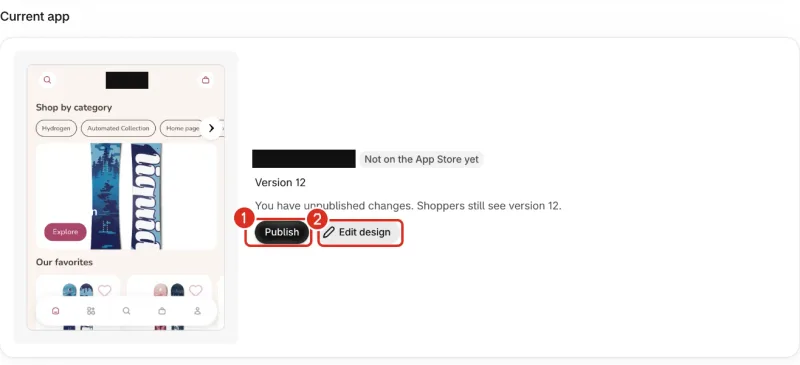
1: Publish. 2: Edit design. - Select Edit design to change your app. The editor opens full screen inside Shopify admin, not in a new browser window. See Design your app.
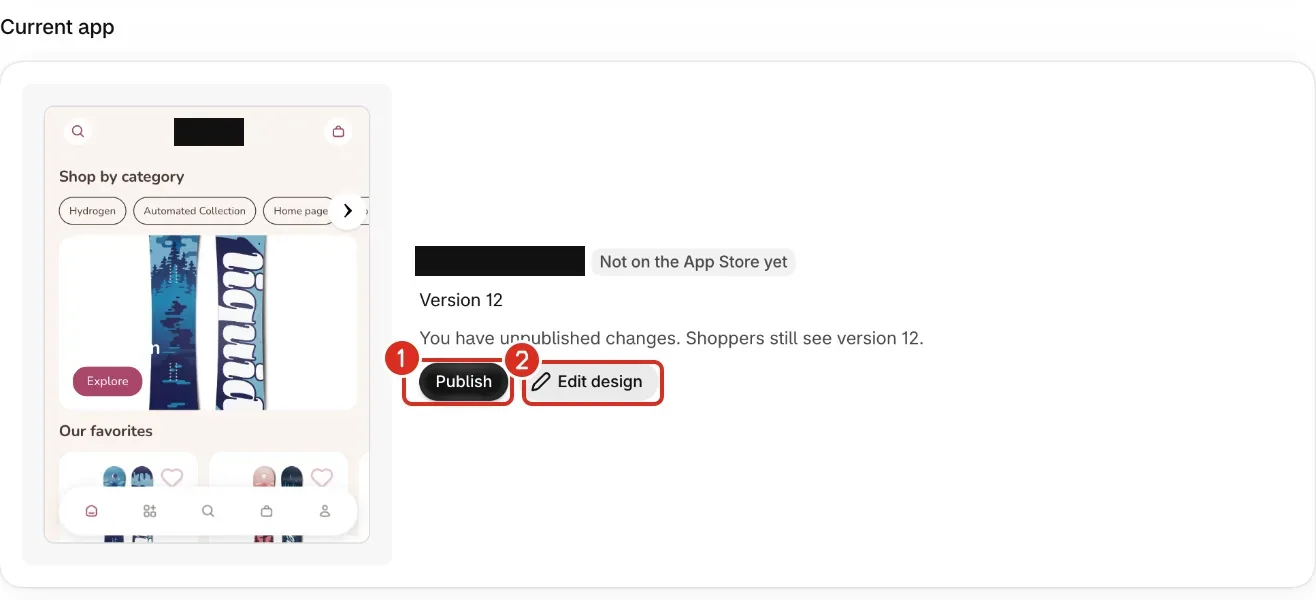
Publish goes away after a publish and comes back when you change the design again.
Check your products and app banner
- Under App status, read the badge under Products. It says In the app, Being added or Setup failed.
- Select View sales channel to open Settings > Sales channel.
- Read the badge under App banner. It says On or Off. The app banner is the banner on your online store that points shoppers to your app.
- When it says Off, select Turn on app banner. Shopify opens the theme editor on the app embeds. See Add a website banner.

1: View sales channel. 2: The App banner badge, Off. 3: Turn on app banner.

Read your updates
- Select Updates at the top of Home. The number in parentheses is how many updates you have not dismissed.
- Read an update. Select its link, such as View release, to open the page it points to.
- Select Dismiss to remove an update. The dialog stays open. Select Close when you are done.
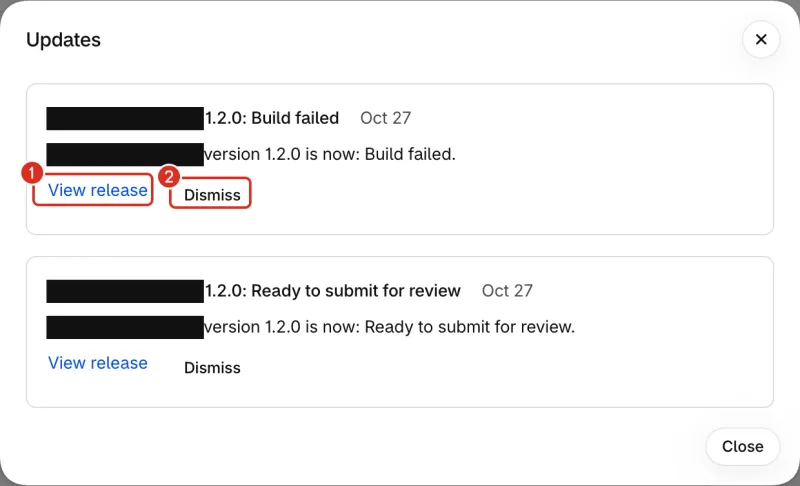
1: View release. 2: Dismiss.
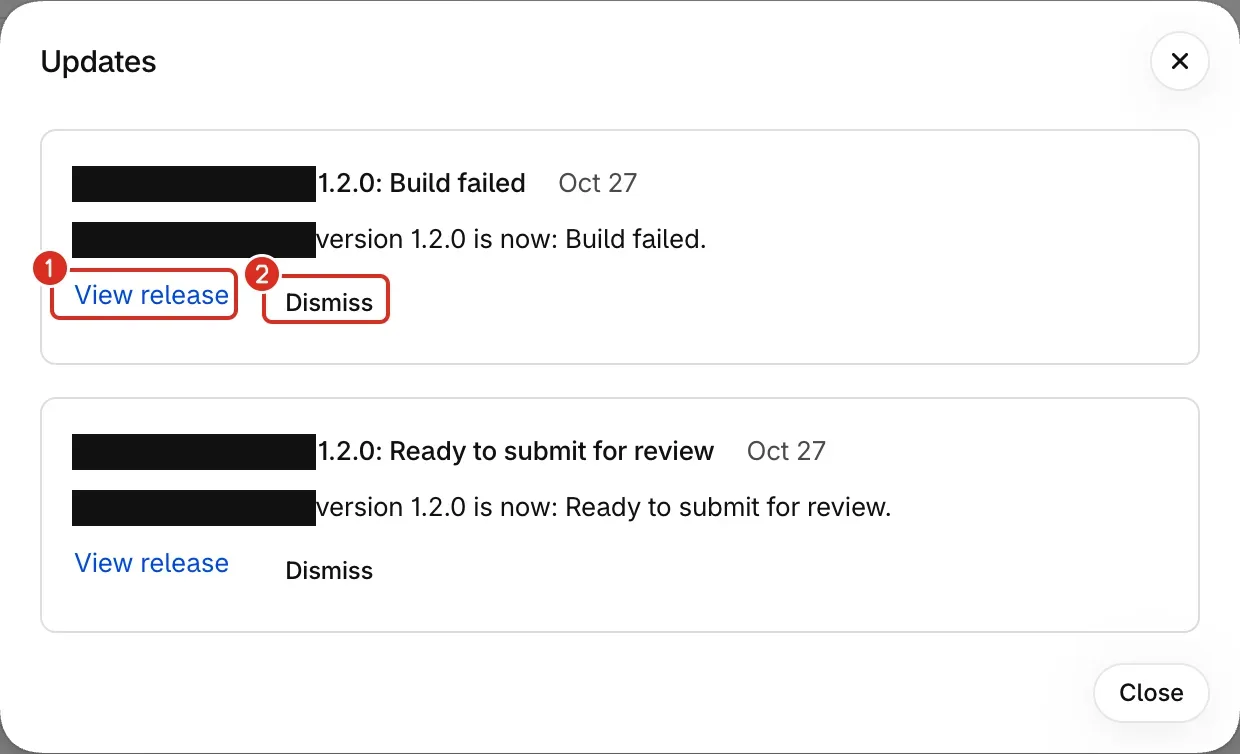
The dialog lists up to 10 of the latest updates. When you have more, it says “Showing the 10 latest updates.” at the bottom. With none, it says “You're all caught up. News about your app from Apple and Nativtap shows up here.” News about a new Nativtap version is a banner on Home, not an update.
Read the banner at the top of Home
Home shows one banner at a time. When several apply, the first one in this list wins.
- Building and publishing are paused for your store. Nativtap paused new builds, publishing and push notifications. Your live app keeps working.
- Store setup did not finish. Your products are not in the app yet.
- Your app needs attention. A red banner lists problems with your Apple account or your store.
- Nativtap 1.2.0 is available. The number is the new version, so yours differs. Select Create release when you want your app to use it. Your shoppers get it after Apple approves the release. Close the banner if you do not want it.
- Your app is live on the App Store. Nativtap asks for a review on the Shopify App Store. Select Leave a review or Don't ask again.
- Your app needs attention. A yellow banner lists warnings.
Common problems
- Store setup did not finish
- The banner says your products aren't in the app yet. Select View sales channel, then Retry setup. See Publish your products to the app.
- Your app needs attention
- Each line under the heading names a problem and says how to fix it. It ends with a link, such as Replace API key, Open agreements or Renew membership. Select the link and follow it. For problems with your API key, see Connect your Apple account.
- Building and publishing are paused for your store
- Nativtap paused new builds, publishing and push notifications. The banner says why. Your live app keeps working for your shoppers. Select Contact support. See Contact support.
- Publishing didn't finish
- This shows on the Current app card after you select Publish. Your app still shows the last published version. Wait a minute, then select Publish again. If it keeps failing, contact support and send the exact message and the time it happened.
- Someone else published at the same time
- The banner says “Your draft wasn't published. Try again.” Select Publish again.
- Wait a moment before publishing again
- The banner says “Publishing again is possible in N seconds.” Wait that long, then select Publish again.
- This draft changed elsewhere
- Your draft changed in another tab or by another staff member. Check it, then select Publish again.
- Fix 1 issue before publishing
- The number is how many issues there are. The list says what to change. Select Edit design, fix them, then select Publish again.
- Publish is missing from the Current app card
- The card shows Publish only when your design has never been published or has unpublished changes. It is also hidden while building and publishing are paused for your store. Select Edit design to change your app.
- Connect Apple account does not say Done
- Enrolling is not enough. The step is done once you add an App Store Connect API key and it works. Select Set up Apple account.
- The App banner row is missing under App status
- The row shows only when Shopify reports the Nativtap App banner embed for your store. If it is missing, contact support and say the App banner row is missing.
Related
Something wrong or out of date on this page? Tell us by email.
Still stuck?
Send us the exact message you see, and what you already tried.