 NativTap
Before you begin
- The Notifications page, the bell and the tab need app version 1.5.0 or later. Create a new release to get the latest app version (see the Release your app on the App Store article in this Help center).
- The red number on the app icon needs app version 1.6.0 or later.
- The page lists pushes you send now or schedule, newest first, up to 50. Test pushes and cart reminders are not listed.
Set up the Notifications page
- From your Shopify admin, go to Nativtap > App design, then select Customize.
- In the top bar, open the screen picker and choose Notifications.
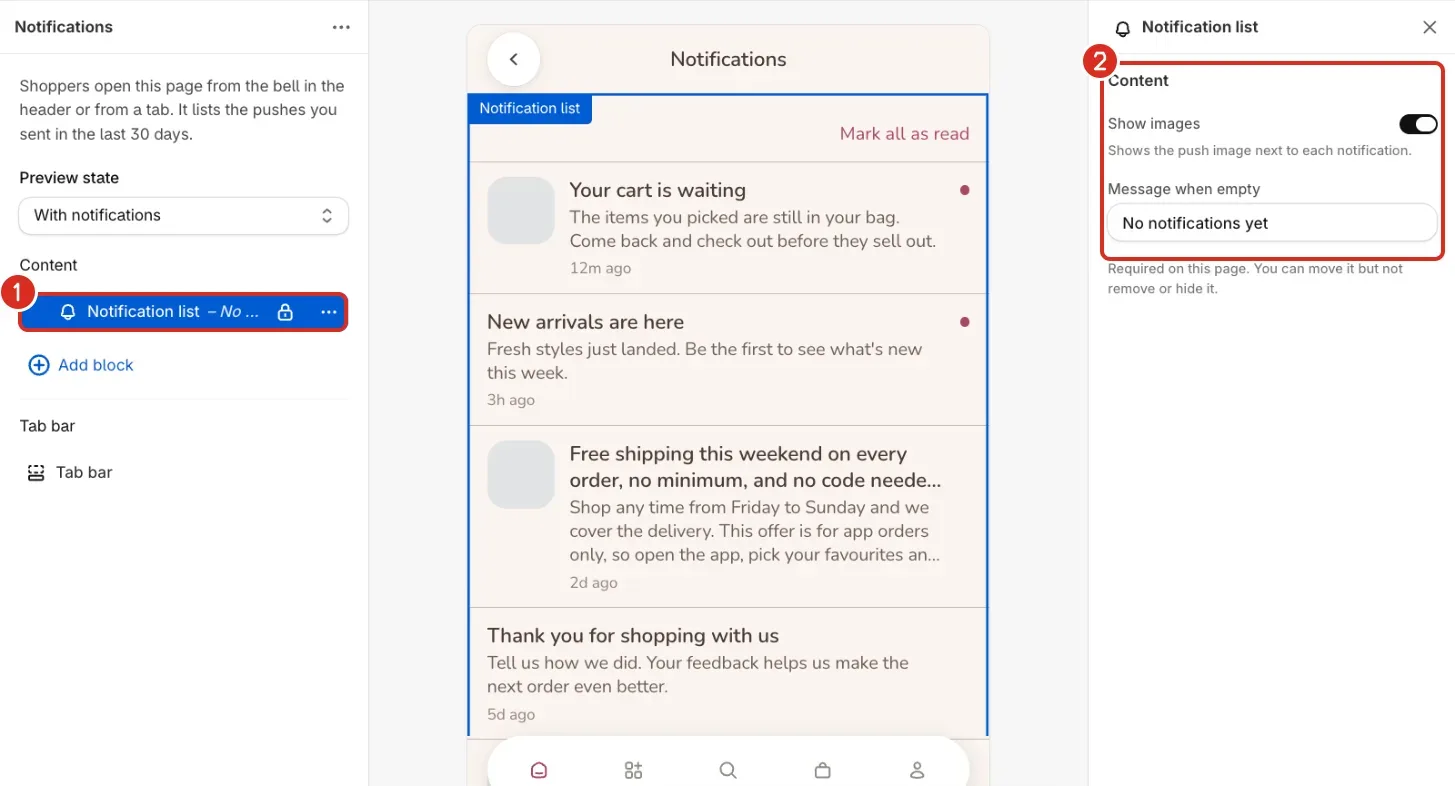
- Under Content, select Notification list. Your page needs this block. You can move it but not remove or hide it.
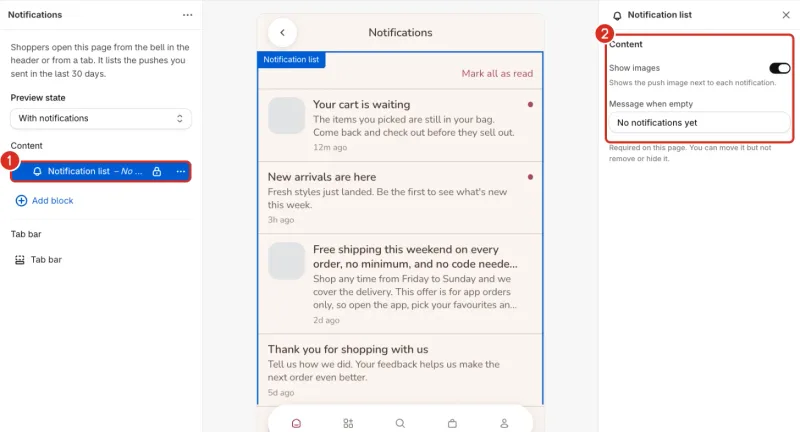
1: The Notification list block. 2: Its settings. - Turn Show images on or off. It shows the push image next to each push.
- Edit Message when empty. Shoppers see it when you haven't sent a push yet. The starting text is "No notifications yet".
- Use Preview state to switch the preview between With notifications and No notifications. This only changes the preview and is never saved.
Add the bell or a tab
Add the bell, a tab, or both.
Add the bell
- In the top bar, select Navigation.
- Select Header.
- Turn on Show notifications. A bell opens the Notifications page, and a dot appears on it when there are new pushes.
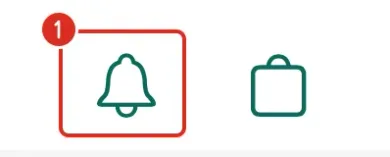
1: The bell.
Add a tab
- In the top bar, select Navigation.
- Select Tab bar.
- Select Add tab.
- In the new row, under Link, choose Notifications. The label fills in as Notifications and the icon becomes a bell.
- Select the check mark next to the Label field. A tab bar holds 3 to 5 tabs.
Publish your changes
- Open the menu next to Save.
- Select Save and publish. Changes to pages and navigation reach your app without a new release.
Check what shoppers get
Each row shows the push image if Show images is on, the title, the message and how long ago it was sent.
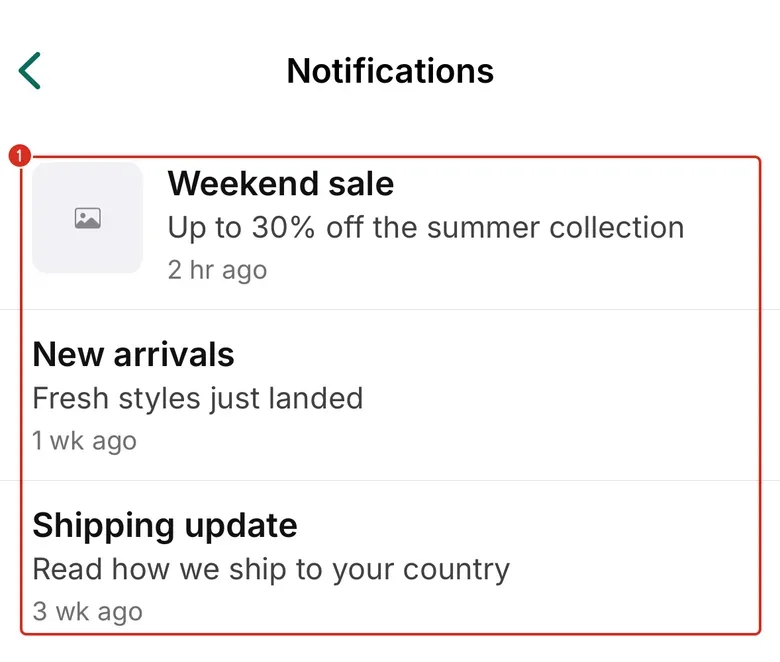
- A dot marks a row the shopper hasn't read. The tab shows a badge with the number of unread rows.
- Selecting a row marks it read and opens its link, like tapping the push itself. It doesn't count as Opened, and it doesn't count toward the push's revenue.
- Mark all as read at the top of the list marks every row. Opening the page marks nothing.
- The read state is kept on each shopper's phone only.
- With app version 1.6.0 or later, a phone that has never loaded the list starts with the pushes already in it marked as read. Pushes still in the iPhone Notification Center, and pushes sent later, show as unread.
Check the unread count on the app icon
With app version 1.6.0 or later, a red number on the app icon shows how many pushes the shopper hasn't read. It follows the same unread count as the bell and the tab. Shoppers can turn badges off in their iPhone Settings.
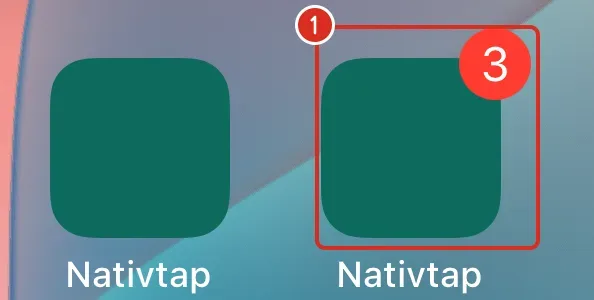
If your app has neither the bell nor the tab, the number counts the pushes that arrived since the shopper last opened the app. Opening the app clears it.
Common problems
- Notifications needs app version 1.5.0 or later
- The editor shows this warning when your live app is older. It doesn't block publishing, but shoppers on the older version don't see the bell, the tab or the page. Create a new release to get the latest app version (see Release your app on the App Store).
- No notifications yet
- This is the text you set in Message when empty. The list stays empty until you send or schedule a push, and it shows only pushes from the last 30 days. Test pushes and cart reminders are never listed. A push that failed before reaching anyone is not listed either.
- Couldn't load notifications
- The app couldn't reach the list and has no saved copy. Once the phone is online again, the shopper selects Try again.
- A new phone shows no unread dot
- With app version 1.6.0 or later, a phone that loads the list for the first time marks the pushes already in it as read. Pushes still in the iPhone Notification Center, and pushes sent afterwards, show as unread.
- The app icon shows a red number
- It is the number of unread pushes. Opening them in the Notifications page, or tapping them on the lock screen, lowers it. A shopper who doesn't want it turns off badges for your app in the iPhone Settings.
- The app icon never shows a red number
- The badge needs app version 1.6.0 or later, and the shopper must allow notifications and badges. Create a new release to get the latest app version (see Release your app on the App Store).
Related
Something wrong or out of date on this page? Tell us by email.
Still stuck?
Send us the exact message you see, and what you already tried.