 NativTap
Before you begin
- Branding is a panel of the editor. Your changes stay in the draft until you publish them.
- To use Scan my store, your online store must not be password protected.
- Apps released before version 1.5.0 draw native controls with the Buttons value. These are buttons, form fields, cart items and images on native screens. Product cards and image blocks follow Cards as soon as you publish.
Open the Branding panel
- From your Shopify admin, go to Nativtap > App design.
- Select Customize. The editor opens full screen.
- In the top bar, select Branding. The list on the left has five groups: Scan my store, Logo, Colors, Font and corners and Dark mode.
- Select a group. Its settings open on the right, and the preview follows each change.
Copy your brand from your online store
Scan my store reads the logo, colors and font of your online store. Nothing changes until you choose what to use.
- Select Scan my store in the list, then select the Scan my store button. The scan can take up to 60 seconds.
- Read the values found. Each row shows a value the scan found, next to what your draft has now. Nativtap ticks the rows that differ from your draft.
- Tick or untick rows, then select Use selected. A message says Store brand added. Save to keep it.
- Select Save in the top bar to keep the values.
The scan can find Primary color, Background color, Text color, Font and Logo. When you use a color and Dark mode is on, Nativtap also prepares matching Dark mode colors. A logo must be a PNG. For any other type, the row is greyed out. Select Scan again to read your store once more.
Set your logo
- Select Logo in the list.
- Under Header logo, choose Select and pick a transparent PNG from your Shopify Files. It shows in the header of your app.
- After you choose a logo, drag Logo height to size it, from 16 to 40 pt.
Change your colors
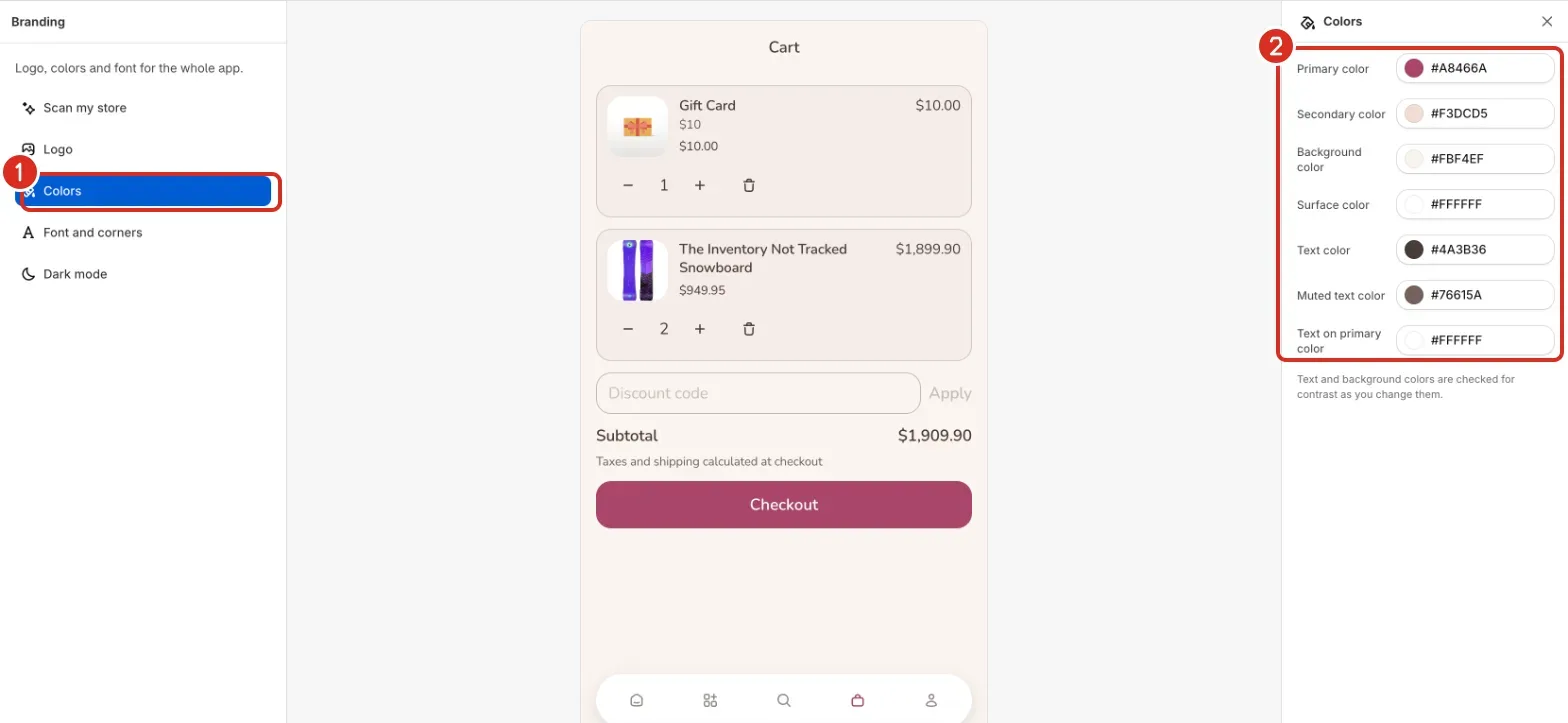
- Select Colors in the list. Seven color settings open: Primary color, Secondary color, Background color, Surface color, Text color, Muted text color and Text on primary color.
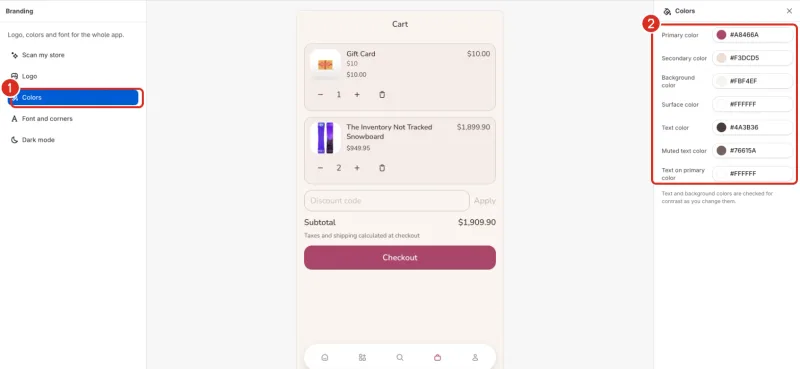
1: Colors. 2: The seven color settings. - Select the color you want to change. A picker opens.
- Choose a color in the picker, or type a 6-digit code such as
#0D6B5Cin the field below it.
Nativtap checks text and background colors for contrast as you change them. When a pair is hard to read, the banner Some text may be hard to read names it. It asks for a contrast of at least 4.5:1.
Choose a font and corners
- Select Font and corners in the list.
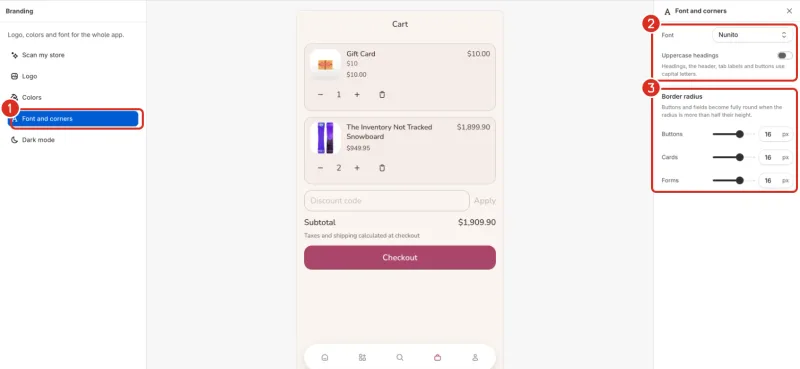
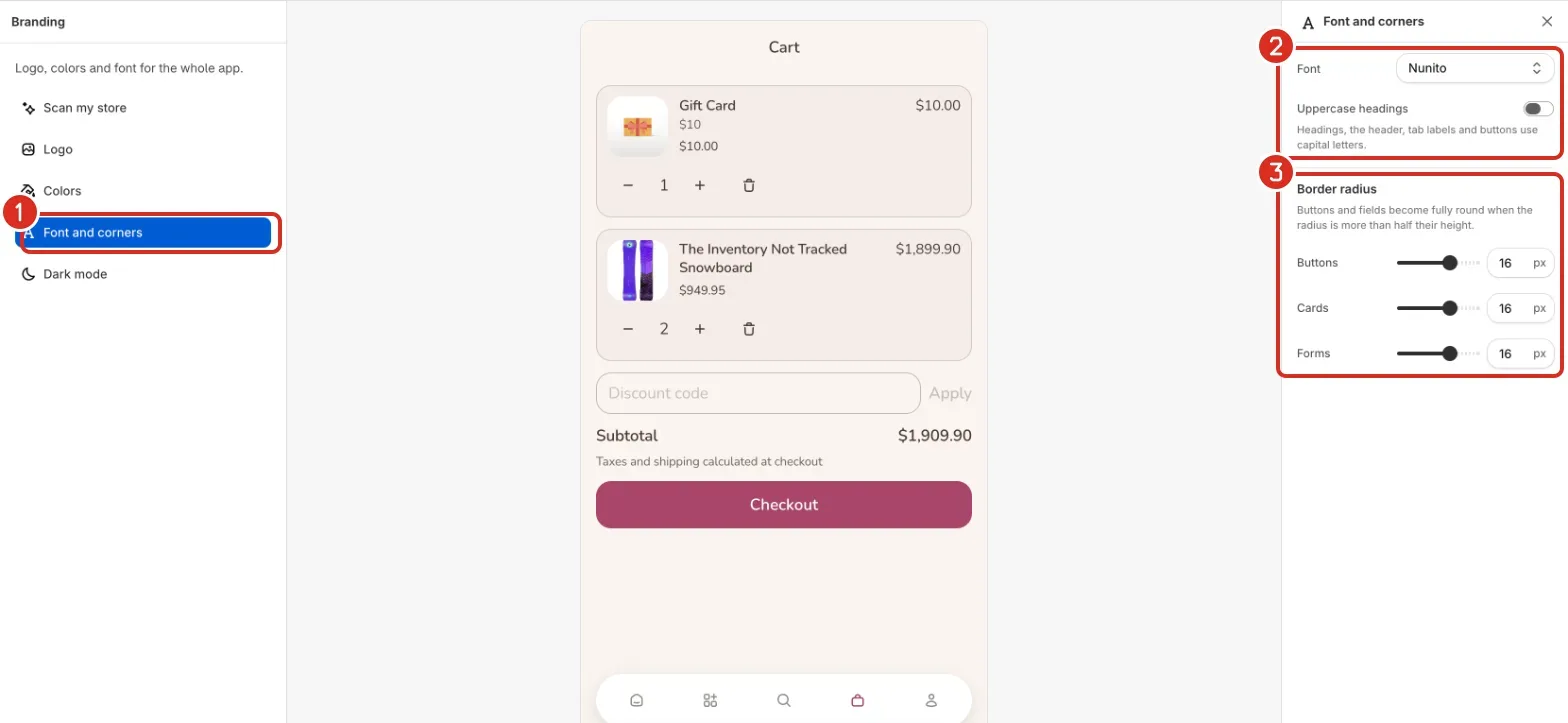
1: Font and corners. 2: Font and Uppercase headings. 3: Border radius for Buttons, Cards and Forms. - Choose a font under Font: System, Inter, Roboto, Lato, Montserrat, Poppins, Playfair Display, Lora or Nunito. System is the font of the iPhone.
- Turn on Uppercase headings to write headings, the header, tab labels and buttons in capital letters.
- Under Border radius, drag the slider of Buttons, Cards or Forms. You can also type a number from 0 to 24.
Buttons and fields become fully round when the radius is more than half their height. The three settings round, for example, these parts of your app:
| Setting | Every app version | From app version 1.5.0 |
|---|---|---|
| Buttons | Buttons on image banners and the chips of collection lists. | Add to cart, Buy it now, Checkout and Sign in. The Sort and Filter buttons. The buttons of the Added to cart sheet and of the push invitation. |
| Cards | Product cards and their images. Collection images in grids and tiles. Image grids and video blocks in the card style. | Items in the cart, images in the notification list, and product images on the Collection and Search screens. |
| Forms | None. | Variant options, the quantity box, the search field, the discount code field and the order note box. |
Add Dark mode
Your app follows the iPhone setting of each shopper. Without dark colors it always shows your light colors.
- Select Dark mode in the list.
- Turn on Support Dark Mode. Nativtap prepares dark colors from your light ones.
- Change any of the seven colors, now marked (Dark). You can also choose Header logo (Dark). Without a dark logo, the light logo is used.
Publish your changes
Your changes are in the draft until you publish. Open the arrow next to Save and select Save and publish. See Design your app. To start from a ready-made look instead, see Choose and copy a theme.
Common problems
- Your online store is password protected, so we can't read your theme.
- The banner Couldn't scan your store shows this. It says: "Remove the password in Online Store › Preferences, or set your logo, colors and font by hand." Remove the password in Shopify, then scan again.
- We couldn't open your storefront.
- The banner Couldn't scan your store shows this. The scan could not reach your online store. Set your logo, colors and font by hand, or select Scan my store to try again.
- Scanning took longer than 60 seconds.
- The banner Couldn't scan your store shows this. Set your logo, colors and font by hand, or select Scan my store to try again.
- We couldn't find a logo, colors or a font on your online store.
- Set them by hand under Logo, Colors and Font and corners.
- Your store's logo isn't a PNG. Upload a transparent PNG under Logo.
- Only a PNG can be used. The Logo row of the scan is greyed out. Select Logo in the list and choose a transparent PNG.
- We couldn't import your store's logo. Upload it under Logo.
- The other values you chose were added. Select Logo in the list and choose the logo yourself.
- Your store uses "font name", which the app doesn't offer yet.
- The message names the font of your store. Pick the closest one under Font and corners.
- Use a 6-digit HEX color like #0D6B5C
- The color field takes 6 digits after the
#. A shorter code does not change the color. - Some text may be hard to read
- Each line names two colors and their contrast. Change one of them until the contrast is at least 4.5:1. Under Dark mode the banner says Some text may be hard to read in Dark mode and lists the dark colors.
- My app looks the same after I changed a color
- Your changes are in the draft until you publish. Open the arrow next to Save and select Save and publish.
Related
Something wrong or out of date on this page? Tell us by email.
Still stuck?
Send us the exact message you see, and what you already tried.