 NativTap
Before you begin
- To copy a theme from your online store, Nativtap needs permission to read your themes. If it is missing, the dialog asks you to reload the page and accept it.
- You can keep up to 10 copied themes.
- A copy takes up to 30 seconds.
Find your themes
- From your Shopify admin, go to Nativtap > App design.
- Scroll down, below the card with the preview of your app, to My themes and Theme library.
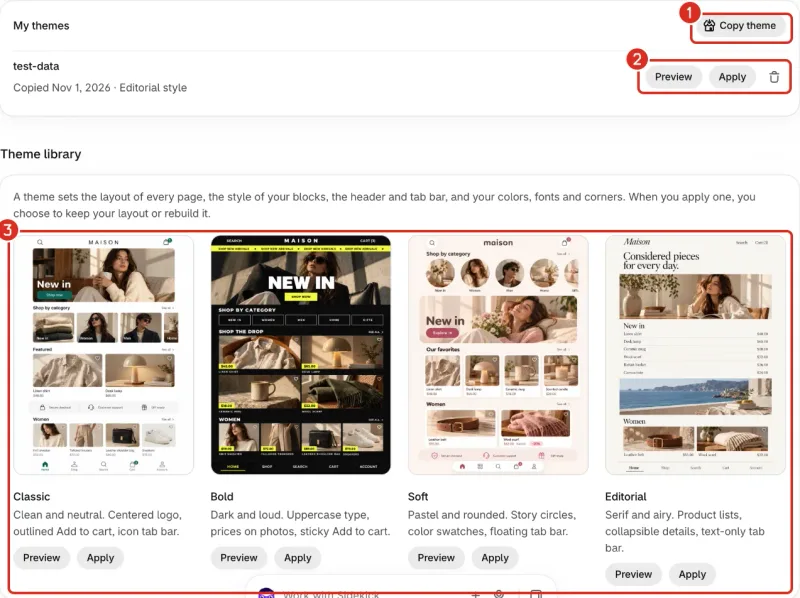
1: Copy theme. 2: Preview, Apply and delete for your copy. 3: The four themes of the library.
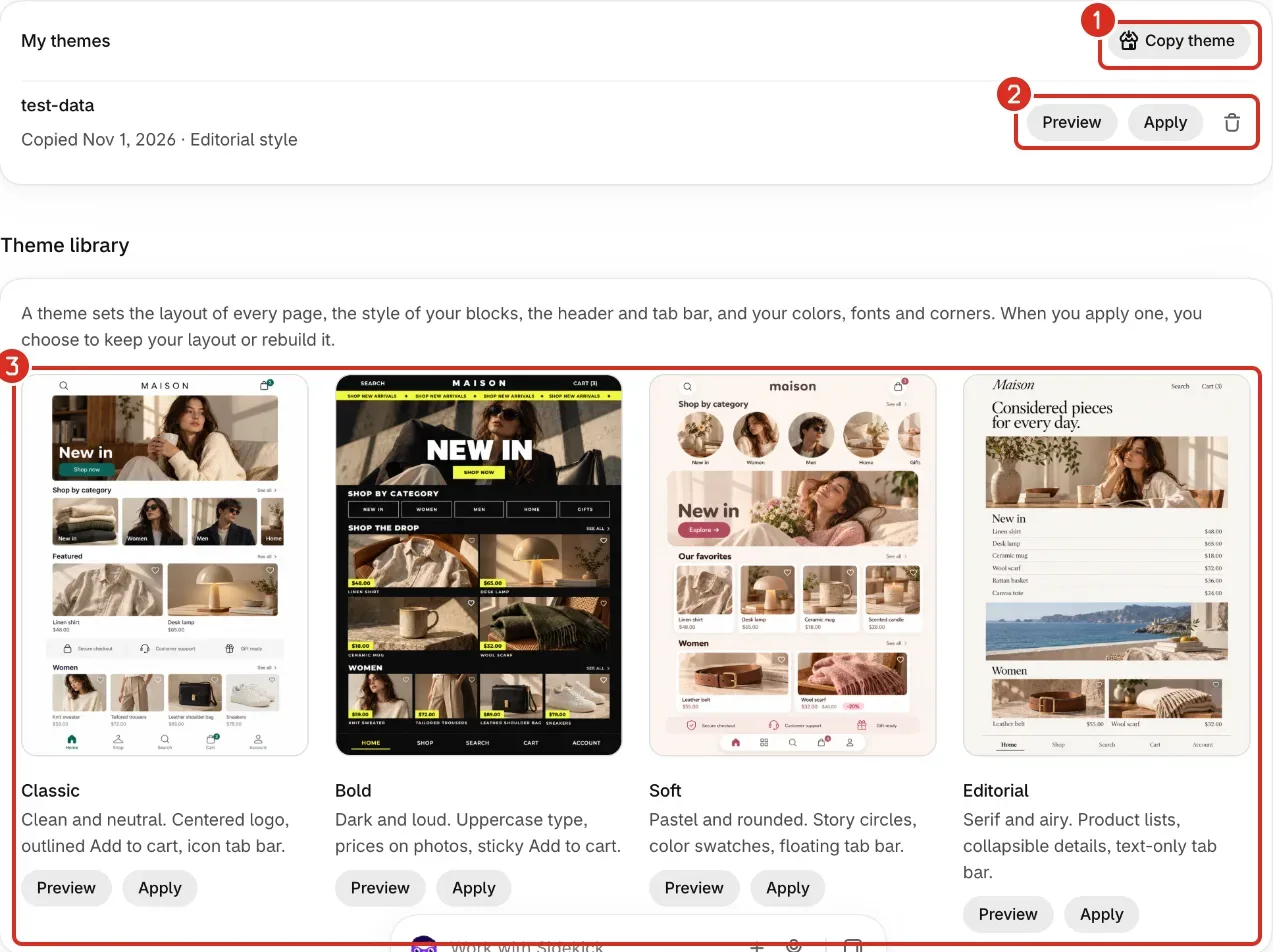
Theme library has four themes: Classic, Bold, Soft and Editorial. My themes holds the copies you made from your online store. It is empty until you copy one.
Apply a theme
Applying a theme changes the style of your blocks, the header, the tab bar, and your colors, fonts and corners, in Light and Dark mode. Your tabs, logo and Dark mode setting stay. For a copy of your online store, the style is the one of the closest of our four themes.
- Optional: select Preview under a theme to see it with your products.
- In the preview, use Page to check other pages.
- Use Layout to switch between Your layout and New layout.
- Select Close when you are done.
- Select Apply under the theme you want. For a copy, select Apply on its row in My themes. A dialog opens with the name of the theme, for example Apply Classic theme?
- Under Layout, choose Keep your layout or Rebuild all pages.
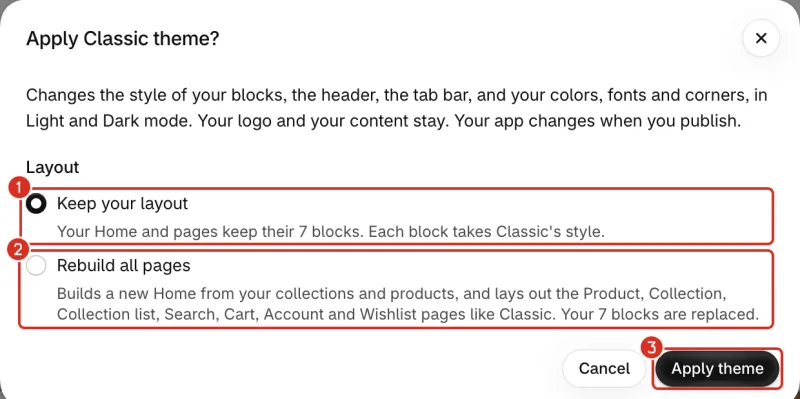
1: Keep your layout. 2: Rebuild all pages. 3: Apply theme. - Select Apply theme. A message says the theme was applied to your draft.
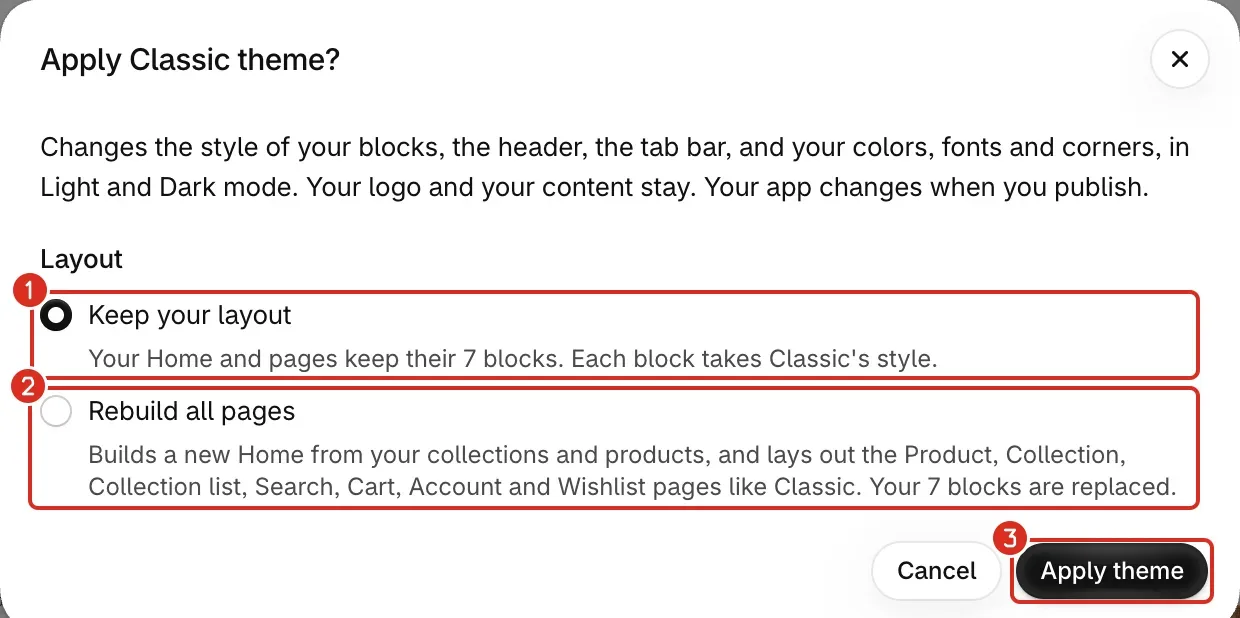
The dialog always asks for a layout. For one of our four themes, Keep your layout is selected first. For a copy, Rebuild all pages is selected first. What each choice does depends on the theme.
For one of our four themes:
- Keep your layout: your Home and pages keep their blocks. Each block takes the style of the theme.
- Rebuild all pages: Nativtap builds a new Home from your collections and products. It lays out the Product, Collection, Collection list, Search, Cart, Account and Wishlist pages like the theme. Your blocks are replaced.
If your Home is empty, the dialog says so, and applying builds your Home from your collections and products with either choice. If you changed colors, fonts or corners, the dialog says the theme replaces them.
For a copy of your online store:
- Keep your layout: your Home and pages keep their blocks. Each block takes the style of the closest of our four themes. If your Home has no blocks, it takes the Home of the copy.
- Rebuild all pages: your Home and the Product, Collection, Collection list, Search, Cart, Account and Wishlist pages are replaced with the ones of the copy.
Your app changes when you publish. See Design your app.
Copy a theme from your online store
- In My themes, select Copy theme. The dialog Copy a theme opens.
- Under Theme, choose the theme to copy. The list has your live theme, marked (live), your unpublished themes, and trial themes, marked (trial).
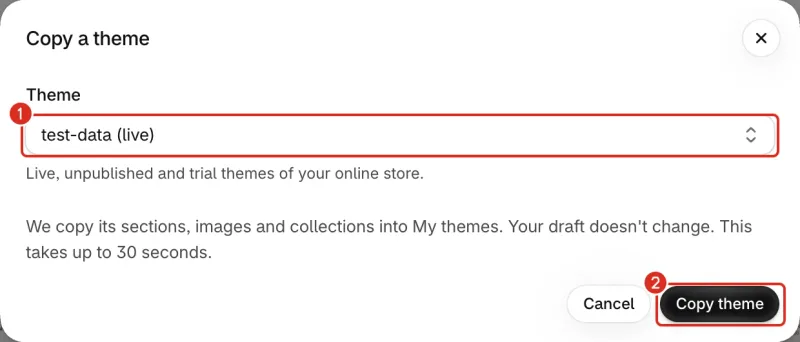
1: The theme to copy. 2: Copy theme. - Select Copy theme and wait. A message says the theme was copied to My themes.
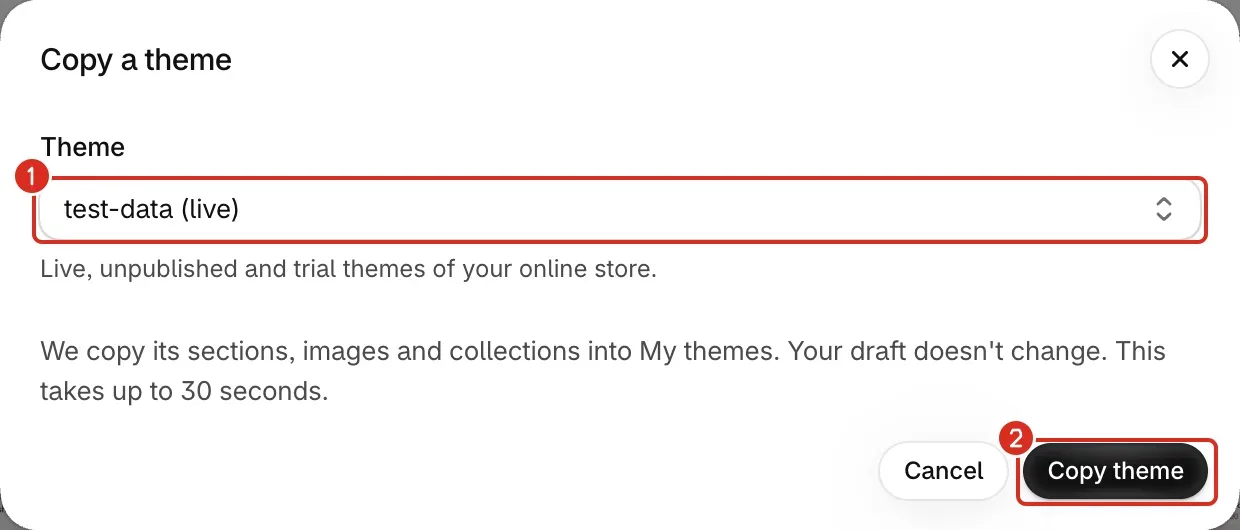
Nativtap copies the sections, images and collections of the theme into My themes. Your draft does not change. Each copy is saved as it was when you made it.
The row of a copy shows the date and the closest of our themes to your store's colors and fonts. It also shows how many sections were not copied. Select Preview on the row to read the list under Not copied. Each line gives a reason:
- not available in the app yet
- comes from another app
- no image set in your theme
- no products to show
- needs at least 3 collections
- only YouTube videos can be copied
- no text set in your theme
To use a copy, select Apply on its row and choose a layout, as described above.
Delete a copy
- On the row of the copy in My themes, select the trash icon at the end of the row. A dialog asks you to confirm.
- Select Delete theme. A message says Copy deleted.
Deleting a copy does not change your draft or your online store. It also frees a place when you have 10 copies.
Common problems
- You can keep 10 copied themes. Delete one to copy another.
- Copy theme is greyed out while you have 10 copies. Delete one in My themes, then copy again. The Copy a theme dialog says "You already have 10 copied themes" for the same reason.
- Nativtap can't read your theme yet
- Nativtap needs a new permission to read your themes. Select Reload page, accept the permission, then copy the theme again.
- We couldn't load your online store's themes
- Select Reload page, then open Copy theme again.
- We couldn't copy theme name
- Read the line under the heading. "Shopify took too long to send your theme", "We couldn't reach Shopify" and "We couldn't read this theme's files": try again in a few minutes. "This theme isn't in your online store any more": select Reload page.
- We couldn't copy any section of theme name
- None of the sections of that theme can be copied yet. The banner names them after "These sections aren't available in the app yet". Apply one of our four themes instead.
- This theme is too large to copy
- Remove some sections from the theme in your online store, then copy it again.
- Your draft changed
- Someone saved this draft in another window. Select Reload page, then apply the theme again.
- Couldn't apply the theme
- Read the line under the heading. "This theme can't be applied to your draft" and "This theme is too big to add to your draft": apply another theme. "We couldn't load this theme. Try again.": select Apply theme again. "Theme not found": the copy no longer exists, so reload the page.
- Couldn't delete the copy
- Read the line under the heading. "Theme not found" means the copy no longer exists. Select Cancel, then reload the page to refresh My themes.
- My app looks the same after I applied a theme
- Applying a theme changes your draft. Your app changes when you publish.
Related
Something wrong or out of date on this page? Tell us by email.
Still stuck?
Send us the exact message you see, and what you already tried.