 NativTap
Before you begin
- Link your App Store app first. The Open App Privacy in App Store Connect button appears once it is linked. The article Connect your Apple account shows how.
- In App Store Connect, you need the Account Holder, Admin or App Manager role to answer the questions.
- Nativtap can't fill in the answers or see them. You tell Nativtap when you have published them.
- You can't submit for review until you confirm the answers in Nativtap.
- The unread-badge row applies to apps built with Nativtap 1.6.0 or later.
Enter your answers in App Store Connect
- From your Shopify admin, go to Nativtap > App submission > Manage App Store.
- Select the App Privacy tab. A badge such as 1 to fix shows while your answers aren't confirmed.
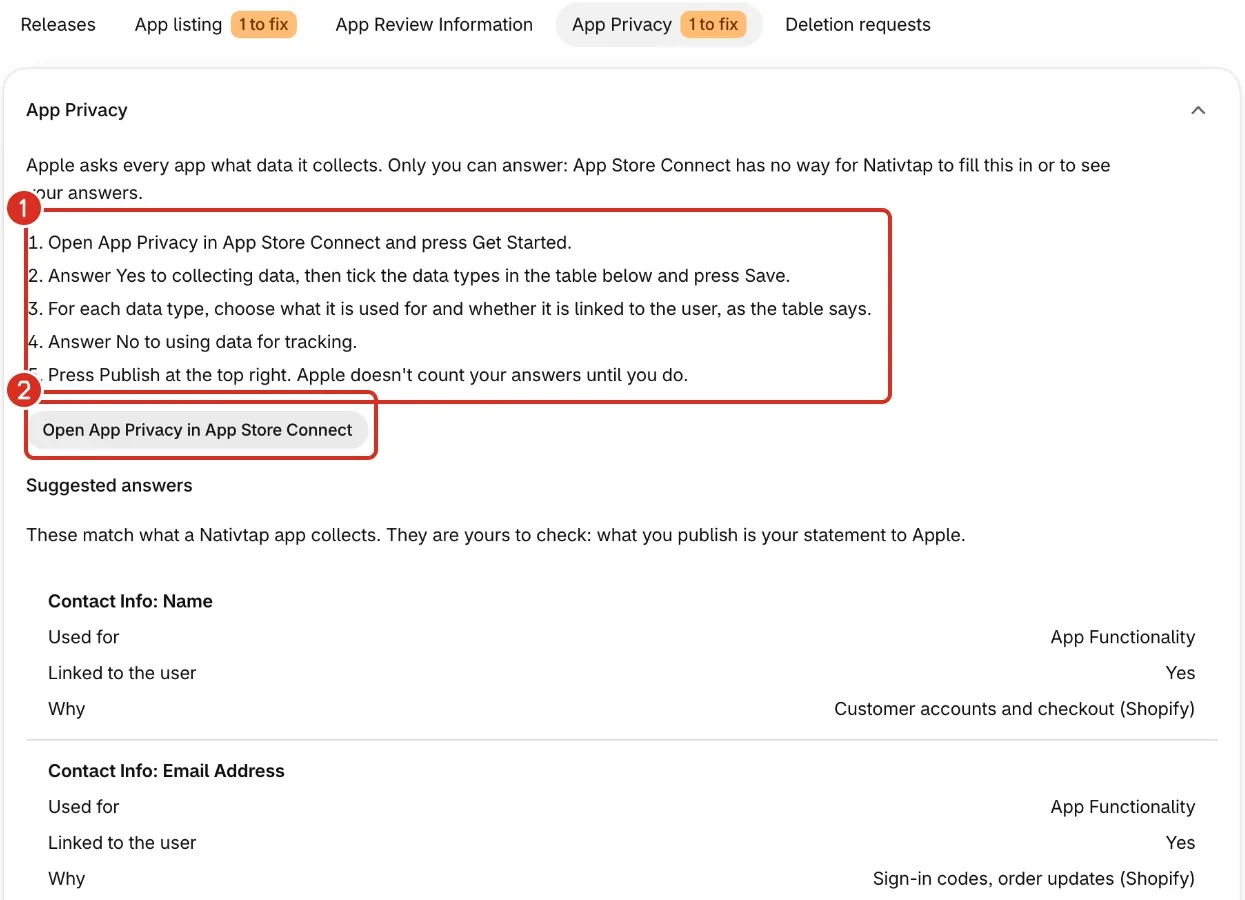
- Read the five steps in the App Privacy card.
- Select Open App Privacy in App Store Connect. It opens in a new tab.
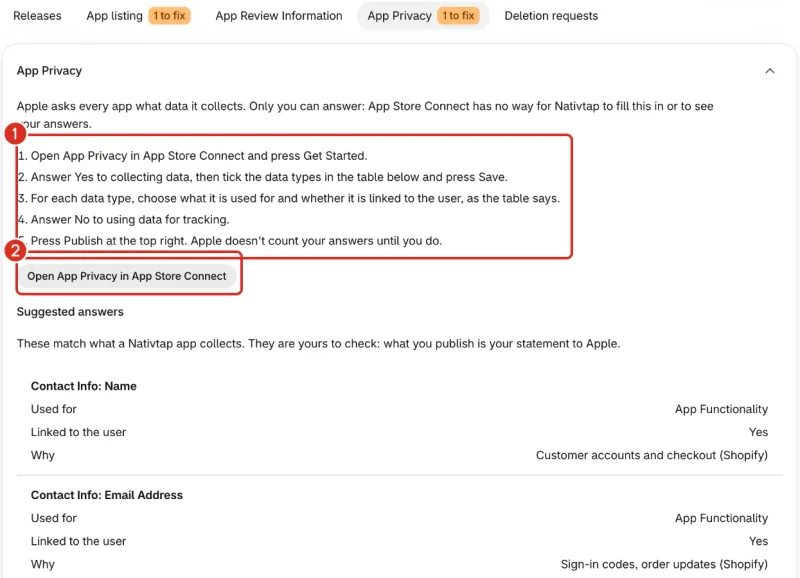
1: The five steps. 2: Open App Privacy in App Store Connect. - In App Store Connect, select Get Started.
- Answer Yes to collecting data.
- Select Next.
- Select each data type listed in the table in the next section.
- Select Save.
- Under Data Types, select a data type.
- Answer its questions: select what it is used for and whether it is linked to the user, as the table says. Repeat for each data type you selected.
- Answer No to using data for tracking.
- Select Publish at the top right.
- Apple asks you to confirm that your answers are accurate. Select Publish again.
Apple doesn't count your answers until you publish them. Apple's help says you need the Account Holder, Admin or App Manager role to answer (Apple's App Privacy help).
Check the suggested answers
The table lists what a Nativtap app collects, in the labels Apple uses. The answers are yours to check: what you publish is your statement to Apple. The Why column says when a row applies. Card payment details are entered in Shopify checkout and never reach you, so the table has no payment row.
| Data type | Used for | Linked to the user | Why |
|---|---|---|---|
| Contact Info: Name | App Functionality | Yes | Customer accounts and checkout (Shopify) |
| Contact Info: Email Address | App Functionality | Yes | Sign-in codes, order updates (Shopify) |
| Contact Info: Phone Number | App Functionality | Yes | Only if your checkout asks for a phone number (Shopify) |
| Contact Info: Physical Address | App Functionality | Yes | Shipping addresses in checkout and the account screen (Shopify) |
| Purchases: Purchase History | App Functionality, Analytics | Yes | Order history in the account screen; order totals for your app analytics |
| User Content: Other User Content | App Functionality | Yes | Notes shoppers add to their order (Shopify), and the text a shopper enters in the personalization form if your app sells personalized products with Customix |
| User Content: Photos or Videos | App Functionality | Yes | Only if your app sells personalized products with Customix: photos a shopper uploads in the personalization form are sent to Customix and attached to the order. |
| Usage Data: Product Interaction | Analytics, App Functionality | No | App opens, add to cart, checkout started, how many notifications are unread (no personal data) |
| Usage Data: Other Usage Data | App Functionality | No | Only if your app shows YouTube videos: when a shopper taps Play, YouTube (Google) receives the video request and playback data. |
| Search History: Search History | App Functionality | No | What you type in Search is sent to Shopify to show results. We do not store it. |
| Identifiers: Device ID | Analytics, App Functionality, Developer's Advertising or Marketing | No | A random app install ID and the push notification token |
| Identifiers: User ID | App Functionality | Yes | Your Shopify customer account ID (sign-in, wishlist, account deletion). We keep it only while a deletion request is open, plus 30 days. |
| Diagnostics: Crash Data | App Functionality | No | Crash reports without personal data |
| Diagnostics: Performance Data | App Functionality | No | App start time and screen load time |
No row is used for tracking, so every answer to the tracking question is No.
Product Interaction lists App Functionality because the red badge on the app icon needs the unread notification count. The badge came with Nativtap 1.6.0.
Confirm your answers in Nativtap
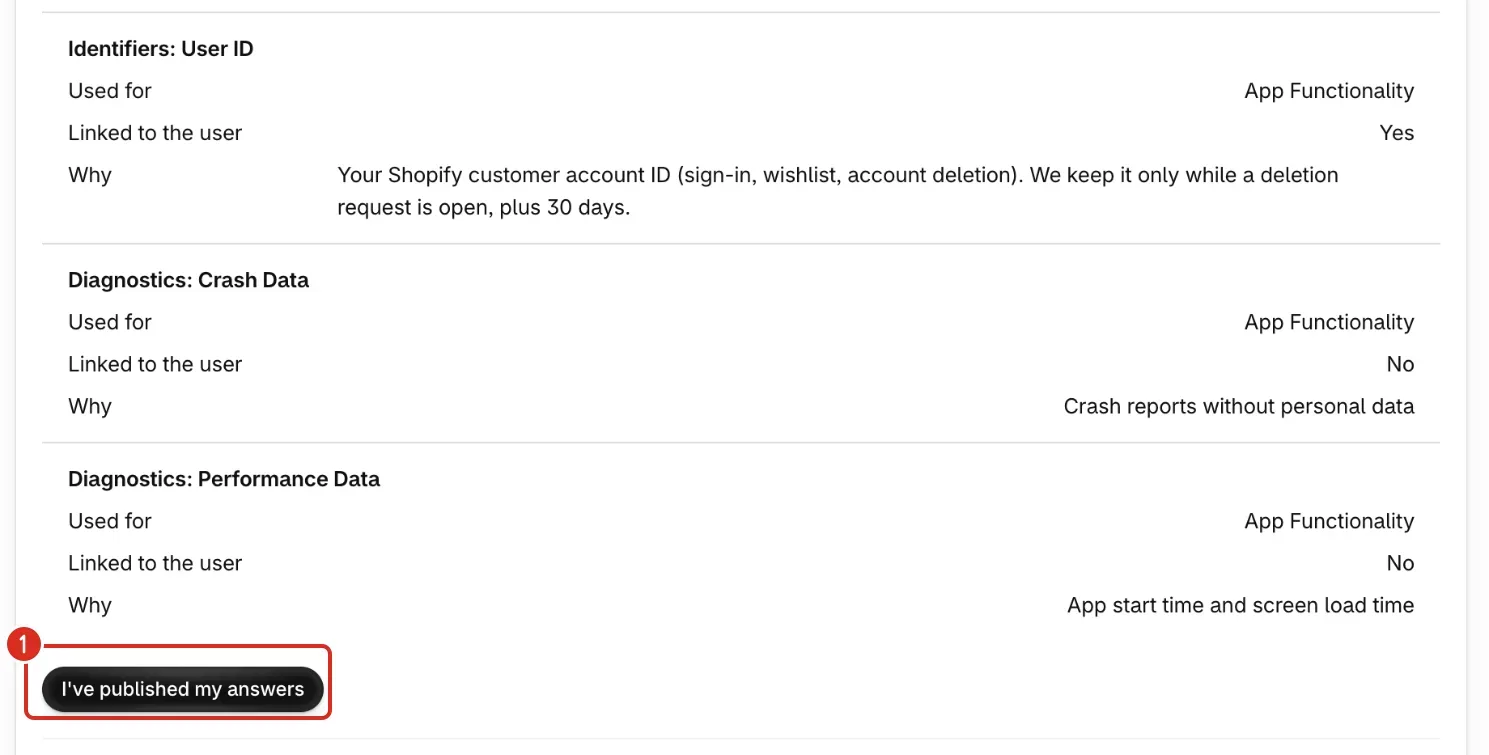
- Back in Nativtap, on the App Privacy tab, select I've published my answers. It sits under the table.
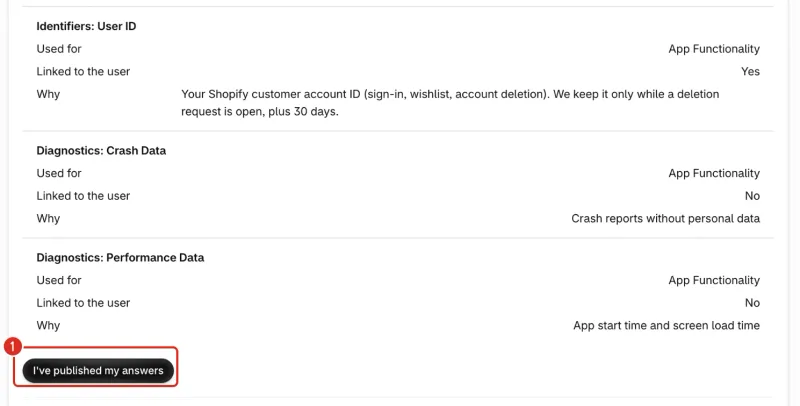
- Wait for the Confirmed badge. The App Privacy line of Before you submit on the Releases tab then reads You confirmed that your answers are published.
- The next time you open the page with your answers confirmed, the App Privacy card is folded. Select Expand App Privacy (the arrow at the top right of the card) to open it.
Add the text to your privacy policy
Apple checks that your privacy policy covers the app. The card gives you text to add to your store's privacy policy page.
- In the App Privacy card, find Add this to your privacy policy. The box labeled Privacy policy text for your app holds the text.
- Select Copy text. Nativtap shows Copied.
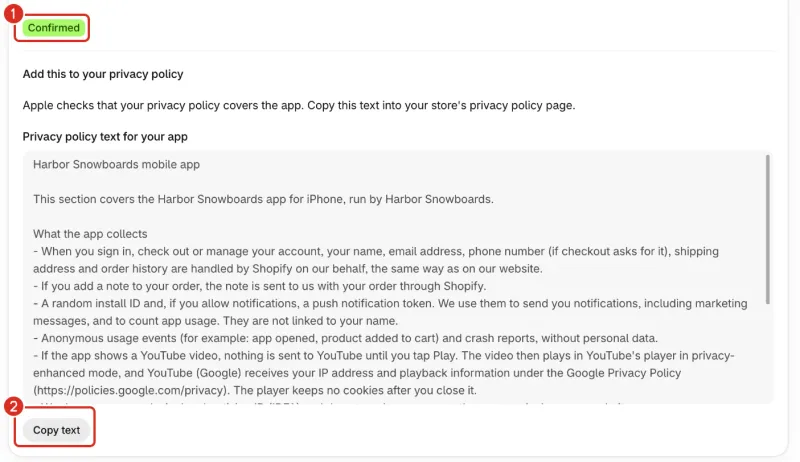
1: Confirmed. 2: Copy text. - Paste the text into your store's privacy policy page. It names your app and your store, lists what the app collects, and explains how shoppers delete their account in the app.
- Make sure the Privacy policy URL on the App listing tab opens your privacy policy page. Write your App Store listing explains the field.
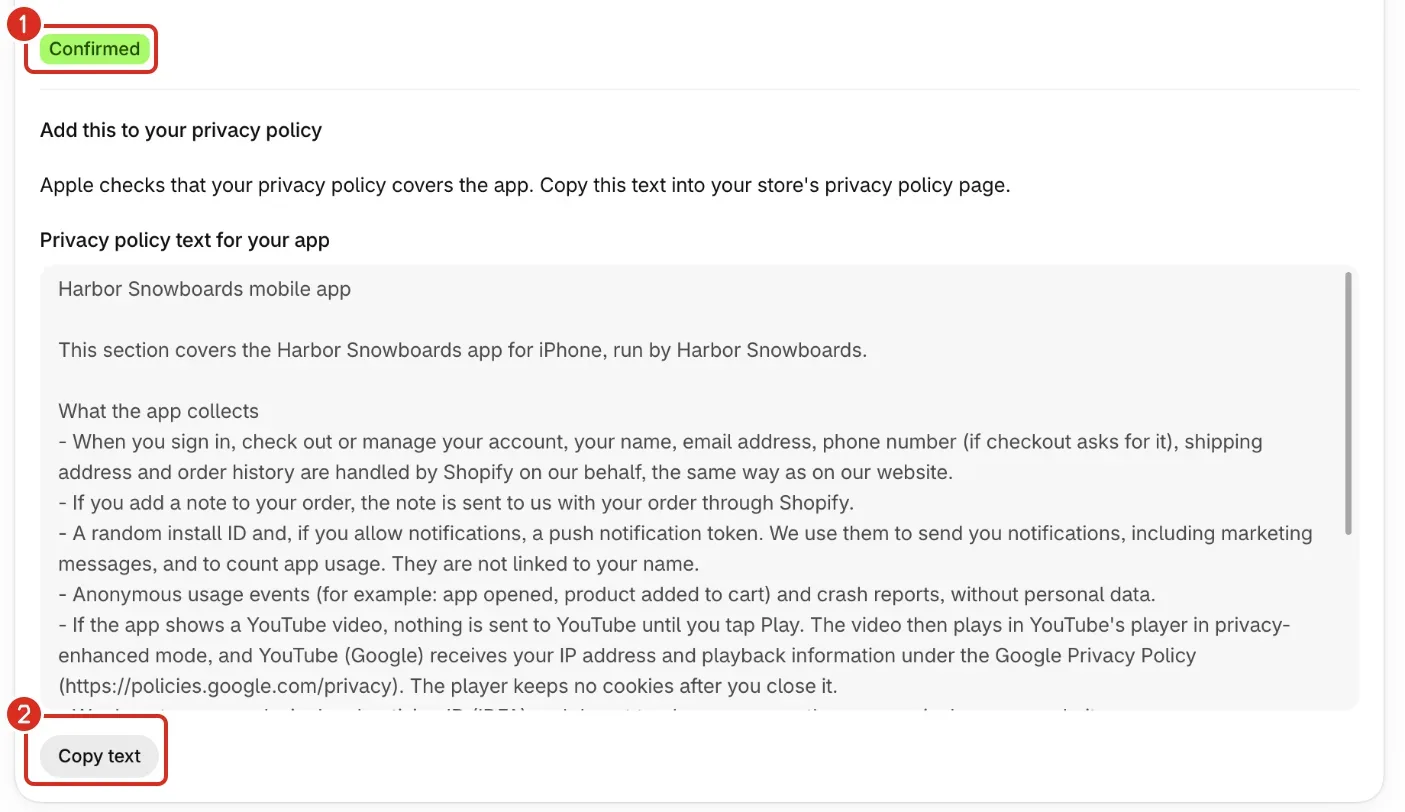
The text ends with a contact line. It uses your store's contact email, or your Support URL when the store has no contact email. With neither, it points shoppers to your store's contact page.
When Nativtap changes the suggested answers
Sometimes Nativtap changes the table, for example when it added App Functionality to Product Interaction. Your earlier confirmation then no longer counts.
- Open the App Privacy tab. It shows 1 to fix again, and I've published my answers is back.
- Compare the table with the answers you published, and change them in App Store Connect where they differ. Select Publish.
- Select I've published my answers again. Submit for review waits until you do.
You don't need a new app version to change published answers (Apple's App Privacy details).
Common problems
- Enter your answers in App Store Connect, press Publish, then confirm in Nativtap.
- This line under App Privacy in Before you submit means you haven't confirmed yet. Publish your answers in App Store Connect, then select I've published my answers on the App Privacy tab. Select See the steps to jump there.
- Apple doesn't see published answers yet. Enter them in App Store Connect and press Publish.
- Apple says it doesn't see published answers. Open App Privacy in App Store Connect, check that your answers are entered, select Publish, then select Submit for review again in Nativtap. You don't need a new build.
- Your listing changed in another tab. Reload the page and try again.
- This comes with the banner Couldn't save your confirmation. Reload the page, then select I've published my answers again.
- Some fields of your listing are not valid yet.
- Nativtap saves your confirmation with the listing, so a field that isn't valid blocks it. Fix the fields on the App listing tab, then select I've published my answers again.
- Something went wrong. Reload the page and try again.
- Reload the page and confirm again. Your answers in App Store Connect aren't affected.
- Couldn't copy the text. Select it and copy it by hand.
- Select the text in the Privacy policy text for your app box, then copy it with your keyboard.
- Couldn't load App Privacy
- The rest of the page still works. Select Reload page to load the card again.
- The Open App Privacy in App Store Connect button is missing.
- Nativtap shows it once your App Store app is linked. Follow the “Finish your App Store app” steps in Connect your Apple account. Until then, open your app in App Store Connect and select App Privacy in the sidebar.
- You can't answer the questions in App Store Connect.
- Apple lets the Account Holder, Admin and App Manager answer them. Ask someone with one of those roles to do it, then confirm in Nativtap yourself.
Related
Something wrong or out of date on this page? Tell us by email.
Still stuck?
Send us the exact message you see, and what you already tried.