 NativTap
Before you begin
- Publish your app design at least once. Select Publish on Home, or publish from the editor. Nativtap captures the published version, not your draft.
- Nativtap generates up to 4 screenshots: home, collection, product and cart. The home screen is always captured.
- The collection screen needs a collection with at least one product. Nativtap uses a collection your app design uses, or else the first collection in your Nativtap sales channel that has products. The product and cart screens need a product with an image and a variant that is in stock. It can be in any collection, or in none.
- Everything Nativtap captures comes from the Nativtap sales channel. A product or collection that isn't published there is not used.
- Nativtap makes one set for the iPhone 6.9-inch display, 1320 × 2868 px. Apple shows it on every iPhone size.
- Each screenshot is a capture of your app with an optional headline on a solid background color.
Generate your screenshots
If you haven't published your design yet, Design your app covers publishing from the editor.
- From your Shopify admin, go to Nativtap > App submission > Manage App Store.
- Select the App listing tab, then scroll to the Screenshots card. It sits below the App Store listing card.
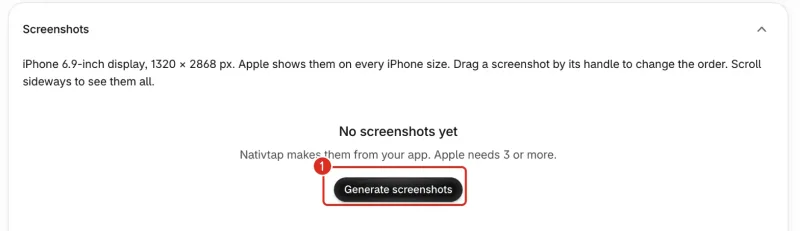
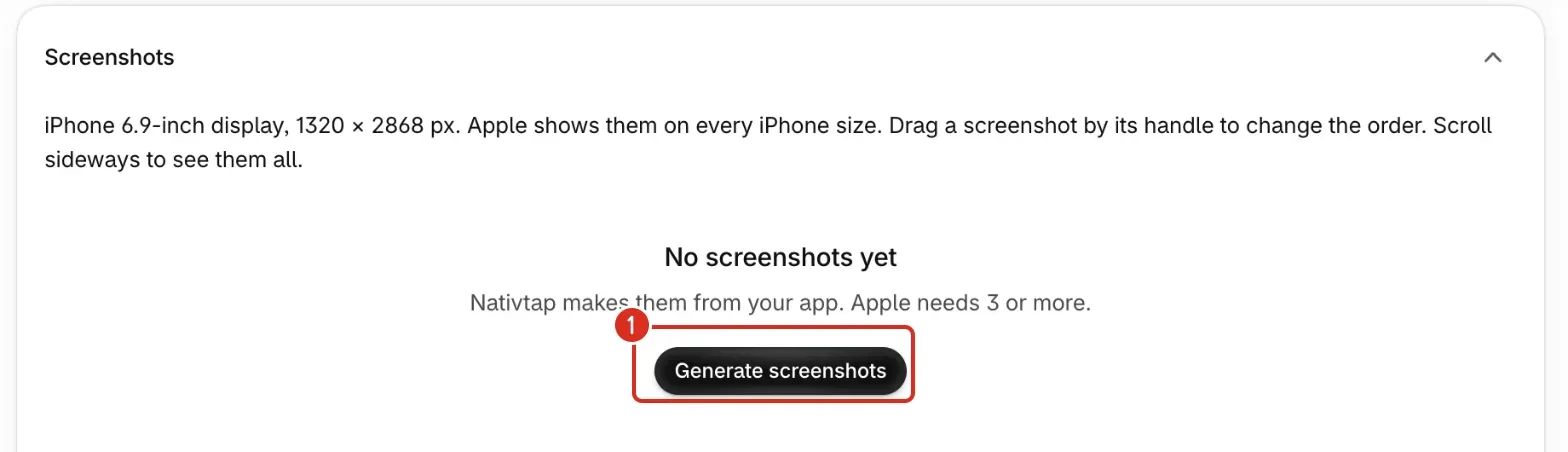
- If the card says No screenshots yet, select Generate screenshots.
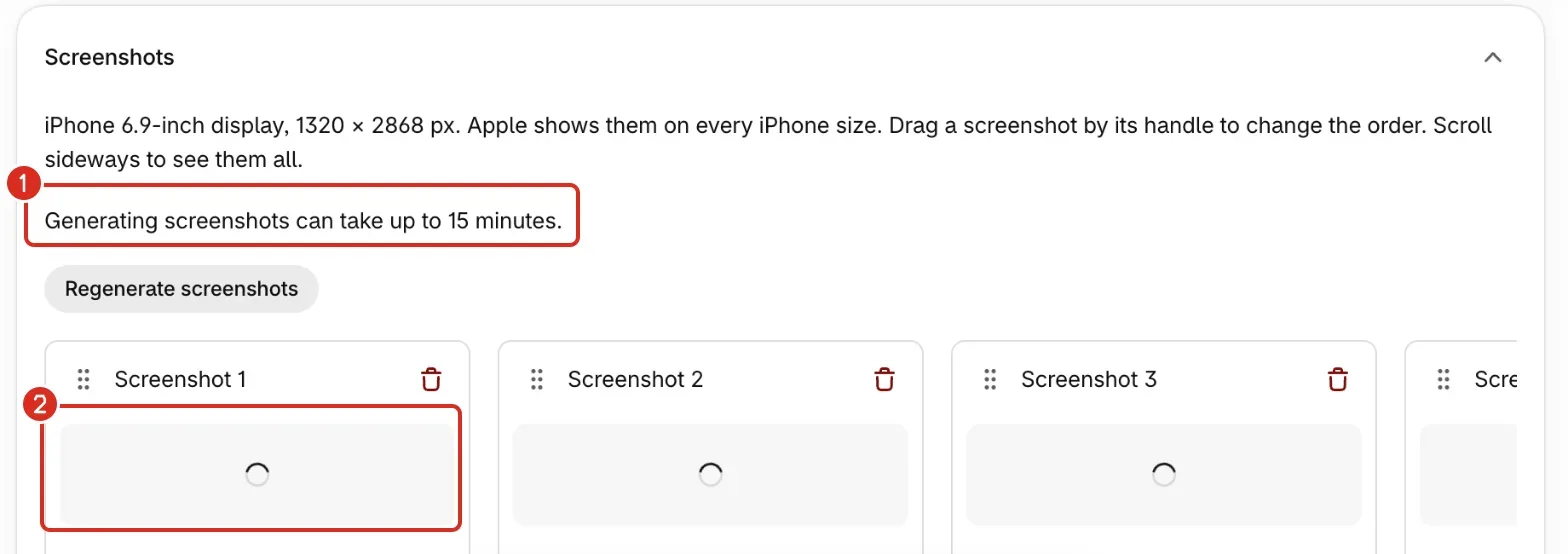
- Wait while each screenshot shows a spinner. The card says Generating screenshots can take up to 15 minutes. Nativtap keeps working if you leave the page.
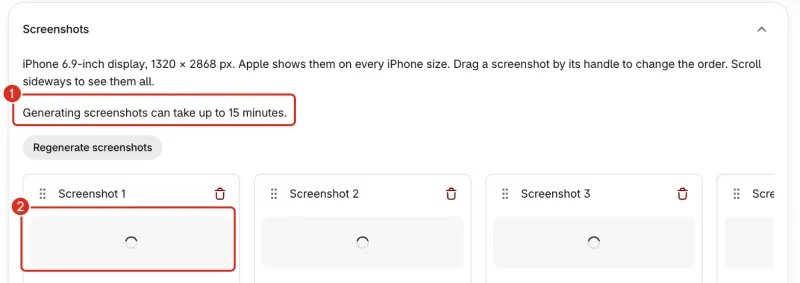
1: How long it can take. 2: A screenshot still being made. - When the spinners are gone, each generated screenshot shows a blue Generated badge. Check every one.
Change a headline or background
Only generated screenshots have these fields. A screenshot you replaced with your own image does not.
- In the card of the screenshot, enter a new headline under Headline for screenshot N, where N is its number. It holds up to 60 characters. Leave it empty to use the capture alone.
- Select a color under Background for screenshot N. Nativtap picks a dark or light headline color so the text stays readable.
- Wait for the message Screenshot updated. Nativtap makes the new image in its next run. A run starts about 10 minutes after your first edit, so several edits make one run. The card shows no progress for this: reload the page later to see the new image. To start the run now, select Regenerate screenshots above the row.
Change the order
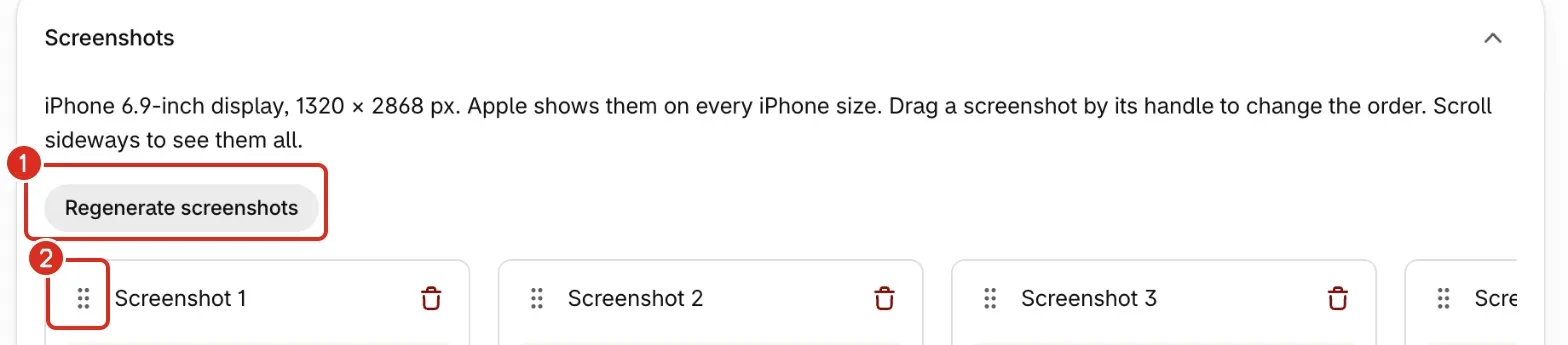
- Find the drag handle, the six dots at the top left of a screenshot, next to its number.
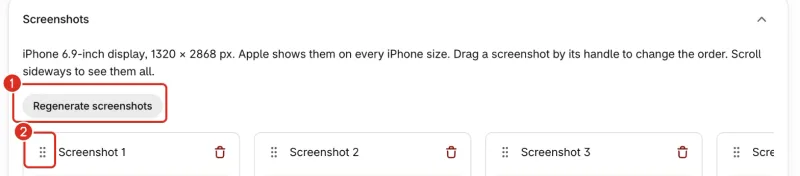
1: Regenerate screenshots. 2: Drag handle. - Drag the screenshot to its new place in the row.
- Wait for the message Order saved.
To move one with the keyboard, focus the handle and press Space. Move the screenshot with the arrow keys, then press Space again to drop it.
Use your own image
- In the card of the screenshot you want to replace, add your file under Replace screenshot N with your own image. It must be a PNG or JPG of 1320 × 2868 px, 1290 × 2796 px or 1260 × 2736 px, with no transparent pixels and 10 MB or smaller.
- Wait while the field shows Uploading… and then Processing….
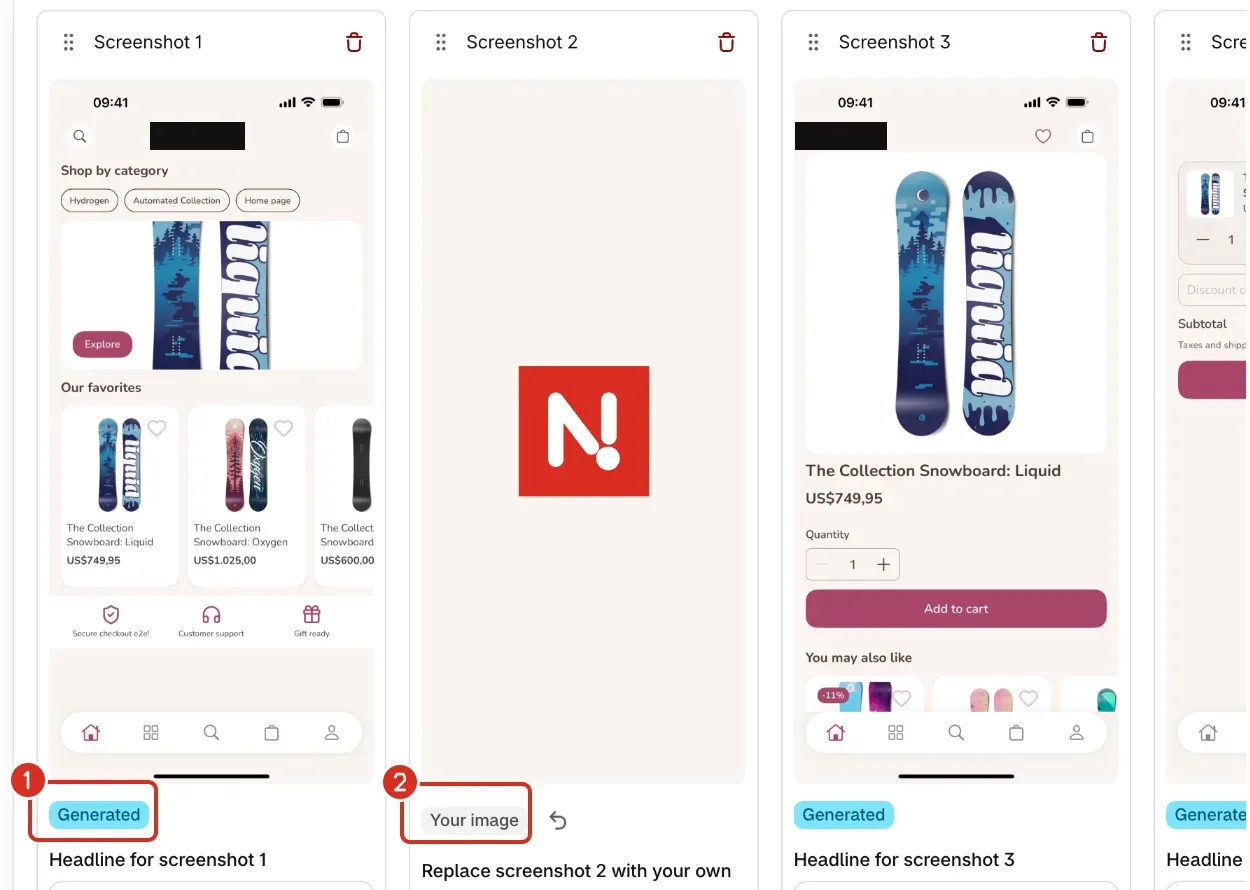
- When the message Screenshot replaced appears, the card shows a grey Your image badge.
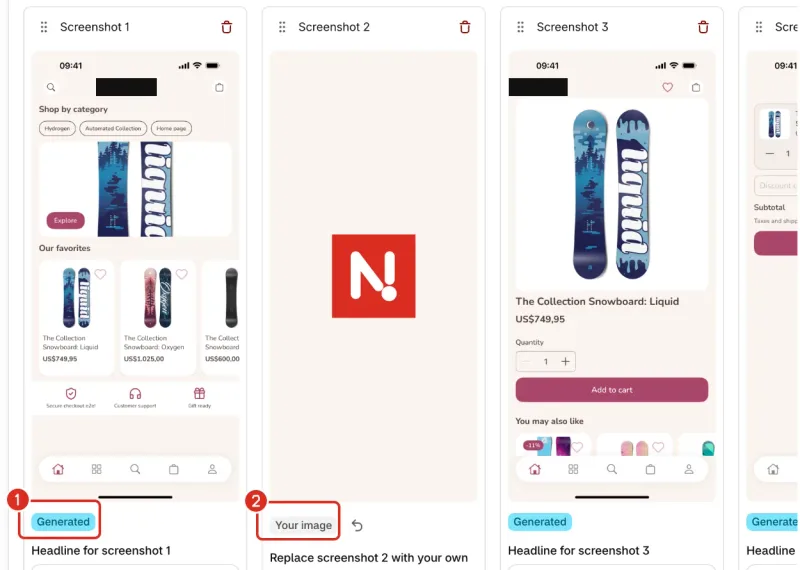
1: Generated. 2: Your image.
To add another screenshot of your own, use Add your own screenshot below the row. It joins the end of the row. The card holds up to 10 screenshots, and the field is gone once you have 10.
To go back to a generated screenshot, select the undo icon beside Your image. Its tooltip says Use generated screenshot. Nativtap starts generating a screenshot again and shows Generating screenshot.
Remove a screenshot
- Select the trash icon at the top right of the screenshot.
- In the window Remove screenshot N?, select Remove screenshot. Select Keep screenshot to cancel. The window says Generated screenshots come back when you regenerate.
Regenerate your screenshots
Regenerate when your app design or your products change. It remakes the generated screenshots. Your own images stay as they are.
- Publish your app design. Publishing also queues new screenshots after a wait.
- On the Screenshots card, select Regenerate screenshots above the row to start at once.
- Wait for the spinner next to each screenshot's title to go. The earlier image stays until the new one is ready.
Send your screenshots to Apple
This card has no Save button: each change is saved when you make it. Nativtap sends your screenshots to App Store Connect with your listing when it prepares a release. Release your app on the App Store shows the steps.
Common problems
- Publish your app from the editor first, then generate screenshots.
- This appears in the Couldn't update your screenshots banner. Your app has no published design to capture. Select Publish on Home, or publish from the editor, then select Generate screenshots or Regenerate screenshots again.
- Publish your app, then regenerate screenshots.
- This appears under a screenshot. The run started before your app was published. Publish your design, then select Regenerate screenshots.
- We can't create screenshots right now. Try again later.
- The message appears in the banner or under a screenshot. Nativtap can't make screenshots at the moment, and nothing you did caused it. Try again later. Meanwhile, add your own with Add your own screenshot.
- Nothing to show on this screen yet. Publish at least one product with an image and stock to the Nativtap sales channel, then select Regenerate screenshots. Or upload your own screenshot or remove this one.
- This appears under the product and cart screenshots. Nativtap found no product to capture. Check that at least one product has an image, has a variant that is in stock, and is published to the Nativtap sales channel. Then select Regenerate screenshots. Or replace the screenshot with your own image, or remove it.
- Nothing to show on this screen yet. Publish a collection with at least one product to the Nativtap sales channel, then select Regenerate screenshots. Or upload your own screenshot or remove this one.
- This appears under the collection screenshot. Nativtap found no collection with a product to capture. Publish a collection that holds at least one product to the Nativtap sales channel. Then select Regenerate screenshots. Or replace the screenshot with your own image, or remove it.
- We couldn't capture your app. Regenerate screenshots to try again.
- The run failed. Select Regenerate screenshots.
- We couldn't compose this screenshot. Regenerate screenshots.
- Nativtap captured your app but couldn't build the final image. Select Regenerate screenshots. The capture is missing. Regenerate screenshots. and The capture is not a valid image. Regenerate screenshots. have the same fix.
- Screenshots are taking longer than expected
- The banner adds We stopped waiting for them on this page. Check again, or regenerate screenshots if they still don't appear. The page stopped looking for new images after a long wait. Select Check again to read the card once more. If the screenshots still don't appear, select Regenerate screenshots.
- Use 60 characters or fewer. This one has N.
- The message appears under the headline field, and N is the length of your headline. The headline isn't saved until it fits. Shorten it.
- Add at least N more screenshots. Apple needs 3 or more.
- N is how many screenshots you still need. Nativtap counts screenshots that are still being made, but not failed ones. The minimum of 3 is Nativtap's own check, and Nativtap won't let you submit with fewer. Select Regenerate screenshots to bring back screenshots you removed, or add your own.
- Add at least 3 screenshots.
- This is a line in Before you submit on the Releases tab (this is Nativtap's own check). It counts only screenshots whose image is ready. Select the line to open the Screenshots card, then generate or add more.
- The screenshots changed. Reload the page and try again.
- This appears in the Couldn't update your screenshots banner. Another tab or person changed the list. Reload the page, check the list, then make your change again.
- Upload the screenshot again
- The file you added is no longer available. Add it again.
- Something went wrong. Reload the page and try again.
- Reload the page, then repeat your change.
- Screenshots must be 1320×2868, 1290×2796 or 1260×2736 px (this one is W×H)
- The message shows your file's real size instead of W×H. Resize the image to one of the three sizes, then add it again.
- Screenshots must be PNG or JPG
- Export the image again as a PNG or JPG, then add it.
- Screenshots must not have transparent pixels
- Fill the transparent areas with a solid color, export the image again and add it.
- Screenshots must be 10 MB or smaller
- Export the image again with a smaller file size, then add it.
- This file type isn't supported here
- Add a PNG or JPG file.
Related
Something wrong or out of date on this page? Tell us by email.
Still stuck?
Send us the exact message you see, and what you already tried.