 NativTap
Before you begin
- To copy your online store, your store needs a published theme and Nativtap needs permission to read your themes.
- A copy takes up to 30 seconds. You can keep up to 10 copied themes.
The first time you open Nativtap, you land on Set up your app design. It stops showing once you apply a theme, save your draft or publish.
Choose how to start
- From your Shopify admin, go to Nativtap. The Set up your app design page shows two cards.
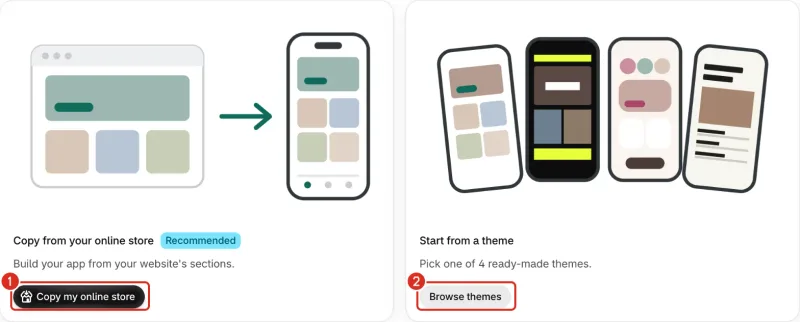
1: Copy my online store. 2: Browse themes. - Select Copy my online store to build your app from your online store. Select Browse themes to pick a ready-made theme instead.
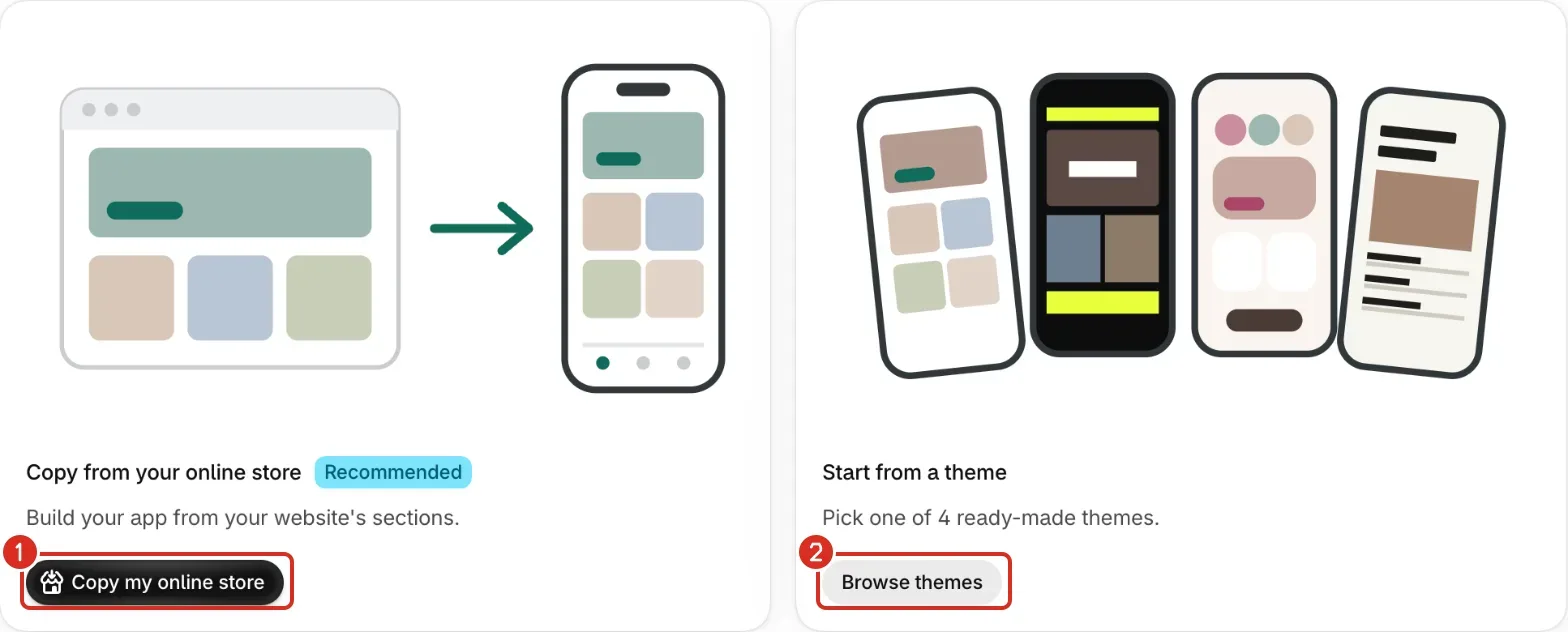
Copy your online store
The Copy from your online store card is marked Recommended. It copies the theme that is live on your online store.
- Select Copy my online store. The copy starts at once, with no theme to pick first.
- Wait while Copying your online store shows. Select Cancel to go back to the two cards.
- Check the preview of your Home screen. Use Page to check other pages. When Dark Mode is on, use Appearance to switch between Light and Dark.
- Beside the preview, Copied from your theme's name lists how many sections and blocks were copied, and the closest of our themes to your colors and fonts.
- Not copied (N) lists the sections that could not be copied, with the reason for each.
- Select Apply to draft. A message says your online store was copied to your draft, and App design opens.
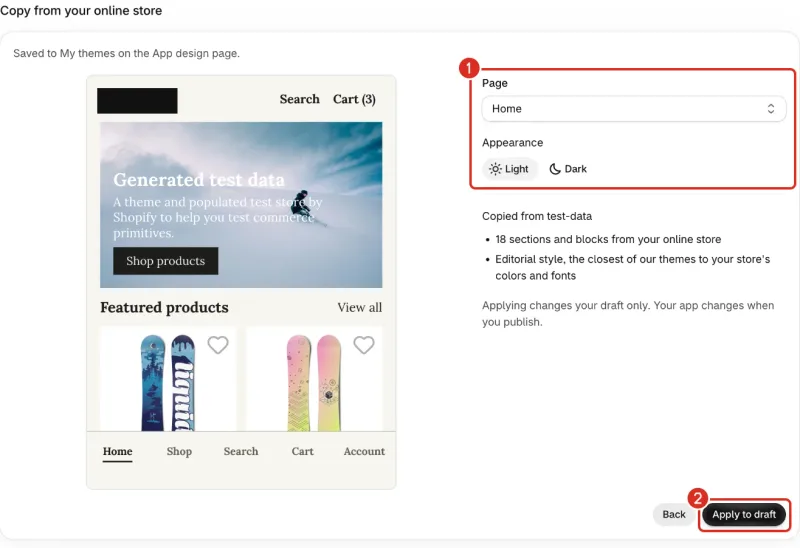
1: Page and Appearance. 2: Apply to draft.
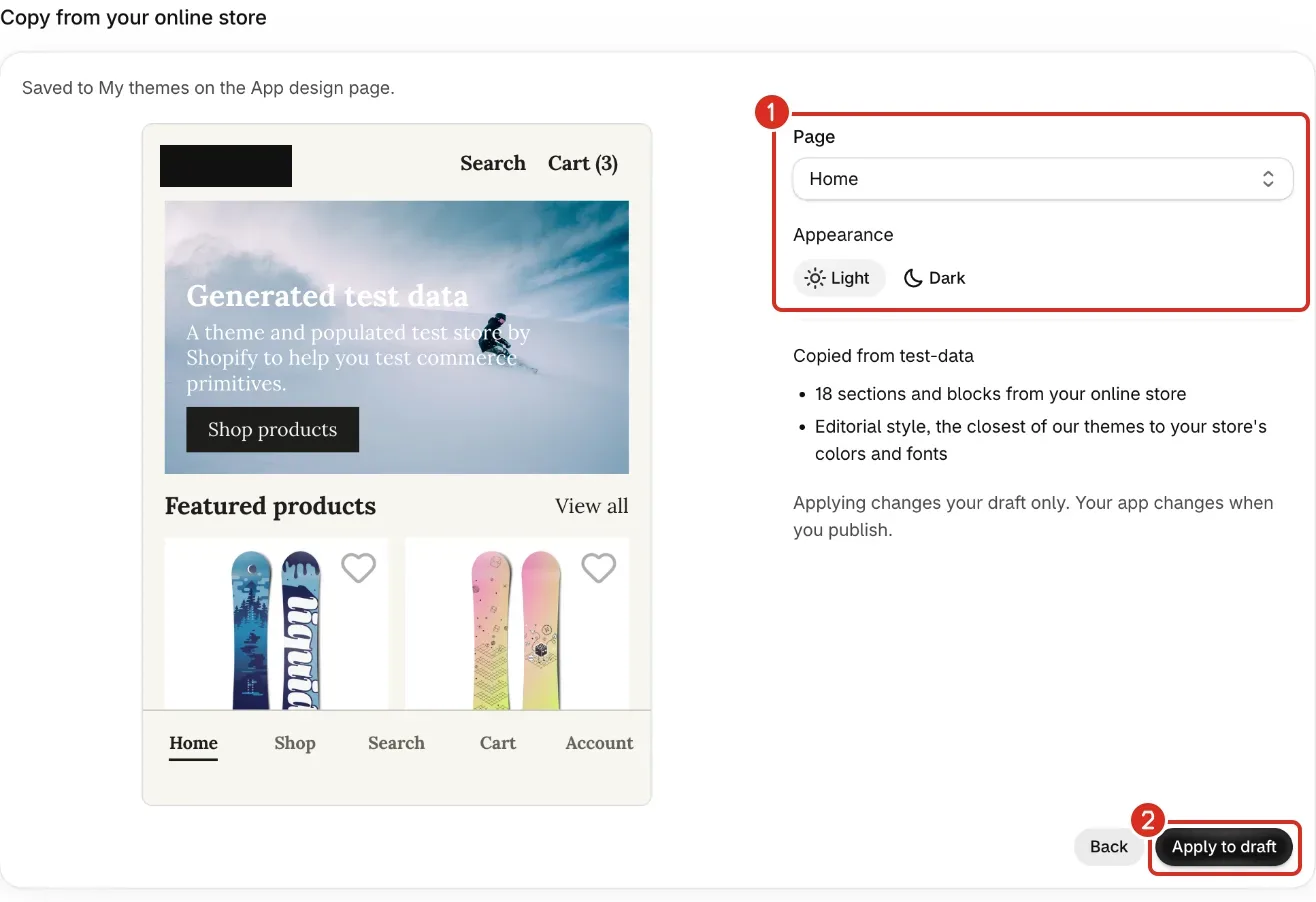
Nativtap saves the copy under My themes on the App design page before you apply it. Select Back to return to the two cards. The copy stays in My themes, and copying again makes a new one that uses another of your 10 places.
You can add similar blocks in the editor for anything under Not copied (N).
If you already changed your draft, Nativtap asks how to apply the copy first. The same happens with the Use buttons of the themes below. See Choose and copy a theme.
Start from a theme
Each theme sets your colors, font and corners, and lays out every page. Nativtap builds your Home from your collections and products.
- Classic: clean and neutral, with a centered logo, an outlined Add to cart and an icon tab bar.
- Bold: dark, with uppercase type, prices on photos and a sticky Add to cart.
- Soft: pastel and rounded, with story circles, color swatches and a floating tab bar.
- Editorial: serif and airy, with product lists, collapsible details and a text-only tab bar.
- Select Browse themes on the Start from a theme card.
- Compare the four theme cards.
- Select the button under the theme you want: Use Classic, Use Bold, Use Soft or Use Editorial. A message says the theme was applied to your draft, and App design opens.
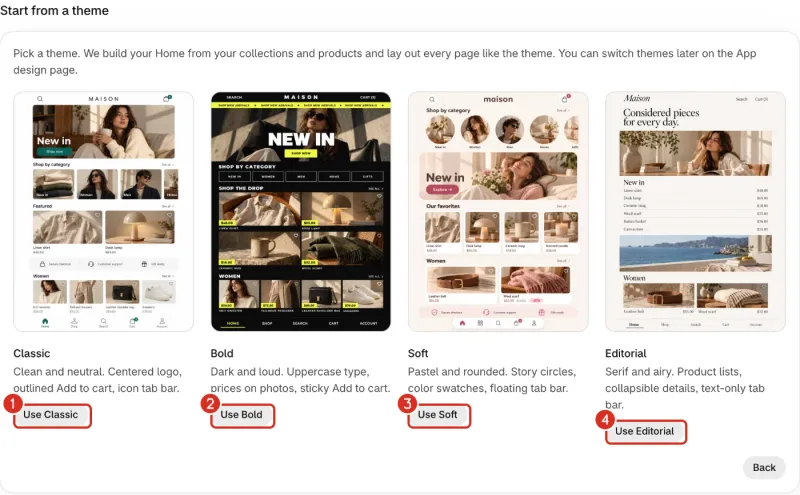
1: Use Classic. 2: Use Bold. 3: Use Soft. 4: Use Editorial.
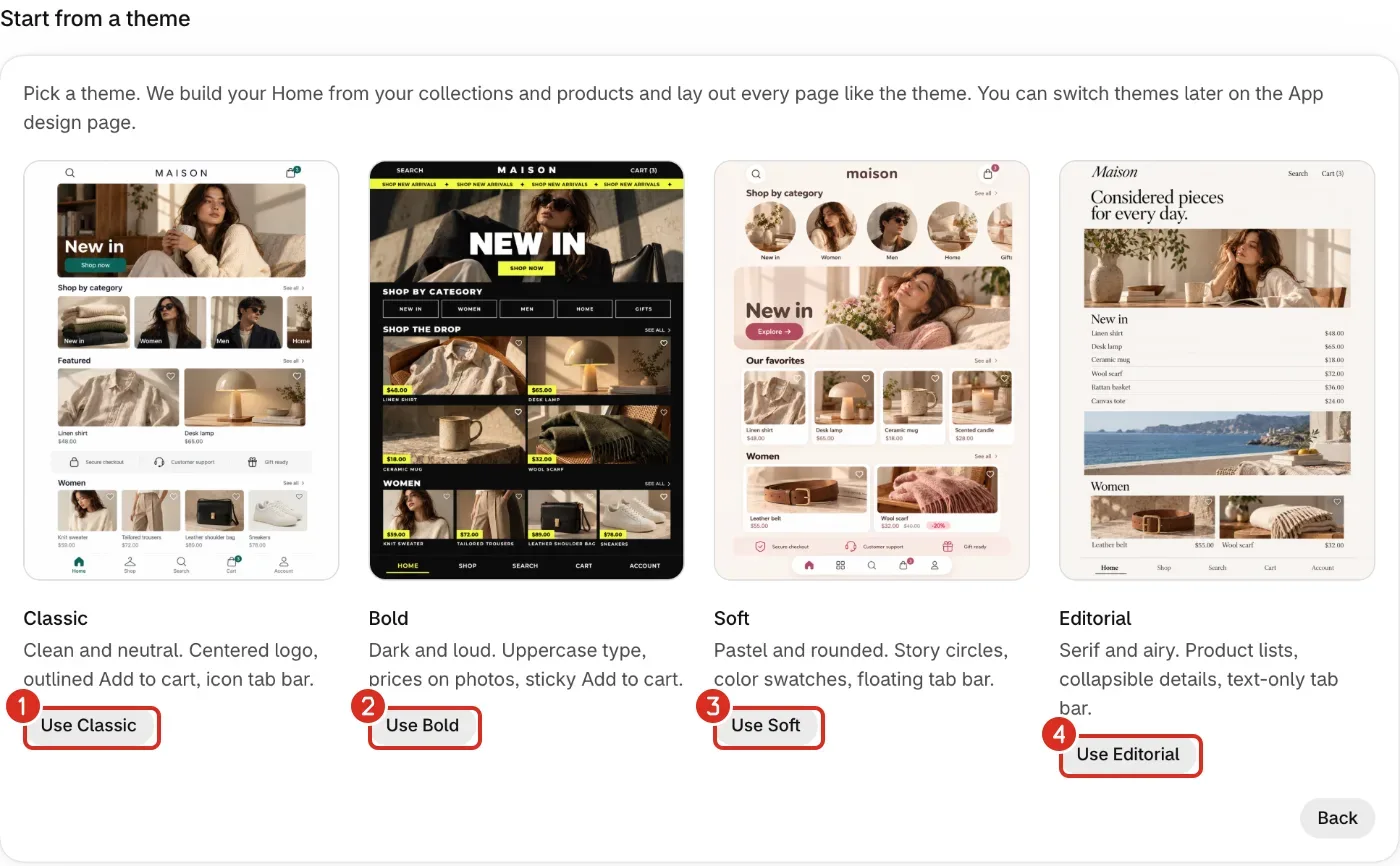
Select Back to return to the two cards. You can switch themes later on the App design page.
Keep designing
On App design, select Customize to open the editor. See Design your app. Change colors, fonts and corners in Set your colors, fonts and corners. When you are ready to release, see See every step to the App Store.
Common problems
- Nativtap can't read your theme yet
- Nativtap needs a new permission to read your theme. Select Reload page, accept the permission, then select Copy my online store again. Or pick one of the four themes.
- Your store has no published theme
- The page says this under the heading "We couldn't copy your online store". Publish a theme in your Shopify admin and copy again, or pick one of our themes.
- We couldn't read your theme's files
- Select Try again, or try again in a few minutes. Or pick one of our themes.
- Shopify took too long to send your theme
- Select Try again, or try again in a few minutes. Or pick one of our themes.
- We couldn't reach Shopify
- Select Try again, or try again in a few minutes. Or pick one of our themes.
- You already have 10 copied themes
- Open App design and delete a copy under My themes, or pick one of our themes.
- This theme is too large to copy
- Pick one of our themes.
- We couldn't copy any section of your theme name
- Nativtap could not turn any section of your Home into a block. The page lists them after "These sections aren't available in the app yet". Pick one of our themes instead.
- This theme can't be applied to your draft
- The page says this under the heading "Couldn't apply the theme". Pick another theme.
- This theme is too big to add to your draft
- The page says this under the heading "Couldn't apply the theme". Pick another theme.
- We couldn't load this theme. Try again.
- Select the button again.
- We couldn't read your collections and products. Try again.
- The page says this under the heading "Couldn't apply the theme" when you apply one of the four themes. Select the Use button again.
- Your draft changed
- Someone saved this draft in another window. Select Reload page, then apply the theme again.
- The Set up your app design page doesn't open
- It shows only until you start your app design. After that, Nativtap opens Home. Find My themes and Theme library on App design in the Nativtap menu. See Choose and copy a theme.
Related
Something wrong or out of date on this page? Tell us by email.
Still stuck?
Send us the exact message you see, and what you already tried.