 NativTap
Before you begin
- Nativtap can't read Apple's message. Apple explains the reason only in App Store Connect, so you read it there and fix the problem in Nativtap.
- To read and answer Apple's message, you need a role in App Store Connect. The section Read what Apple said says which.
- Nativtap tells you when a version is rejected. The Updates button on the App Store page shows it until you dismiss it, as your app's name and version followed by Rejected by App Review. Nativtap also sends an email when Email me about App Store updates is on.
Check what Nativtap shows
- From your Shopify admin, go to Nativtap > App submission > Manage App Store.
- Select the Releases tab.
- Read the badge at the top right of the version card. Rejected means App Review rejected the version, and the App Review step is marked red.
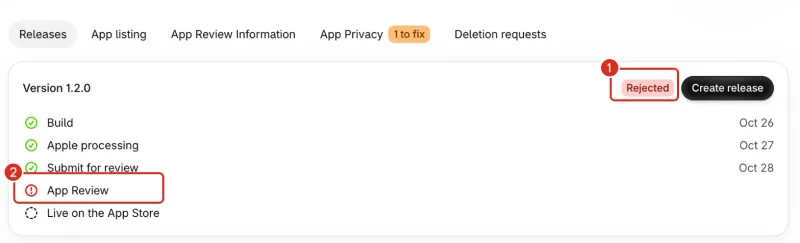
1: Rejected. 2: App Review, where it stopped.
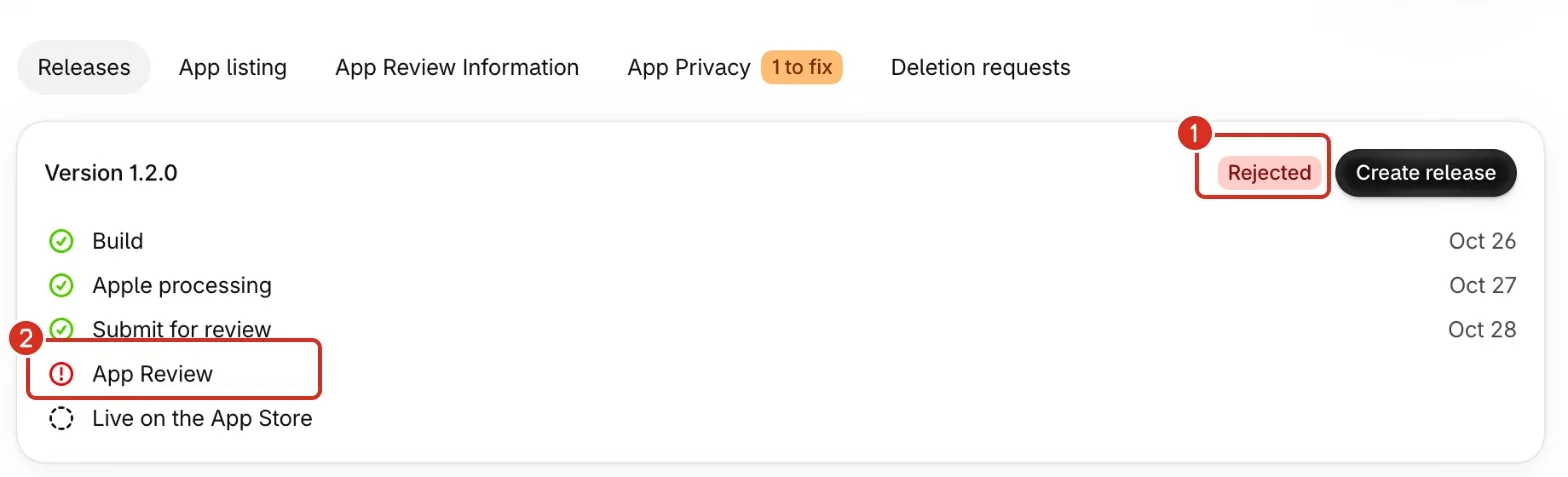
If the badge says Ready to submit and a red banner says Apple can't review this version yet, Apple never took the version into review. Skip to the section “Fix a version Apple can't review yet” below.
Read what Apple said
To read and answer Apple's message, you need the Account Holder, Admin or App Manager role in App Store Connect (Apple's help on replying to App Review).
- On the Releases tab, find the Apple rejected this version card under the version card.
- Select Open Resolution Center. It opens your app's review submissions in App Store Connect, in a new tab.
- Read Apple's message there. Note the guideline it names, if it names one, and what it asks you to change.
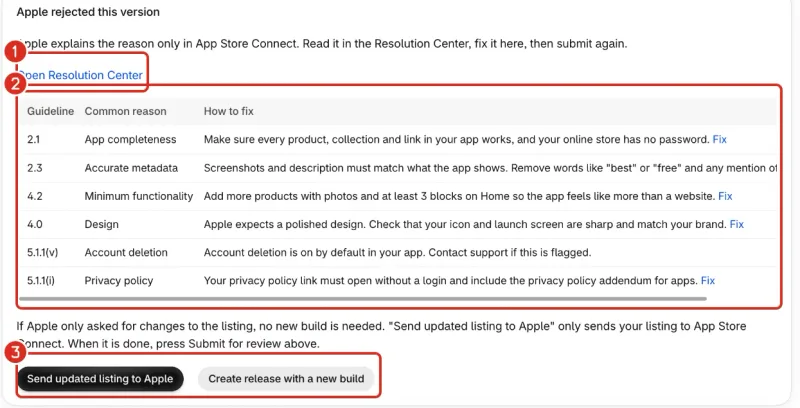
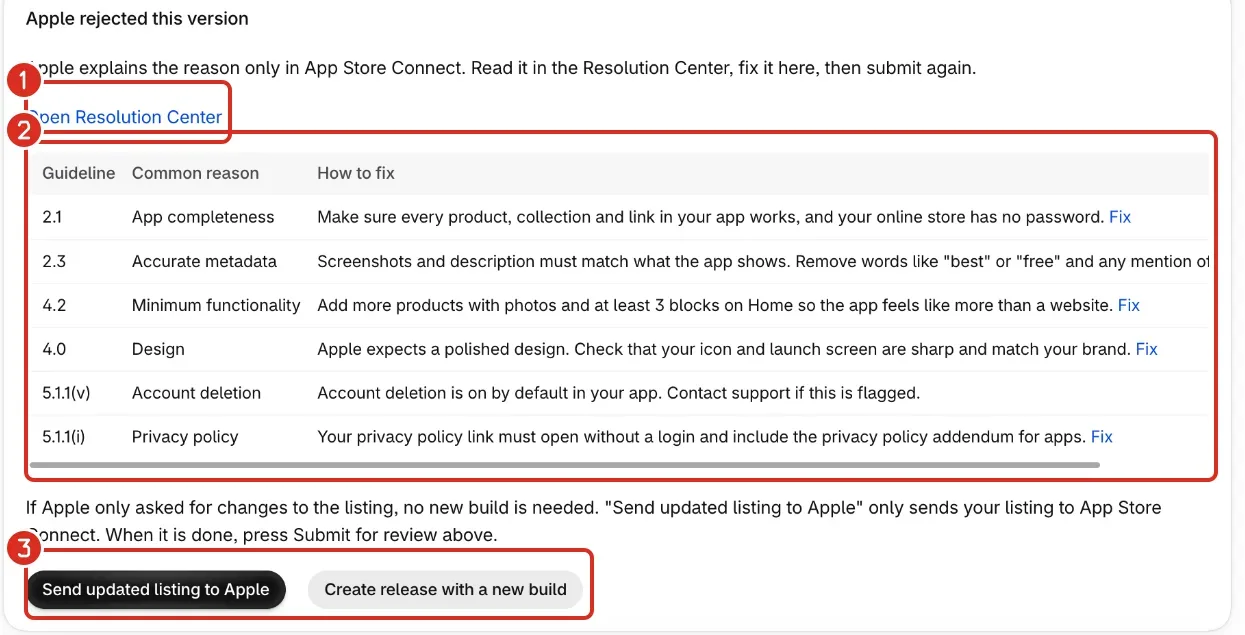
1: Open Resolution Center. 2: Common reasons and how to fix them. 3: Send updated listing, or create a release with a new build.
If you disagree with Apple, or need more detail, reply in App Store Connect:
- In Apps, select your app, then select the link at the top of the page about unresolved issues.
- In the In Progress section, select Resolve next to the submission, then select Reply to App Review.
- Enter your text in the Reply field and select Reply.
These steps are Apple's. Apple says you can keep writing to App Review until you submit again, and that the reply field isn't the place to appeal or ask for an expedited review (Apple's help on contacting App Review).
Match the guideline to a fix
The card lists six guidelines that app-builder apps hit most often. Find the one Apple named and follow the How to fix column. When Nativtap's own check still finds the problem, the row adds (still flagged by the pre-submit check). Select Fix in a row to open the page where you change it.
| Guideline | Common reason | How to fix | Where Fix opens |
|---|---|---|---|
| 2.1 | App completeness | Make sure every product, collection and link in your app works, and your online store has no password. | App design |
| 2.3 | Accurate metadata | Screenshots and description must match what the app shows. Remove words like "best" or "free" and any mention of other mobile platforms. | The App listing tab |
| 4.2 | Minimum functionality | Add more products with photos and at least 3 blocks on Home so the app feels like more than a website. | App design |
| 4.0 | Design | Apple expects a polished design. Check that your icon and launch screen are sharp and match your brand. | The App listing tab |
| 5.1.1(v) | Account deletion | Account deletion is on by default in your app. Contact support if this is flagged. | No link |
| 5.1.1(i) | Privacy policy | Your privacy policy link must open without a login and include the privacy policy addendum for apps. | The App Privacy tab |
For the listing rows, Write your App Store listing, Create your App Store screenshots and Answer App Privacy explain each field.
Tell a listing problem from an app problem
The paragraph under the table says which one Nativtap thinks it is, and darkens the button to match. Nativtap decides from the state Apple reports for the version. When Apple rejected only the listing's metadata, the card uses the listing wording. When Apple rejected the app or reports its build as invalid, the card uses the app wording.
- Listing: If Apple only asked for changes to the listing, no new build is needed. Send updated listing to Apple is the dark button.
- The app itself: Apple rejected the app itself, so a new build is the safest fix. Create release with a new build is the dark button.
For any other state, the card also uses the listing wording. Check Apple's message before you decide.
Fix a listing problem
- Change what Apple named, on the page the Fix link opens or on the App listing tab.
- Go back to the Releases tab. In the Apple rejected this version card, select Send updated listing to Apple. Nativtap runs the pre-submit check, then sends your listing and screenshots to App Store Connect again. It doesn't submit the version.
- In Before you submit, select Submit for review. Nothing goes to Apple until you do. If you select it too early, Nativtap says Your listing is still being sent to App Store Connect. Try again in a minute. Select it again after a minute.
Fix a problem in the app
- Change what Apple named. A new build carries a change to the App name, App icon, Launch screen or App Store listing.
- On the Releases tab, in the Apple rejected this version card, select Create release with a new build.
- In the dialog, check the list of changes and write What's new in this version. Select Create release.
- Follow the version card until the version is ready to submit, then select Submit for review.
The button only shows when something changed since your last release. Without a change, the card says Change your app name, icon, launch screen or listing first, or contact support for a rebuild. A release counts toward your builds for the month. Release your app on the App Store explains the steps and the limit.
Fix a version Apple can't review yet
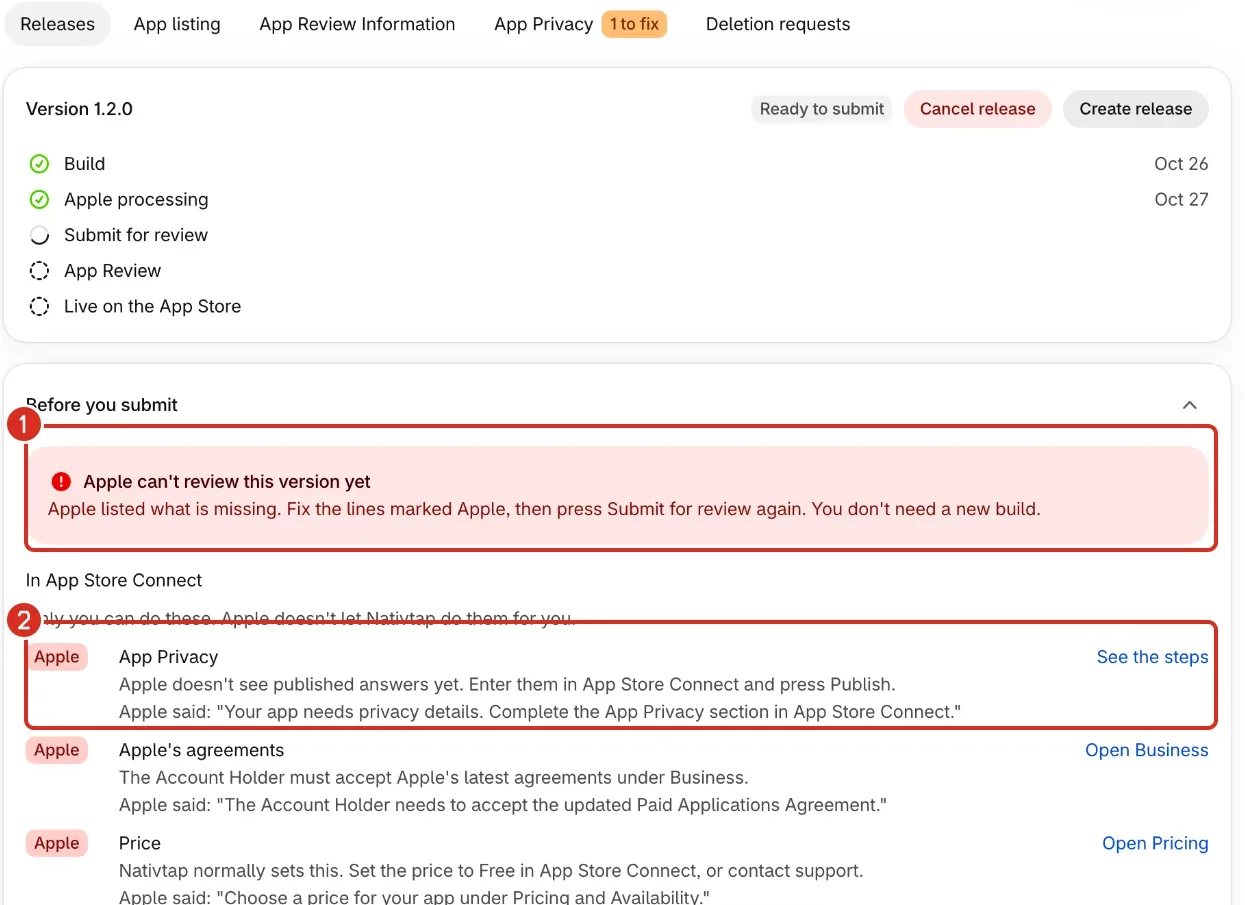
Sometimes you select Submit for review and Apple refuses to take the version into review. The version stays at Ready to submit, and Apple lists what is missing.
- On the Releases tab, open Before you submit. The banner Apple can't review this version yet sits at the top.
- Find the lines marked Apple. Each one repeats Apple's words after Apple said:.
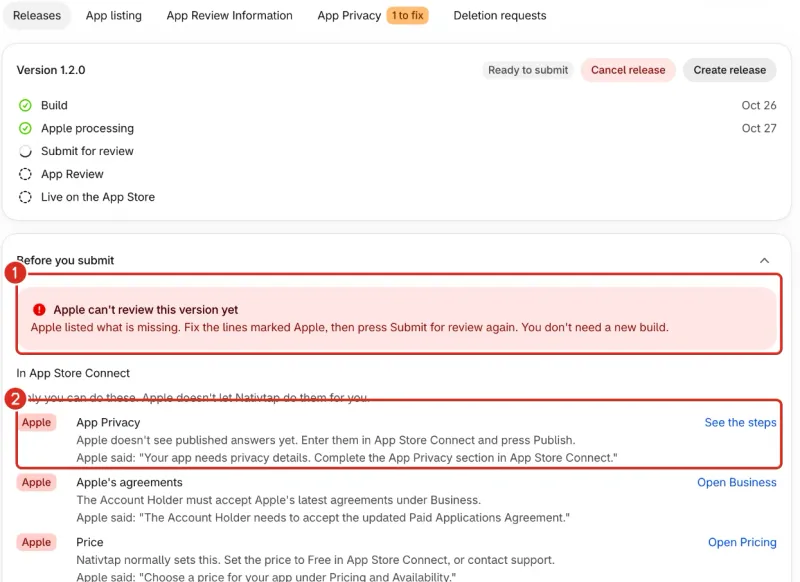
1: Apple can't review this version yet. 2: A line marked Apple, with Apple's words. - Select the link on each line, such as See the steps, Open Business or Open Pricing, and fix what it names.
- Select Submit for review again. You don't need a new build.
Contact the right team
Apple decides the review. Nativtap decides nothing about it, and can't read Apple's message.
- Why Apple rejected the version, or whether it can reconsider: use Reply to App Review in App Store Connect. Apple's help points to its Contact Us form for appeals and expedited reviews.
- The Nativtap side (a button that does nothing, a build that fails, a message you don't understand): select Contact support, select the Apple account and review topic, and send these.
- Apple's message, copied word for word from App Store Connect.
- A screenshot of the version card and the Apple rejected this version card.
- The version number, and the date and time you saw the problem.
- What you tried: which fix, and whether you used Send updated listing to Apple or Create release with a new build.
- Any Nativtap message, copied word for word.
Leave out shopper names, emails and addresses. Contact support shows the form.
Common problems
- Apple can't review this version yet
- Apple refused the version when you selected Submit for review, so it is not rejected yet. Fix the lines marked Apple in Before you submit, then select Submit for review again. You don't need a new build.
- Fix the items in the pre-submit check first
- Nativtap's check found a problem, so it didn't send your listing. Select the Fix link next to each item in the banner, then select Send updated listing to Apple again.
- Your listing is still being sent to App Store Connect. Try again in a minute.
- The listing hasn't reached Apple yet. Wait a minute, then select Submit for review again.
- This version can't be resubmitted right now
- The version isn't rejected any more, for example because the page was open in another tab. Reload the page and read the badge on the version card.
- Change your app name, icon, launch screen or listing first, or contact support for a rebuild.
- Nothing changed since your last release, so a new build has nothing to carry. Change one of the four things, or select Contact support and ask for a rebuild.
- Finish your App Store listing first
- The dialog lists the listing fields that are still empty. Fill them on the App listing and App Review Information tabs, then create the release again. Release your app on the App Store lists the other reasons a release can't be created.
- You've used this month's 4 builds. More builds on Dec 1, 2026
- The message ends with your own date, the day more builds open up. You can't create a release until then. If Apple rejected the listing only, use Send updated listing to Apple: it doesn't need a build. Release your app on the App Store explains the limit.
Related
Something wrong or out of date on this page? Tell us by email.
Still stuck?
Send us the exact message you see, and what you already tried.