 NativTap
To get customers to download your Shopify store's app, give them a reason only the app offers, then ask where they already shop: your website, your order confirmations, your packages and your social profiles. Give each placement its own tracking link, and use the first week to turn new installs into repeat buyers.
This guide is for small Shopify stores whose iPhone app is live on the App Store or about to be. Each step says what to set up and how to check that it worked.
Key takeaways
- An install needs a reason. An app-only offer, restock alerts by push and easier reorders give shoppers one.
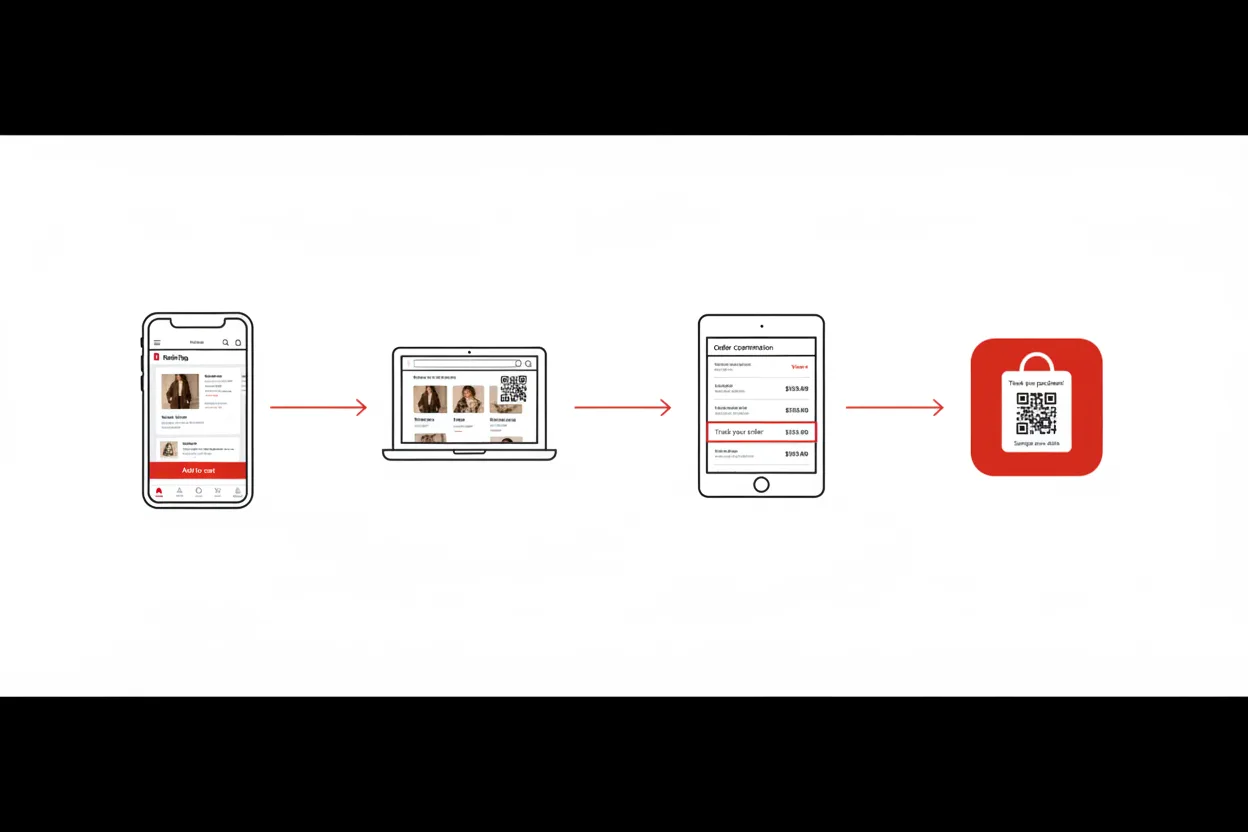
- Ask where shoppers already are: a "Get the app" banner on mobile, a QR code on desktop, a line on the order confirmation, and a QR insert in each package.
- Give each placement its own Apple campaign link, so App Store Connect shows which one brought the install.
- In the first week, ask for push permission with a reason, send one push worth opening, and ask for a rating.
Before you start
- Your app is live on the App Store, or submitted. You publish from your own Apple Developer account and pay Apple directly for the membership. Apple's first review can take 1–7 days.
- You know your app ID. In App Store Connect it's listed as Apple ID under App Information.
- You have one offer you can afford to give every app user for a month.
Step 1: Give shoppers a reason to install
Your customers already have your website. "Download our app" asks for space on their phone, so lead with what they get. Three reasons work for a small store:
- An offer that only works in the app. Unlike a code posted in an email, an app-only discount works only inside your app, which means it can't leak to coupon sites and every use is an app order. See Create an app-only discount for how it works in NativTap.
- The first word on restocks and new arrivals. A push lands on the lock screen, where your website and your emails never reach.
- Easier reorders. Signed-in shoppers find their order history and wishlist in the app.
The shoppers most likely to install already buy from you, and keeping them pays. In Harvard Business Review on October 29, 2014, Amy Gallo cites Bain & Company research by Frederick Reichheld: "increasing customer retention rates by 5% increases profits by 25% to 95%." An app won't produce that alone, but it gives repeat buyers a direct line back to your store.
Step 2: Put the app where shoppers already are
Ask when shoppers already pay attention to your store. These five placements cost nothing.
| Where | What shoppers see | Who it reaches |
|---|---|---|
| Mobile website | A "Get the app" banner at the top or bottom of the page | Shoppers browsing on iPhone |
| Desktop website | A QR code in a corner of the page | Shoppers on a laptop who own an iPhone |
| Order confirmation page and email | One line about your app offer and an App Store link | Buyers right after they pay |
| Package insert | A printed QR code with your offer | Buyers opening the box |
| Social profile and link page | Your App Store link | Followers who haven't bought yet |
Website banner and QR code
In your Shopify theme editor, turn on the NativTap app embed called Get the app banner. Then set the message, the button label, colors, position, and how long to wait before it shows. On desktop, the banner shows a QR code that shoppers can scan with their phone.
You can set it up before launch; the banner stays hidden until your app is live on the App Store. See Add a website banner.
Safari on iPhone
In Safari on iPhone, shoppers see Apple's banner instead of NativTap's. A Smart App Banner is Apple's standard install banner for Safari on iOS. It sits at the top of a web page, opens your App Store page when tapped, and opens the app instead when the shopper already has it.
Per Apple's Smart App Banner documentation, once a shopper closes it, it doesn't reappear when they return (checked November 23, 2026). Chrome and Instagram's in-app browser on iPhone show NativTap's banner.
Print and social
Apple's App Store Marketing Tools generate a QR code, a short link or a badge that leads to your product page. If you use the Download on the App Store badge, Apple's marketing guidelines ask for one badge per layout, placed so it isn't the dominant artwork, and never modified (checked November 23, 2026). Put the offer in words next to the code, for example "Scan for app-only offers and restock alerts."
Step 3: Track which channel brings installs
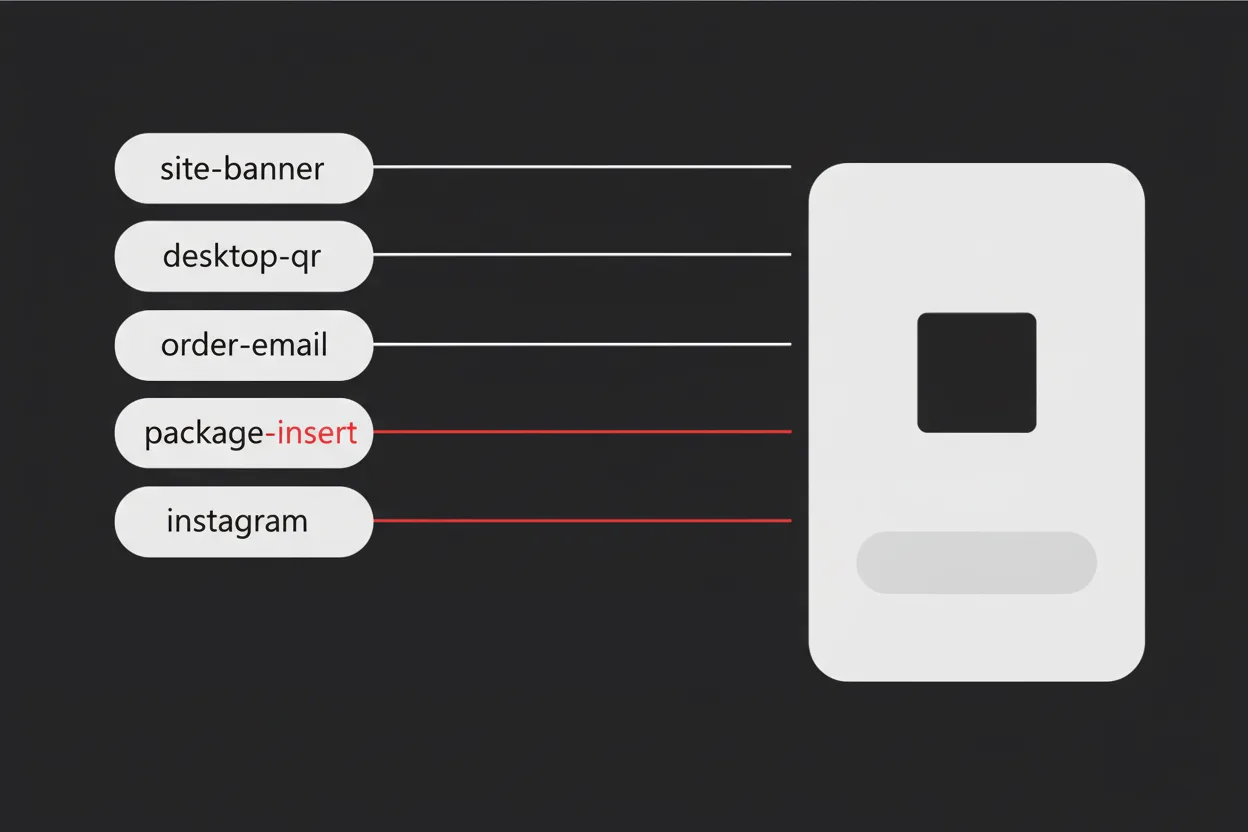
Give each placement its own link. Apple's campaign links add two parameters to your App Store URL: pt, a provider token that "identifies your developer account," and ct, a campaign token you create for each campaign. A first download within 24 hours of using the link counts toward that campaign (checked November 23, 2026).
Name the tokens after the placement: site-banner, desktop-qr, order-email, package-insert, instagram. Expect gaps at first. A campaign appears in Analytics only 24 hours after launch, and each metric shows once it reaches 5 in the date range.
In NativTap, enter your App Store provider ID under Install tracking on the App banner page, and installs from the banner show up in App Store Connect. Analytics shows installs next to app orders and revenue. Our guide to tracking installs and sales covers the weekly check.
Step 4: Keep new installs coming back
An install pays off when the shopper opens the app again. Three moves in the first week help.
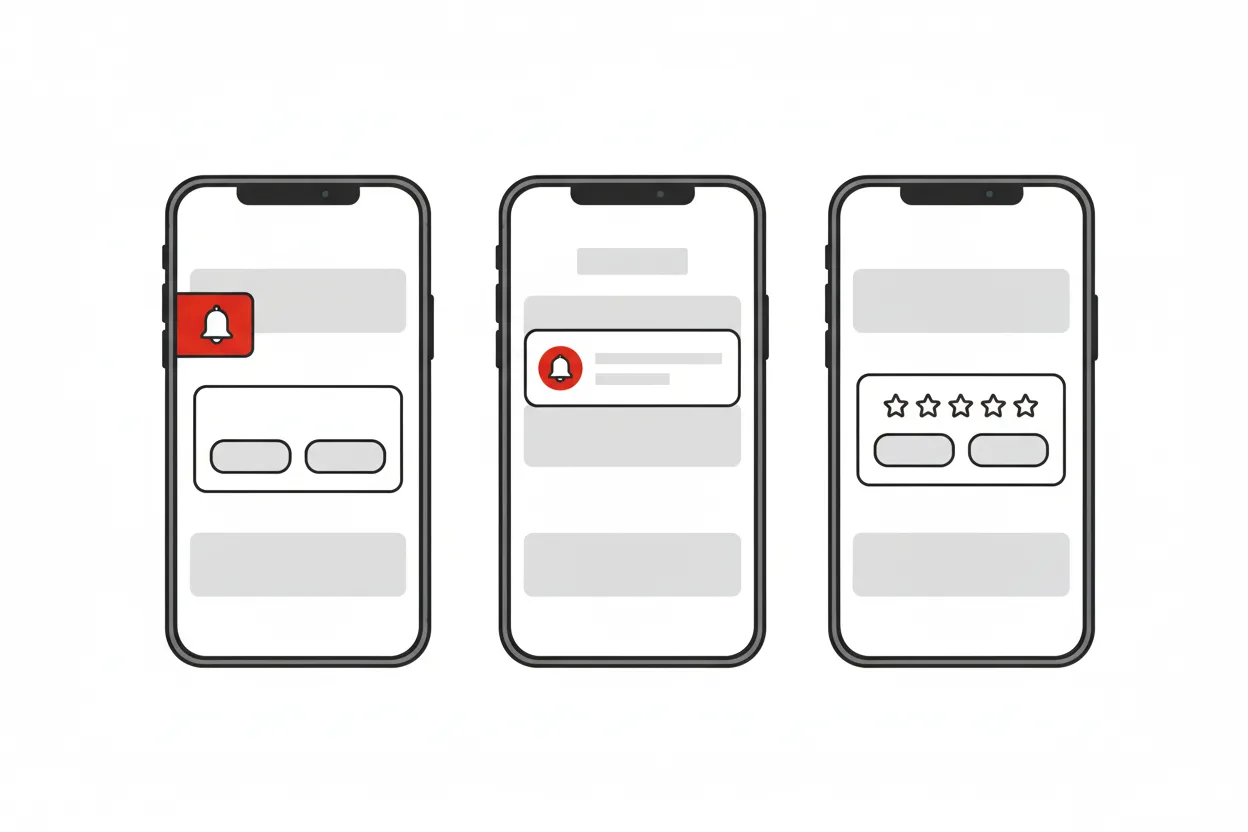
- Ask for push permission with a reason. After a shopper taps Don't Allow, iOS won't let the app ask again. NativTap shows your own message before the iOS prompt, and you can change it without a new release. Name the benefit: "Get restock alerts and app-only offers."
- Send one push worth opening. A welcome offer, a restock or a new collection. Send now or schedule it; each push goes to every device that allows notifications, and NativTap shows the orders and revenue that follow. See Send push notifications.
- Ask for a rating after a good moment. Apple shows your summary rating on your product page and in search results, and notes that "having few ratings may discourage potential users from downloading your app." Apps can ask up to three times in a 365-day period (Apple ratings and reviews, checked November 23, 2026). NativTap includes a rating prompt.
Turn on cart reminders too. By default NativTap sends one an hour after a shopper leaves a cart.
Common mistakes
- Printing inserts before approval. Apple's first review can take 1–7 days. Print once your App Store link works.
- Testing the banner only in Safari. Safari shows Apple's banner, so check NativTap's in Chrome on iPhone and on a desktop browser for the QR code.
- Using one link everywhere. Without separate campaign tokens you can't tell which placement works.
Where NativTap fits
Customers download your Shopify store's app when it gives them something your website doesn't, and when they see the ask where they already shop. NativTap turns your store into a native iPhone app and keeps the pieces for this in your Shopify admin: the Get the app banner and QR code, app-only discounts, push, a rating prompt and install analytics.
You publish from your own Apple Developer account, so the listing, ratings and installs stay with you. Free, no card required.
Your next step: write one app-only offer, then set up the banner so it goes live the day Apple approves your app.
FAQ
How do I get my customers to download my store's app?
Give them a reason the website doesn't, such as an app-only offer or restock alerts by push. Then ask where they already shop: a "Get the app" banner on your mobile site, a QR code on desktop, a line on your order confirmation and a QR insert in each package. Track each placement with its own campaign link.
Why doesn't my Get the app banner show in Safari?
Safari on iPhone shows Apple's Smart App Banner instead of NativTap's, so that is expected. Other iPhone browsers, such as Chrome or Instagram's in-app browser, show NativTap's banner. The banner also stays hidden until your app is live on the App Store, and a shopper who closes it won't see it again for the number of days you set.
Should I offer a discount for downloading my app?
An offer gives shoppers a concrete reason to install. Keep it inside the app if you can: a regular Shopify discount code works anywhere a shopper can enter it, so a code shared in the app can end up on your website. An app-only discount avoids that, and every use is an app order.
How do I know which channel brought an app install?
Use Apple's campaign links. Add your provider token (pt) and a separate campaign token (ct) for each placement to your App Store link. App Store Connect then credits first downloads made within 24 hours of using that link. Metrics appear once they reach 5 in the date range, so small campaigns can show nothing at first.
Does a store app help with repeat purchases?
An app gives repeat buyers a direct line back: push on the lock screen, app-only offers and saved order history. We don't publish customer results. Retention matters, though: Harvard Business Review (October 29, 2014) cites Bain & Company research that a 5% rise in retention increases profits by 25% to 95%. Measure your own app orders in analytics.