 NativTap
Before you begin
- A release is a new version of your app that goes to Apple. The Create release dialog says its changes reach your customers after Apple approves the new version.
- The Live now badge, the banner and the email in this article only matter once your app is live on the App Store. Before that, your first release carries everything.
- You see three kinds of version number, and they are different things. Version on Home, and the message after you publish, count your published design. App Store version is the version shoppers download. Nativtap followed by a number, as in Nativtap X is available, is Nativtap's own version of the app code that a new release builds on.
- A release also counts toward your builds for the month. The article Release your app on the App Store explains the steps and the limit.
Check whether a change goes live now
Nativtap sorts what you can change into two groups. Once your app is live on the App Store, the editor shows a Live now badge near Save when the editor bar is wide enough, and the App Store listing card shows a Needs a new build badge. Before your app is live, neither badge shows.
| What you change | Where you change it | When shoppers see it |
|---|---|---|
| Screens and the blocks on them | Editor, Screens panel | When you publish. No new release. |
| The pages shoppers open, such as the product, collection and cart pages | Editor, Screens panel | When you publish. No new release. |
| Navigation | Editor, Navigation panel | When you publish. No new release. |
| Theme: your logo, colors, font and corners, or a ready-made theme | Editor, Branding panel. Or on App design, select Apply on a theme, then Apply theme in the window. | When you publish. No new release. |
| App name | App listing tab | With your next release, after Apple approves it. |
| App icon | App listing tab | With your next release, after Apple approves it. |
| Launch screen | App listing tab | With your next release, after Apple approves it. |
| App Store listing | App listing tab | With your next release, after Apple approves it. |
Both ways of changing the theme change your draft only. Nativtap says Your app changes when you publish. To publish an edit that is already saved:
- From your Shopify admin, go to Nativtap > Home.
- Look under your app's name for You have unpublished changes. Shoppers still see version and a number. It means your edits are saved but not live yet.
- Select Publish. A message says Published version followed by a number, then No new build needed.
In the editor, open the menu next to Save and select Save and publish to get the same result. Design your app covers the editor.
For the second group, the notes under the fields say the same thing. Under App name, Nativtap says Ships with your next release. At the top of the App Store listing card, next to Needs a new build, it says Changes go live with your next release. Set your app's name, icon and launch screen and Write your App Store listing explain the fields.
Find out about a new Nativtap version
When Nativtap has a new version of its app code, your app doesn't change by itself. You decide when to make a release that carries it. Nativtap tells you in two ways.
- From your Shopify admin, go to Nativtap > Home.
- Read the blue banner Nativtap X is available, where X is the version. Under the heading is a one-line summary of what changed.
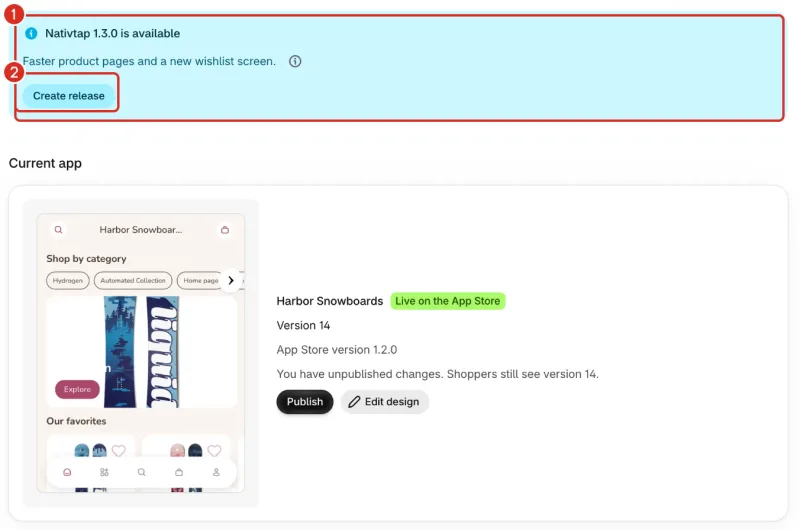
1: The new version banner. 2: Create release. - Point to, or move the keyboard focus to, the information icon next to the summary. Its label is What's new in Nativtap X and it shows the details. The icon only appears when Nativtap has details to give.
- Select Create release when you want the new version in your app.
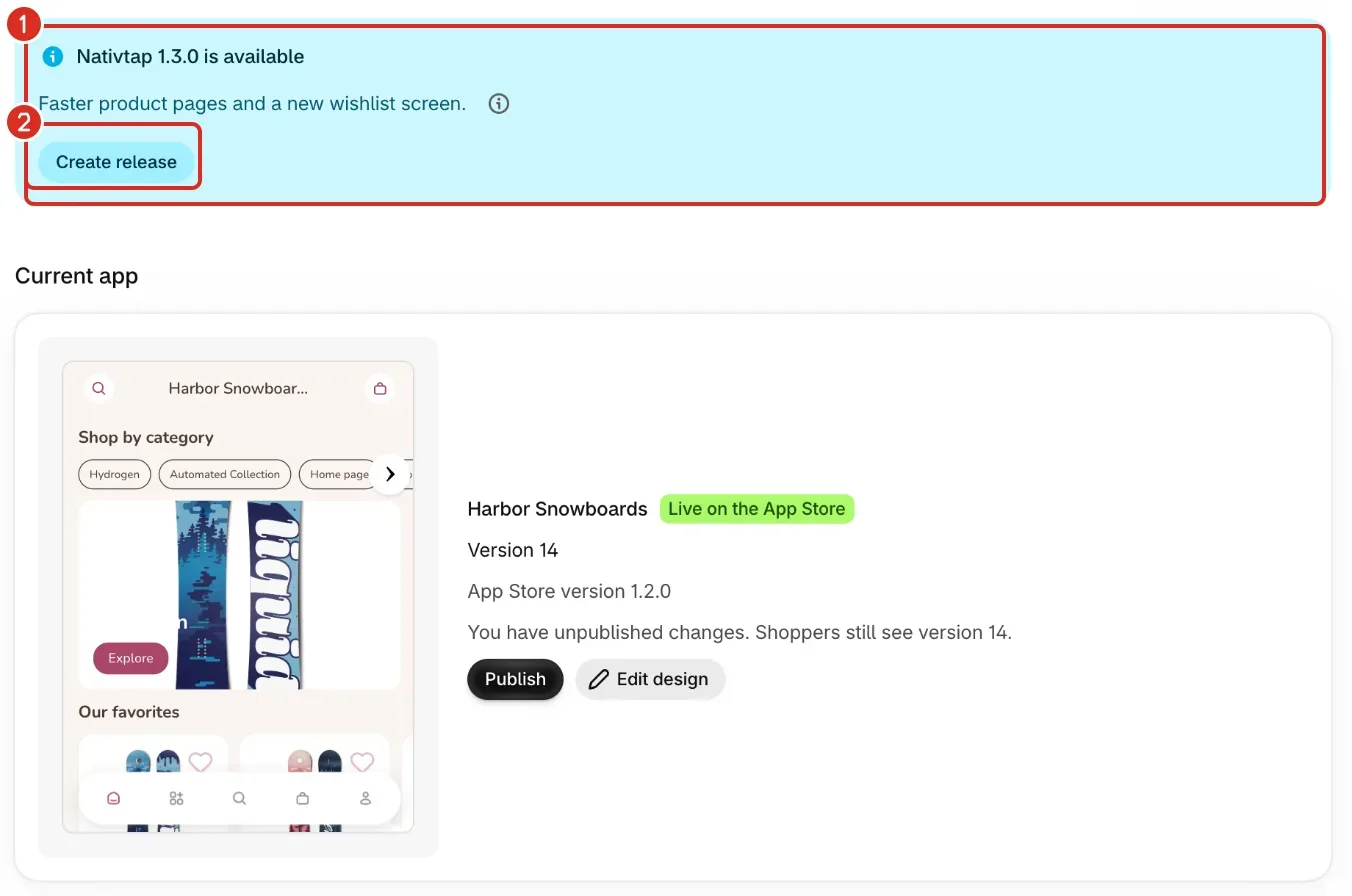
If you don't want the new version yet, select the close button on the banner to hide it.
The same banner shows above the tabs on the App Store page, with its own Create release button, and on the App submission page when your Apple account is connected.
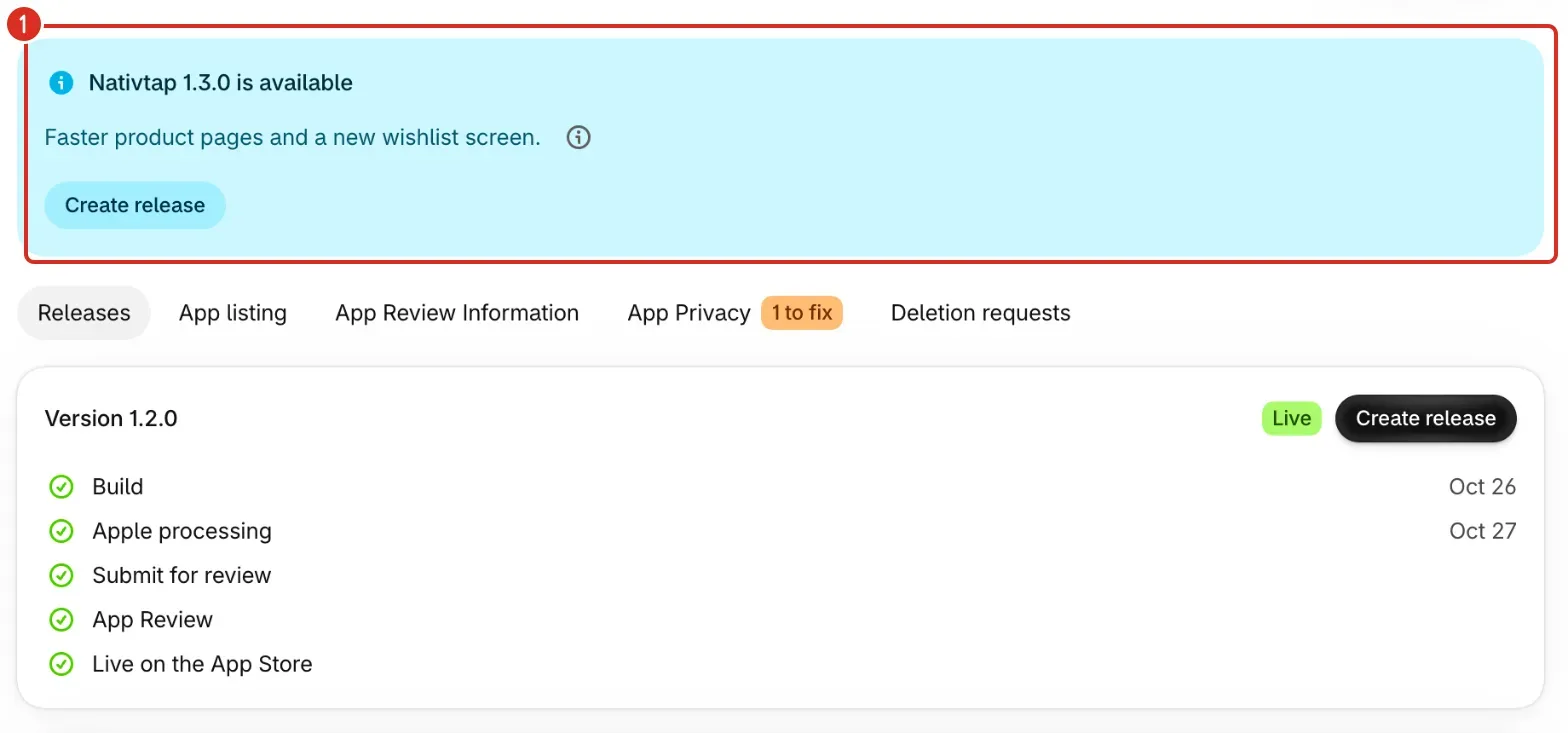
- When it shows: Nativtap has announced the new version, your app is live on the App Store, you have no release on its way, your store isn't locked, and you have not made a release on that version. Nativtap doesn't show it for an app that is waiting for a rebuild Nativtap runs for many stores at once. Only one banner shows on a page, so a more urgent one, such as a problem with your store or your Apple account, can hide it for now.
- When it goes away: after you close it, on every page at once. It also goes away after you create a release, since that release carries the new version.
- Where it isn't: the banner is not listed under Updates.
The email
Nativtap also sends one email for each new version. Its subject is the same as the banner heading. The email gives the summary, the details, a line that says Create a release when you're ready. Your customers get the update after Apple approves it. and a Create release button that opens the dialog.
- It goes to your store's contact email, and only when Email me about App Store updates is on.
- It is sent once per version for your store, not again if you close the banner.
To change the setting:
- From your Shopify admin, go to Nativtap > App submission > Manage App Store.
- On the Releases tab, open Email notifications.
- Turn Email me about App Store updates on or off.
- Select Save in the Shopify save bar.
Every email also has a Turn off these emails link at the bottom. It opens this setting in Nativtap, where you turn the switch off and save. It doesn't turn the emails off by itself.
Create the release
The Create release button on the banner or in the email opens the same dialog as the Releases tab. Release your app on the App Store covers everything after it: the build, the Before you submit checks and sending the version to Apple.
- From your Shopify admin, go to Nativtap > Home.
- On the banner Nativtap X is available, select Create release. If you came from the email, the dialog is already open.
- Read the list under These changes reach your customers after Apple approves the new version:. A line that starts with Nativtap X names the new Nativtap version.
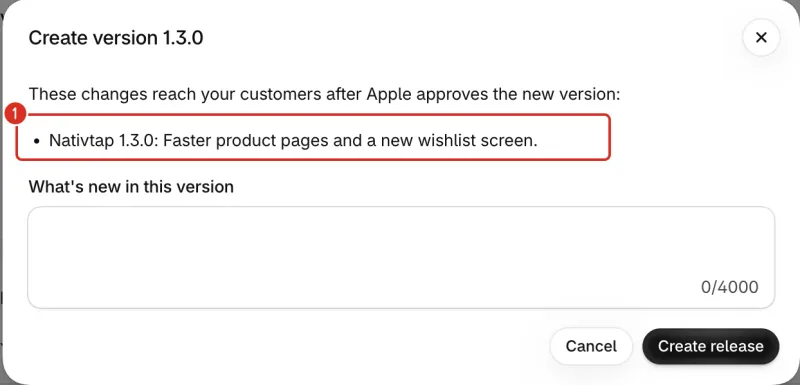
- Write What's new in this version.
- Select Create release in the dialog.
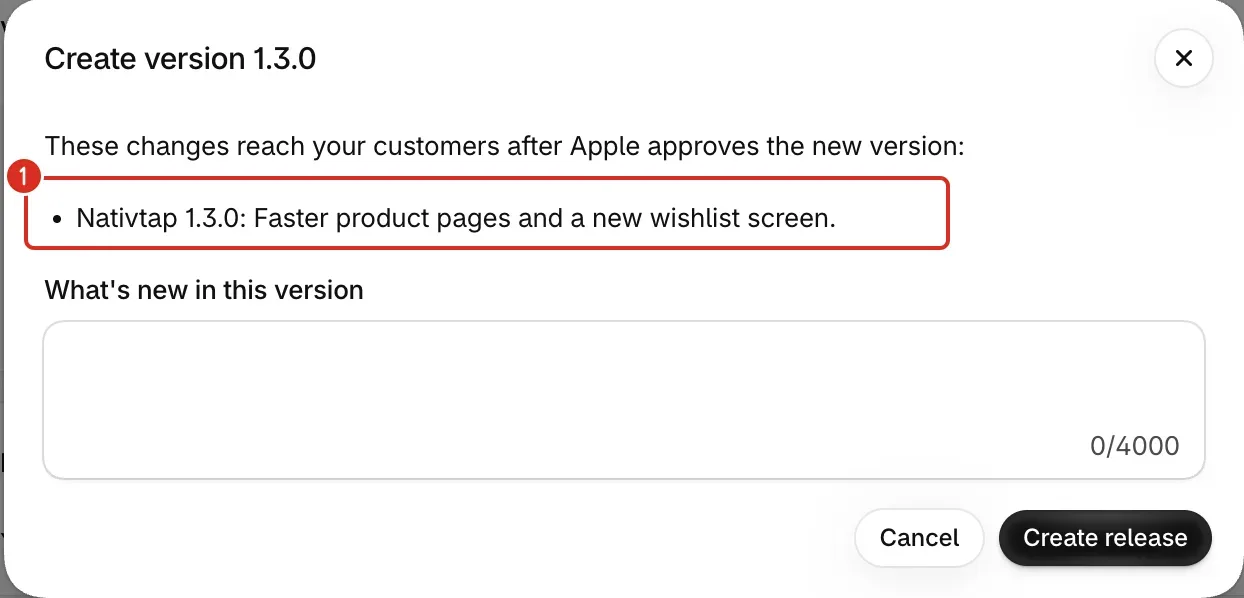
The line for a new Nativtap version only shows when you have made a release before. Your first release carries everything, so it lists the four changes in the table above instead. If Apple rejects the version, Fix an Apple rejection says when a new build is needed.
Common problems
- Nothing has changed since your last release. Edits you publish from the editor reach your app without a new release.
- You have not changed the app name, icon, launch screen or listing, and there is no new Nativtap version to add. If you edited blocks, pages, theme or navigation, select Publish on Home instead. That reaches your app without a release.
- The Create release dialog says a release can't be created
- Release your app on the App Store lists every reason the dialog gives, such as an unfinished listing, a release already on its way and an Apple account that isn't connected, with what to do for each.
- I changed my icon or name, but the App Store still shows the old one
- The change is saved, but it is not in the app on the App Store yet. Create a release, and the new name or icon reaches shoppers after Apple approves that version.
- I published, but shoppers don't see the change
- Look at the message after Publish. If it says Published version and a number, your edit is live. If Home still says You have unpublished changes, select Publish. If you changed the name, icon, launch screen or listing, that change needs a release.
- I don't see the Nativtap banner or the email
- Nativtap shows the banner only after it announces the new version, so a new version may not have been announced yet. After that, the banner needs a live app, no release on its way, an unlocked store, and no release yet on the new version. You may also have closed it, or a more urgent banner may be showing. For the email, check that Email me about App Store updates is on and that your Shopify store has a contact email. If it still doesn't show, Contact support.
Related
Something wrong or out of date on this page? Tell us by email.
Still stuck?
Send us the exact message you see, and what you already tried.